
Practice Free AZ-400 Exam Online Questions
You manage a project by using Azure Boards, and you manage the project code by using Azure Repos. You have a bug work item that has an ID of 123. You need to set the work item state to Resolved.
What should you add to the commit message?
- A . Fixes #123
- B . Resolves #AB-123
- C . #123 completes
- D . #123 Resolved
SIMULATION
Task 5
You plan to stoic signed images in an Azure Container Registry instance named az40038443478act1.
You need to modify the SKU for az40038443478aa1 to support the planned images. The solution must minimize costs.
Determine the Appropriate SKU:
Content trust and image signing are features of the Premium service tier of Azure ContainerRegistry1.
If cost minimization is a priority, ensure that the Premium tier is necessary for your use case. If you require content trust, the Premium tier is the appropriate choice.
Modify the SKU of the ACR Instance:
Navigate to the Azure Portal.
Go to your ACR instanceaz40038443478act1.
Select Update from the overview pane.
Choose the Premium SKU from the SKU drop-down menu2.
Review the changes and pricing, then save the configuration.
By upgrading to the Premium SKU, you’ll be able to store signed images in your ACR instance.
Remember to monitor your usage and costs to ensure they align with your budget and requirements.
You have an Azure DevOps project named Project1 and an Azure subscription named Sub1. Sub1 contains an Azure virtual machine scale set named VMSS1. VMSS1 hosts a web application named
WebApp1. WebApp1 uses state full sessions.
The WebApp1 installation is managed by using the Custom Script extension. The script resides in an Azure Storage account named sa1.
You plan to make a minor change to a UI element of WebApp1 and to gather user feedback about the change.
You need to implement limited user testing for the new version of WebApp1 on VMSS1.
Which three actions should you perform? Each correct answer presents part of the solution. NOTE: Each correct selection is worth one point.
- A . Modify the load balancer settings of VMSS1.
- B . Redeploy VMSS1.
- C . Upload a custom script file to sa1.
- D . Modify the Custom Script extension settings of VMSS1.
- E . Update the configuration of a virtual machine in VMSS1.
You have an Azure DevOps project named Project1 and an Azure subscription named Sub1. Sub1 contains an Azure virtual machine scale set named VMSS1. VMSS1 hosts a web application named
WebApp1. WebApp1 uses state full sessions.
The WebApp1 installation is managed by using the Custom Script extension. The script resides in an Azure Storage account named sa1.
You plan to make a minor change to a UI element of WebApp1 and to gather user feedback about the change.
You need to implement limited user testing for the new version of WebApp1 on VMSS1.
Which three actions should you perform? Each correct answer presents part of the solution. NOTE: Each correct selection is worth one point.
- A . Modify the load balancer settings of VMSS1.
- B . Redeploy VMSS1.
- C . Upload a custom script file to sa1.
- D . Modify the Custom Script extension settings of VMSS1.
- E . Update the configuration of a virtual machine in VMSS1.
SIMULATION
Task 7
Initialize the default main branch, if it does not exist already
In the User 1-42147509 organization, you need to install the Microsoft Security DevOps extension.
Next, create a new starter pipeline named starter1 that will use the following starter code.
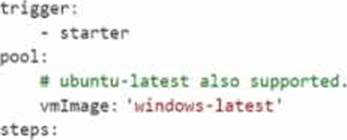
Ensure that starter! includes a task that executes the extension and uses the following input*:
• Command: run
• Policy aruredevops
• Publish: true
Save the pipeline to anew branch named starter
Navigate to Azure DevOps:
Go to Azure DevOps and sign in with your credentials.
Select Your Project:
Choose Project1 from your list of projects.
Initialize the Main Branch:
Go to Repos > Files.
If the main branch does not exist, you will see an option to initialize it. Click on Initialize and follow the prompts to create the main branch1.
Step 2: Install the Microsoft Security DevOps Extension
Navigate to Extensions:
In Azure DevOps, click on the Shopping Bag icon in the top right corner and select Browse Marketplace.
Search for the Extension:
Search for Microsoft Security DevOps.
Install the Extension:
Click on Get it free.
Select your organization (User1-42147509) and click Install.
Follow the prompts to complete the installation2.
Step 3: Create a New Starter Pipeline
Navigate to Pipelines:
Go to Pipelines > New pipeline.
Select the Repository:
Choose Azure Repos Git and select the relevant repository.
Configure the Pipeline:
Select Starter pipeline and replace the default YAML with the following starter code:
trigger:
– starter
pool:
vmImage: ‘windows-latest’
steps:
– task: MicrosoftSecurityDevOps@1 inputs:
command: ‘run’
policy: ‘azuredevops’
publish: true
Save the Pipeline:
Click on Save and enter starter as the branch name.
Click on Save and run to save the pipeline to the new branch named starter3.
By following these steps, you will have successfully initialized the main branch, installed the Microsoft Security DevOps extension, and created a new starter pipeline named starter1 that includes the specified task
SIMULATION
Task 7
Initialize the default main branch, if it does not exist already
In the User 1-42147509 organization, you need to install the Microsoft Security DevOps extension.
Next, create a new starter pipeline named starter1 that will use the following starter code.
Ensure that starter! includes a task that executes the extension and uses the following input*:
• Command: run
• Policy aruredevops
• Publish: true
Save the pipeline to anew branch named starter
Navigate to Azure DevOps:
Go to Azure DevOps and sign in with your credentials.
Select Your Project:
Choose Project1 from your list of projects.
Initialize the Main Branch:
Go to Repos > Files.
If the main branch does not exist, you will see an option to initialize it. Click on Initialize and follow the prompts to create the main branch1.
Step 2: Install the Microsoft Security DevOps Extension
Navigate to Extensions:
In Azure DevOps, click on the Shopping Bag icon in the top right corner and select Browse Marketplace.
Search for the Extension:
Search for Microsoft Security DevOps.
Install the Extension:
Click on Get it free.
Select your organization (User1-42147509) and click Install.
Follow the prompts to complete the installation2.
Step 3: Create a New Starter Pipeline
Navigate to Pipelines:
Go to Pipelines > New pipeline.
Select the Repository:
Choose Azure Repos Git and select the relevant repository.
Configure the Pipeline:
Select Starter pipeline and replace the default YAML with the following starter code:
trigger:
– starter
pool:
vmImage: ‘windows-latest’
steps:
– task: MicrosoftSecurityDevOps@1 inputs:
command: ‘run’
policy: ‘azuredevops’
publish: true
Save the Pipeline:
Click on Save and enter starter as the branch name.
Click on Save and run to save the pipeline to the new branch named starter3.
By following these steps, you will have successfully initialized the main branch, installed the Microsoft Security DevOps extension, and created a new starter pipeline named starter1 that includes the specified task
SIMULATION
Task 7
Initialize the default main branch, if it does not exist already
In the User 1-42147509 organization, you need to install the Microsoft Security DevOps extension.
Next, create a new starter pipeline named starter1 that will use the following starter code.
Ensure that starter! includes a task that executes the extension and uses the following input*:
• Command: run
• Policy aruredevops
• Publish: true
Save the pipeline to anew branch named starter
Navigate to Azure DevOps:
Go to Azure DevOps and sign in with your credentials.
Select Your Project:
Choose Project1 from your list of projects.
Initialize the Main Branch:
Go to Repos > Files.
If the main branch does not exist, you will see an option to initialize it. Click on Initialize and follow the prompts to create the main branch1.
Step 2: Install the Microsoft Security DevOps Extension
Navigate to Extensions:
In Azure DevOps, click on the Shopping Bag icon in the top right corner and select Browse Marketplace.
Search for the Extension:
Search for Microsoft Security DevOps.
Install the Extension:
Click on Get it free.
Select your organization (User1-42147509) and click Install.
Follow the prompts to complete the installation2.
Step 3: Create a New Starter Pipeline
Navigate to Pipelines:
Go to Pipelines > New pipeline.
Select the Repository:
Choose Azure Repos Git and select the relevant repository.
Configure the Pipeline:
Select Starter pipeline and replace the default YAML with the following starter code:
trigger:
– starter
pool:
vmImage: ‘windows-latest’
steps:
– task: MicrosoftSecurityDevOps@1 inputs:
command: ‘run’
policy: ‘azuredevops’
publish: true
Save the Pipeline:
Click on Save and enter starter as the branch name.
Click on Save and run to save the pipeline to the new branch named starter3.
By following these steps, you will have successfully initialized the main branch, installed the Microsoft Security DevOps extension, and created a new starter pipeline named starter1 that includes the specified task
You plan to deploy a solution that will include multiple microservices.
You need to recommend a deployment strategy for the microservices.
The solution must meet the following requirements:
• Enable users to test new features by using aspecific URL.
• Minimize the effort required to promote a test version to production.
• Minimize the effort required to revert production code to the previous version.
Which strategy should you recommend?
- A . A/B
- B . feature toggle
- C . progressive exposure
- D . blue/green
You have a pipeline named Pipeline1 in Azure Pipelines.
You need to create a service connection to enable Pipeline1 to download a public container image.
Which type of service connection should you create?
- A . a Docker host
- B . Azure Service Fabric
- C . Azure Kubernetes Service (AKS)
- D . a Docker registry
You have a pipeline named Pipeline1 in Azure Pipelines.
You need to create a service connection to enable Pipeline1 to download a public container image.
Which type of service connection should you create?
- A . a Docker host
- B . Azure Service Fabric
- C . Azure Kubernetes Service (AKS)
- D . a Docker registry