
Practice Free MD-102 Exam Online Questions
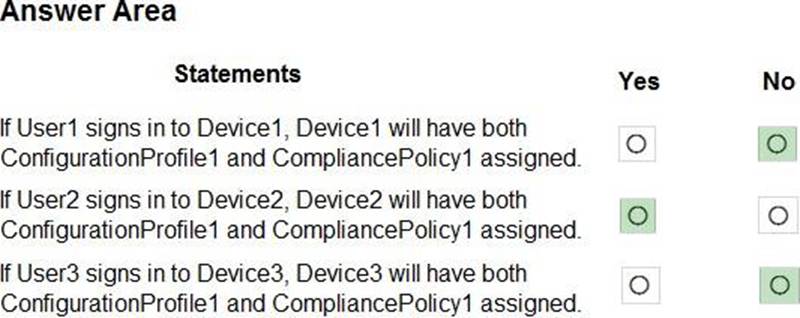
HOTSPOT
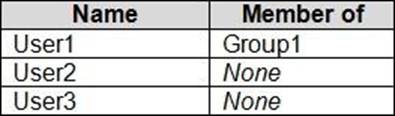
You have a Microsoft 36S subscription, use Microsoft Intune. and have the users shown in the following table.
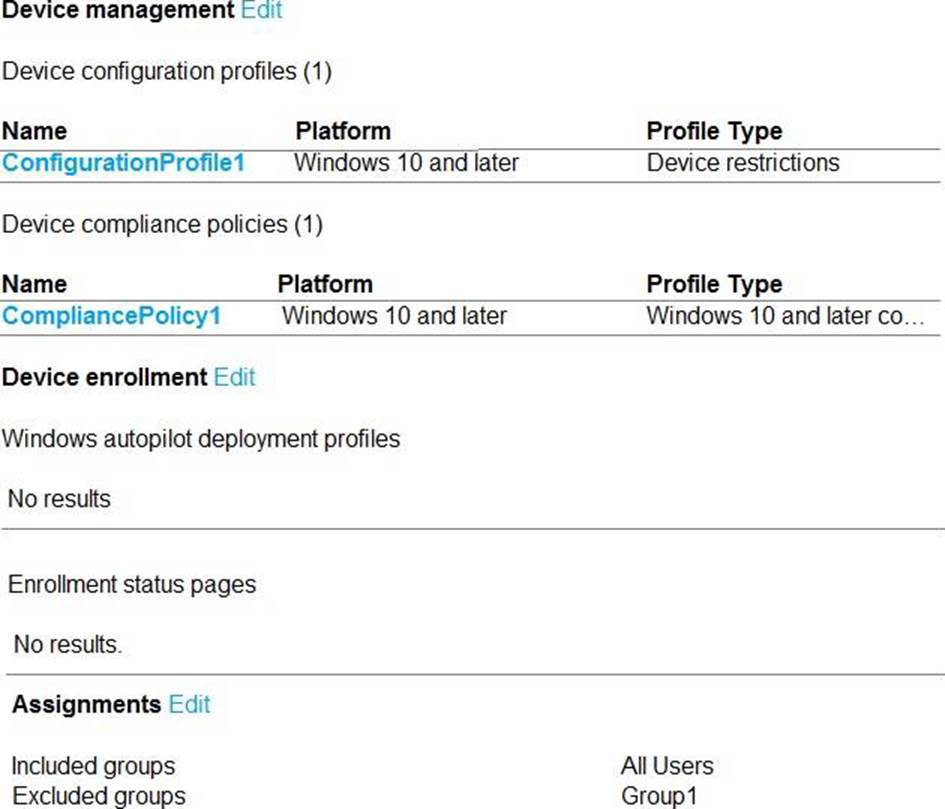
You create a policy set named Set1 as shown in the exhibit. (Click the Exhibit tab.)
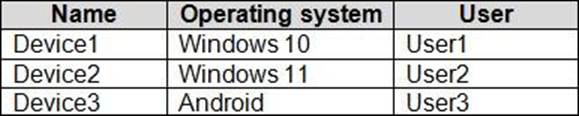
Users have enrolled devices in Intune as shown in the following table.
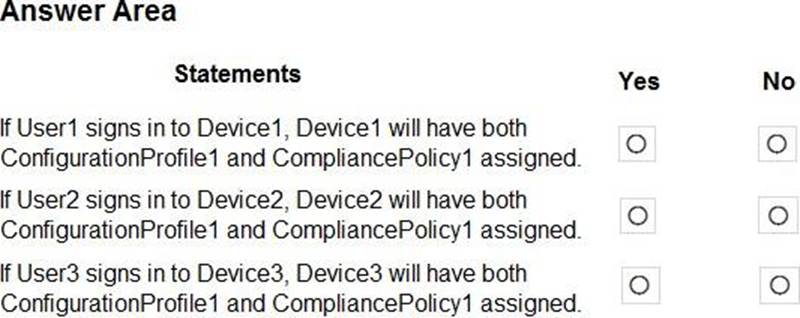
For each of the following statements, select Yes if the statement is true. Otherwise, select No. NOTE: Each correct selection is worth on* point.
DRAG DROP
You have a Microsoft 365 subscription that contains the devices shown in the following table.
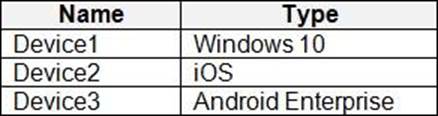
You need to ensure that only devices running trusted firmware or operating system builds can access network resources.
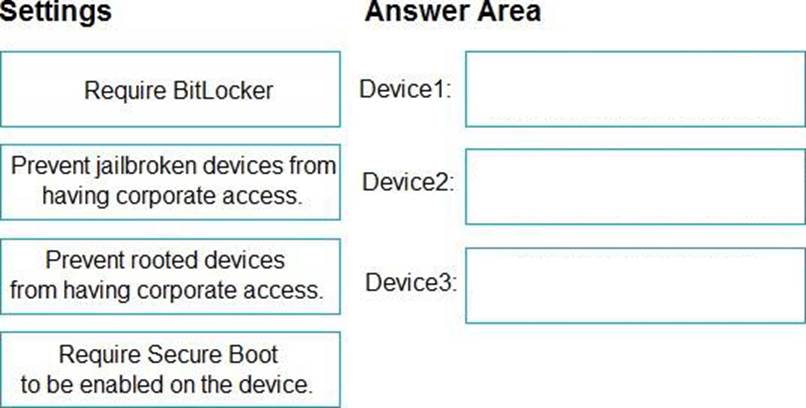
Which compliance policy setting should you configure for each device? To answer, drag the appropriate settings to the correct devices. Each setting may be used once, more than once, or not at all. You may need to drag the split bar between panes or scroll to view content. NOTE: Each correct selection is worth one point.
Explanation:
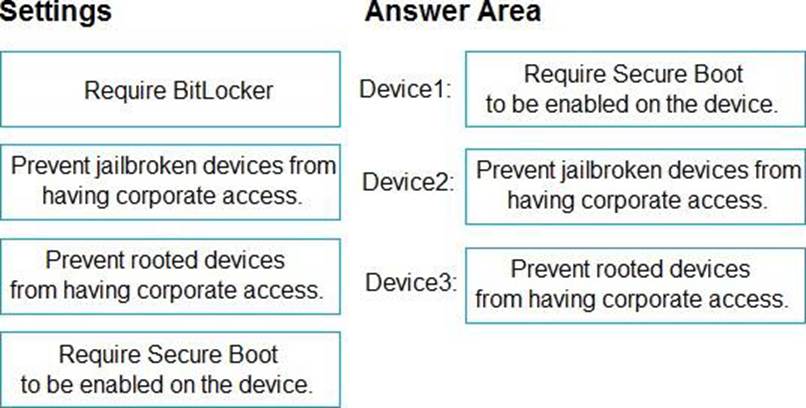
Box 1:
Device Compliance settings for Windows 10/11 in Intune
There are the different compliance settings you can configure on Windows devices in Intune. As part of your mobile device management (MDM) solution, use these settings to require BitLocker, set a minimum and maximum operating system, set a risk level using Microsoft Defender for Endpoint, and more.
Note: Windows Health Attestation Service evaluation rules
Require BitLocker:
Windows BitLocker Drive Encryption encrypts all data stored on the Windows operating system volume. BitLocker uses the Trusted Platform Module (TPM) to help protect the Windows operating system and user data. It also helps confirm that a computer isn’t tampered with, even if its left unattended, lost, or stolen. If the computer is equipped with a compatible TPM, BitLocker uses the TPM to lock the encryption keys that protect the data. As a result, the keys can’t be accessed until the TPM verifies the state of the computer.
Not configured (default) – This setting isn’t evaluated for compliance or non-compliance. Require – The device can protect data that’s stored on the drive from unauthorized access when the system is off, or hibernates.
Box 2: Prevent jailbroken devices from having corporate access Device Compliance settings for iOS/iPadOS in Intune
There are different compliance settings you can configure on iOS/iPadOS devices in Intune. As part of your mobile device management (MDM) solution, use these settings to require an email, mark rooted (jailbroken) devices as not compliant, set an allowed threat level, set passwords to expire, and more.
Device Health
Jailbroken devices
Supported for iOS 8.0 and later
Not configured (default) – This setting isn’t evaluated for compliance or non-compliance.
Block – Mark rooted (jailbroken) devices as not compliant.
Box 3: Prevent rooted devices from having corporate access.
Device compliance settings for Android Enterprise in Intune
There are different compliance settings you can configure on Android Enterprise devices in Intune. As part of your mobile device management (MDM) solution, use these settings to mark rooted devices as not compliant, set an allowed threat level, enable Google Play Protect, and more.
Device Health – for Personally-Owned Work Profile
Rooted devices
Not configured (default) – This setting isn’t evaluated for compliance or non-compliance.
Block – Mark rooted devices as not compliant.
Reference:
https://docs.microsoft.com/en-us/mem/intune/protect/compliance-policy-create-windows
https://docs.microsoft.com/en-us/mem/intune/protect/compliance-policy-create-android-for-work
https://docs.microsoft.com/en-us/mem/intune/protect/compliance-policy-create-ios
DRAG DROP
You have a Microsoft 365 subscription that contains the devices shown in the following table.
You need to ensure that only devices running trusted firmware or operating system builds can access network resources.
Which compliance policy setting should you configure for each device? To answer, drag the appropriate settings to the correct devices. Each setting may be used once, more than once, or not at all. You may need to drag the split bar between panes or scroll to view content. NOTE: Each correct selection is worth one point.
Explanation:
Box 1:
Device Compliance settings for Windows 10/11 in Intune
There are the different compliance settings you can configure on Windows devices in Intune. As part of your mobile device management (MDM) solution, use these settings to require BitLocker, set a minimum and maximum operating system, set a risk level using Microsoft Defender for Endpoint, and more.
Note: Windows Health Attestation Service evaluation rules
Require BitLocker:
Windows BitLocker Drive Encryption encrypts all data stored on the Windows operating system volume. BitLocker uses the Trusted Platform Module (TPM) to help protect the Windows operating system and user data. It also helps confirm that a computer isn’t tampered with, even if its left unattended, lost, or stolen. If the computer is equipped with a compatible TPM, BitLocker uses the TPM to lock the encryption keys that protect the data. As a result, the keys can’t be accessed until the TPM verifies the state of the computer.
Not configured (default) – This setting isn’t evaluated for compliance or non-compliance. Require – The device can protect data that’s stored on the drive from unauthorized access when the system is off, or hibernates.
Box 2: Prevent jailbroken devices from having corporate access Device Compliance settings for iOS/iPadOS in Intune
There are different compliance settings you can configure on iOS/iPadOS devices in Intune. As part of your mobile device management (MDM) solution, use these settings to require an email, mark rooted (jailbroken) devices as not compliant, set an allowed threat level, set passwords to expire, and more.
Device Health
Jailbroken devices
Supported for iOS 8.0 and later
Not configured (default) – This setting isn’t evaluated for compliance or non-compliance.
Block – Mark rooted (jailbroken) devices as not compliant.
Box 3: Prevent rooted devices from having corporate access.
Device compliance settings for Android Enterprise in Intune
There are different compliance settings you can configure on Android Enterprise devices in Intune. As part of your mobile device management (MDM) solution, use these settings to mark rooted devices as not compliant, set an allowed threat level, enable Google Play Protect, and more.
Device Health – for Personally-Owned Work Profile
Rooted devices
Not configured (default) – This setting isn’t evaluated for compliance or non-compliance.
Block – Mark rooted devices as not compliant.
Reference:
https://docs.microsoft.com/en-us/mem/intune/protect/compliance-policy-create-windows
https://docs.microsoft.com/en-us/mem/intune/protect/compliance-policy-create-android-for-work
https://docs.microsoft.com/en-us/mem/intune/protect/compliance-policy-create-ios
HOTSPOT
You have a Microsoft 365 E5 subscription and use Microsoft Intune.
You purchase 50 Windows devices.
You configure automatic enrollment to Intune for Microsoft Entra joined devices.
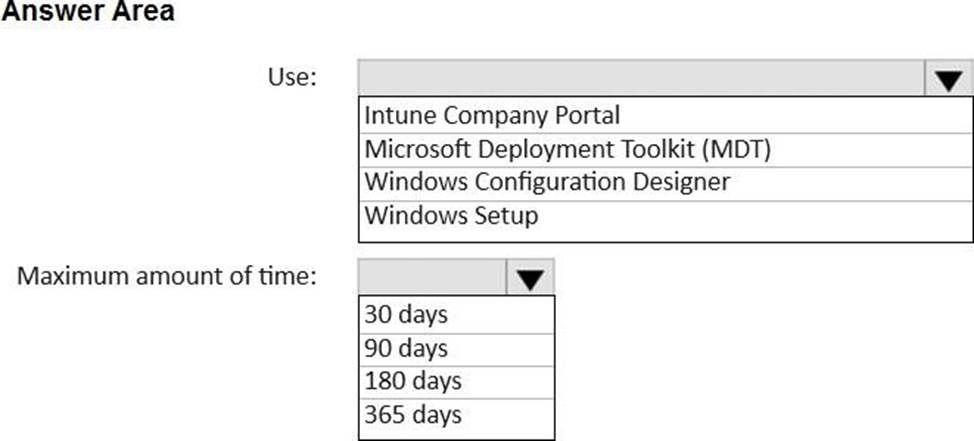
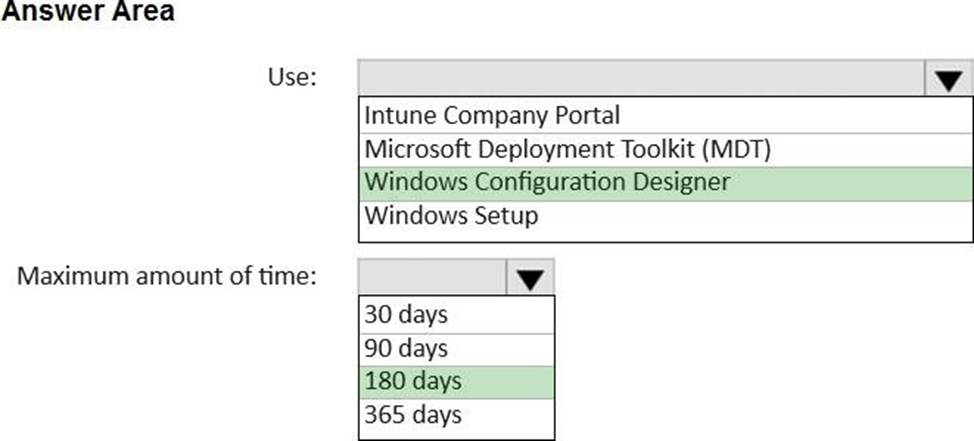
You need to use a provisioning package to join the devices to Microsoft Entra.
What should you use to create the provisioning package, and what is the maximum amount of time you can use the package for bulk enrollment? To answer, select the appropriate options in the answer area. NOTE: Each correct selection is worth one point.
HOTSPOT
You have a Microsoft 365 subscription.
All computers are enrolled in Microsoft Intune.
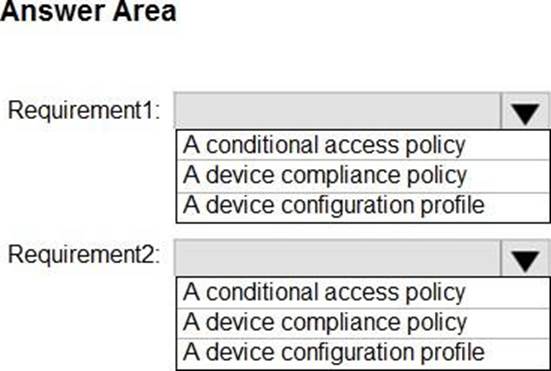
You have business requirements for securing your Windows 11 environment as shown in the following table.
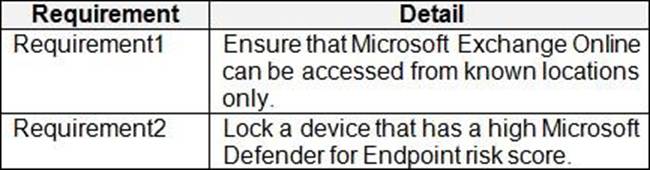
What should you implement to meet each requirement? To answer, select the appropriate options in the answer area. NOTE: Each correct selection is worth one point.
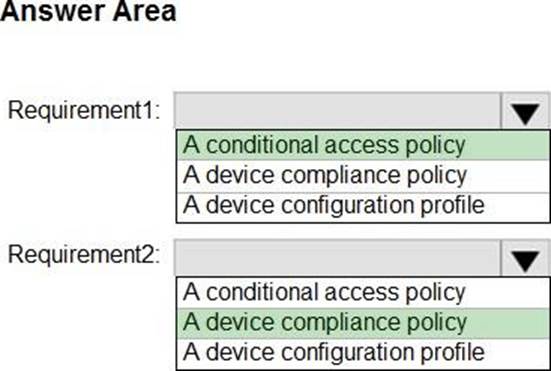
You have 200 computers that run Windows 10. The computers are joined to Microsoft Entra and enrolled in Microsoft Intune. You need to enable self-service password reset on the sign-in screen.
Which settings should you configure from the Microsoft Intune admin center?
- A . Conditional access
- B . Device compliance
- C . Device configuration
- D . Device enrollment
Your network contains an Active Directory Domain Services (AD DS) domain. The domain contains 100 client computers that run Windows 10.
Currently, your company does NOT have a deployment infrastructure.
The company purchases Windows 11 licenses through a volume licensing agreement.
You need to recommend how to upgrade the computers to Windows 11. The solution must minimize licensing costs.
What should you include in the recommendation?
- A . Microsoft Deployment Toolkit (MDT)
- B . Configuration Manager
- C . subscription activation
- D . Windows Autopilot
DRAG DROP
You have a Microsoft 365 subscription that contains the devices shown in the following table.
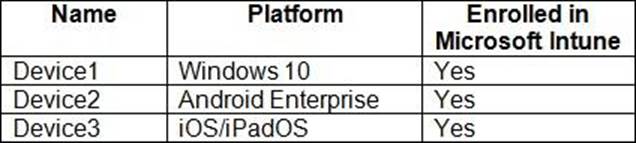
You need to configure the Microsoft Edge settings for each device.
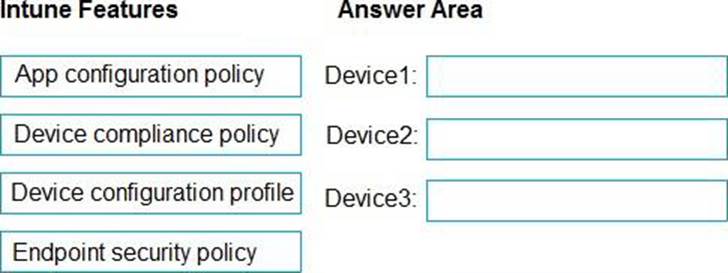
What should you use? To answer, drag the appropriate Intune features to the correct devices. Each feature may be used once, more than once, or not at all. You may need to drag the split bar between panes or scroll to view content. NOTE: Each correct selection is worth one point.
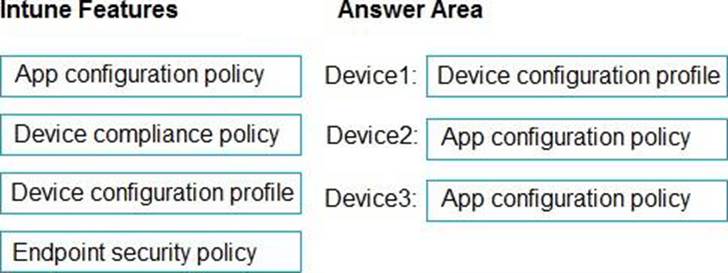
Explanation:
Windows: https://learn.microsoft.com/en-us/deployedge/configure-edge-with-intune#:~:text=You%20can%20configure%20Microsoft%20Edge%20policies%20and%20settings%20by%20adding%20a%20device%20configuration%20profile%20to%20Microsoft%20Intune.
Android: https://developer.android.com/work/managed-configurations
Apple: https://developer.apple.com/library/archive/samplecode/sc2279/Introduction/Intro.html
You have a Microsoft 365 E5 subscription and 100 unmanaged iPad devices.
You need to deploy a specific iOS update to the devices. Users must be prevented from manually installing a more recent version of iOS.
Which two actions should you perform? Each correct answer presents part of the solution. NOTE: Each correct selection is worth one point.
- A . Enroll the devices in Microsoft Intune by using the Intune Company Portal.
- B . Create a compliance policy.
- C . Enroll the devices in Microsoft Intune by using Apple Business Manager.
- D . Create an iOS app provisioning profile.
- E . Create a device configuration profile.
C, E
Explanation:
To deploy a specific iOS update to the unmanaged iPad devices, you need to perform the following actions:
Enroll the devices in Microsoft Intune by using Apple Business Manager. Apple Business Manager is a service that allows you to enroll and manage iOS/iPadOS devices in bulk. You can use Apple Business Manager to assign devices to Microsoft Intune and enroll them as supervised devices. Supervised devices are devices that have more management features and restrictions than unsupervised devices. You can also use Apple Business Manager to create device groups and assign roles and permissions12.
Create a device configuration profile. A device configuration profile is a policy that you can create and assign in Microsoft Intune to configure settings on your devices. You can use a device configuration profile to manage software updates for iOS/iPadOS supervised devices. You can choose to deploy the latest update or an older update, specify a schedule for the update installation, and delay the visibility of software updates on the devices34.
The other options are not correct for this scenario because:
Enrolling the devices in Microsoft Intune by using the Intune Company Portal is not suitable for
unmanaged devices. The Intune Company Portal is an app that users can download and install on their personal or corporate-owned devices to enroll them in Microsoft Intune. However, this method requires user interaction and consent, and does not enroll the devices as supervised devices5. Creating a compliance policy is not necessary for this scenario. A compliance policy is a policy that you can create and assign in Microsoft Intune to evaluate and enforce compliance settings on your devices. You can use a compliance policy to check if the devices meet certain requirements, such as minimum OS version, encryption, or password settings. However, a compliance policy does not deploy or manage software updates on the devices6.
Creating an iOS app provisioning profile is not relevant for this scenario. An iOS app provisioning profile is a file that contains information about the app and its distribution method. You can use an iOS app provisioning profile to deploy custom or line-of-business apps to your iOS/iPadOS devices by using Microsoft Intune. However, an iOS app provisioning profile does not affect the software updates on the devices7.
Reference: What is Apple Business Manager?, Enroll iOS/iPadOS devices in Intune, Manage iOS/iPadOS software update policies in Intune, Software updates planning guide and scenarios for supervised iOS/iPadOS devices in Microsoft Intune, Enroll your personal device in Intune, Device compliance policies in Microsoft Intune, Add an iOS app provisioning profile with Microsoft Intune
You have a Microsoft 365 subscription that uses Microsoft Intune Suite.
You use Microsoft Intune to manage devices.
You need to ensure that the startup performance of managed Windows 11 devices is captured and available for review in the Intune admin center.
What should you configure?
- A . the Azure Monitor agent
- B . a device compliance policy
- C . a Conditional Access policy
- D . an Intune data collection policy