Practice Free SC-401 Exam Online Questions
HOTSPOT
You have Microsoft 365 E5 tenant that has a domain name of 86s40q.onmicrosoft.com.
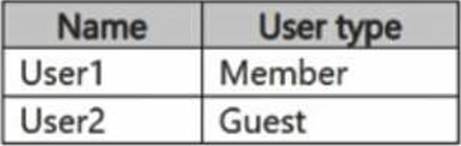
The tenant contains the users shown in the following table.
You have a published sensitivity label.
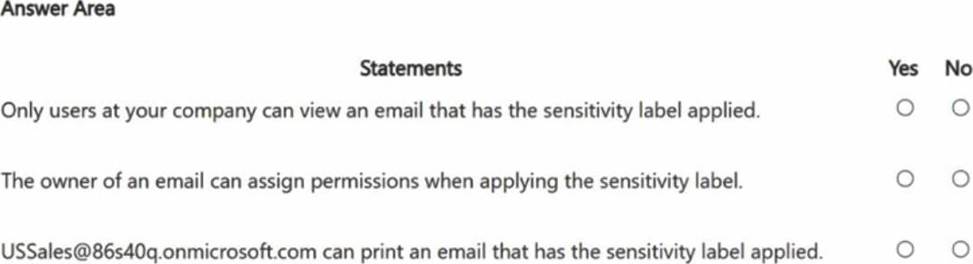
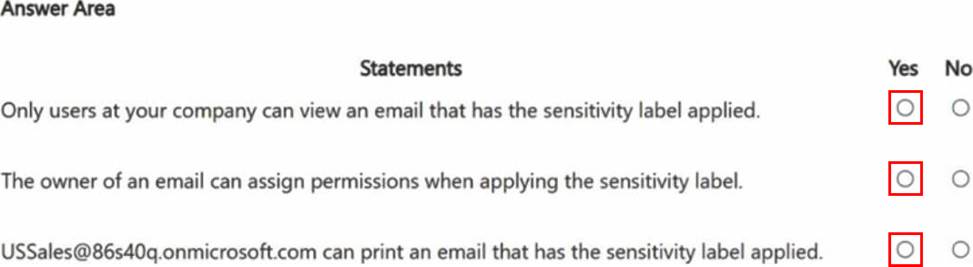
The Access control settings for the sensitivity label are configured as shown in the exhibit. (Click the Exhibit tab.)
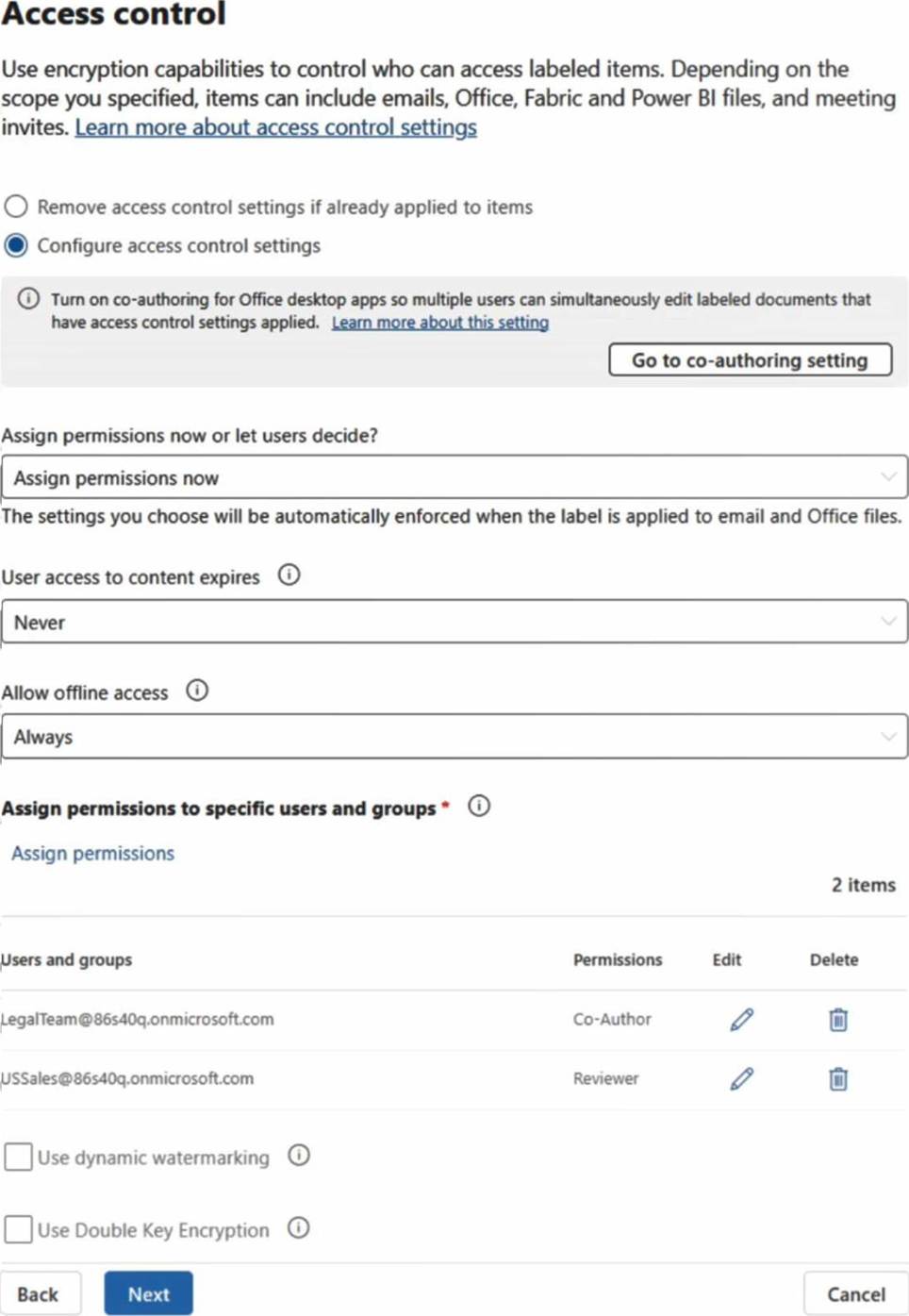
For each of the following statements, select Yes if the statement is true. Otherwise, select No . NOTE: Each correct selection is worth one point.
SIMULATION
Username and password
Use the following login credentials as needed:
To enter your username, place your cursor in the Sign in box and select the username below.
To enter your password, place your cursor in the Enter password box and select the password below.
Microsoft 365 Username:
[email protected]
Microsoft 365 Password: XXXXXXXXX
If the Microsoft Edge browser or Microsoft 365 portal does not load successfully, select the Microsoft Edge browser icon from the task bar, type the URL “https://admin microsoft.com”, and press Enter.
The following information is for technical support purposes only:
Lab Instance: XXXXXXXX.
Task 8
You need to create a retain Microsoft SharePoint files that contain the word Falcon for two years from the date they were created and then delete them.
Stage 1: Create custom sensitive information types in the Microsoft Purview compliance portal
Stage 2: Create retention policy and use the sensitive info type created in stage 1
Stage 1: Create custom sensitive information types in the Microsoft Purview compliance portal
Create a custom SIT from scratch
Step 1: Use the following procedure to fully define a brand new sensitive information type.
Step 2: In the Microsoft Purview compliance portal, navigate to Data classification > Classifiers > Sensitive info types and choose Create sensitive info type.
Step 3: Fill in values for Name and Description and choose Next.
Step 4: Choose Create pattern. You can create multiple patterns. each with different elements and confidence levels, as you define your new sensitive information type.
Step 5: Choose the default confidence level for the pattern. The values are Low confidence, Medium confidence, and High confidence.
Step 6: Choose and define the Primary element. Choose Keyword list.
Step 7: Enter: Falcon
Question: You need to retain Microsoft SharePoint files that contain the word Falcon for two years from the date they were created. and then delete them.
Step 8: Finish the wizard.
Stage 2: Create retention policy and use the sensitive info type created in stage 1
Step 1: From the Microsoft Purview compliance portal, select Data lifecycle management > Microsoft 365 > Retention Policies.
Step 2: Select New retention policy to start the Create retention policy configuration, and name your new retention policy.
Step 3: For the Assign admin units page select Full directory.
You must select Full directory for the policy to include the locations for SharePoint sites and Exchange public folders.
Step 4: For the Choose the type of retention policy to create page, select Adaptive or Static. Select Static.
Step 5: For location: Select Items, and Sharepoint
Step 6: Somehow include the sensitive information type you created in Stage 1.
Step 7: For Decide if you want to retain content, delete it:
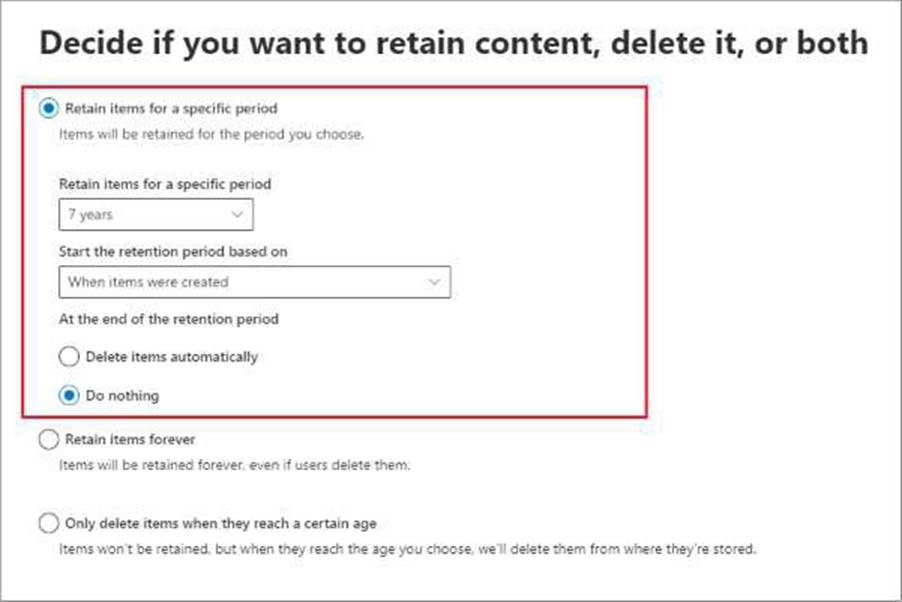
Select: On the Decide if you want to retain content, delete it, or both page, select Retain items for a specific period, specify the retention period [specify 2 years], and then for At end of the retention period select Delete items automatically.
Question: You need to retain Microsoft SharePoint files that contain the word Falcon for two years from the date they were created, and then delete them.
Reference:
https://learn.microsoft.com/en-us/purview/sit-create-a-custom-sensitive-information-type
https://learn.microsoft.com/en-us/purview/create-retention-policies
https://learn.microsoft.com/en-us/purview/retention-settings#settings-for-retaining-and-deleting-content
You have a Microsoft 365 E5 subscription that contains a device named Device 1.
You need to enable Endpoint data loss prevention (Endpoint DLP) for Device 1.
What should you do first in the Microsoft Purview portal?
- A . Turn on device onboarding.
- B . Enable Microsoft Priva Privacy Risk Management.
- C . Create a Microsoft Purview Information Barriers (IBs) segment.
- D . Add a Microsoft Purview Information Protection scanner cluster.
- E . Onboard Device1 to Microsoft Purview.
HOTSPOT
You have a Microsoft 365 E5 subscription.
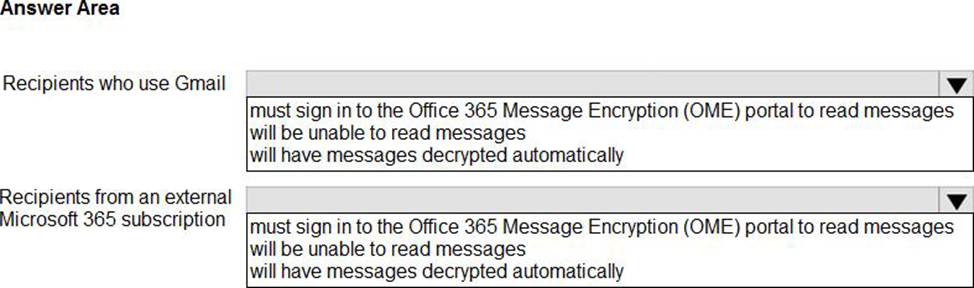
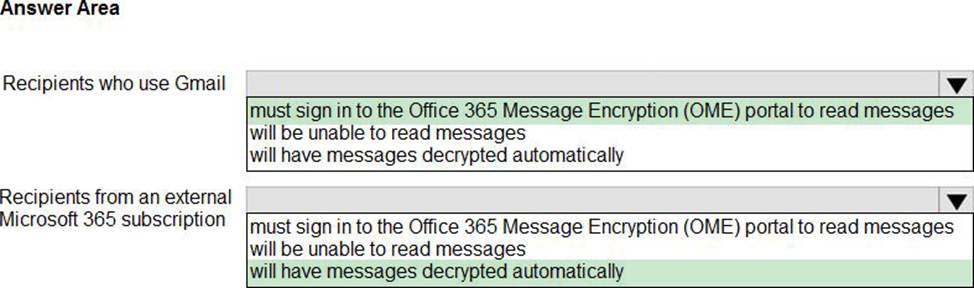
In Microsoft Exchange Online, you have the mail flow rule shown in the following exhibit.
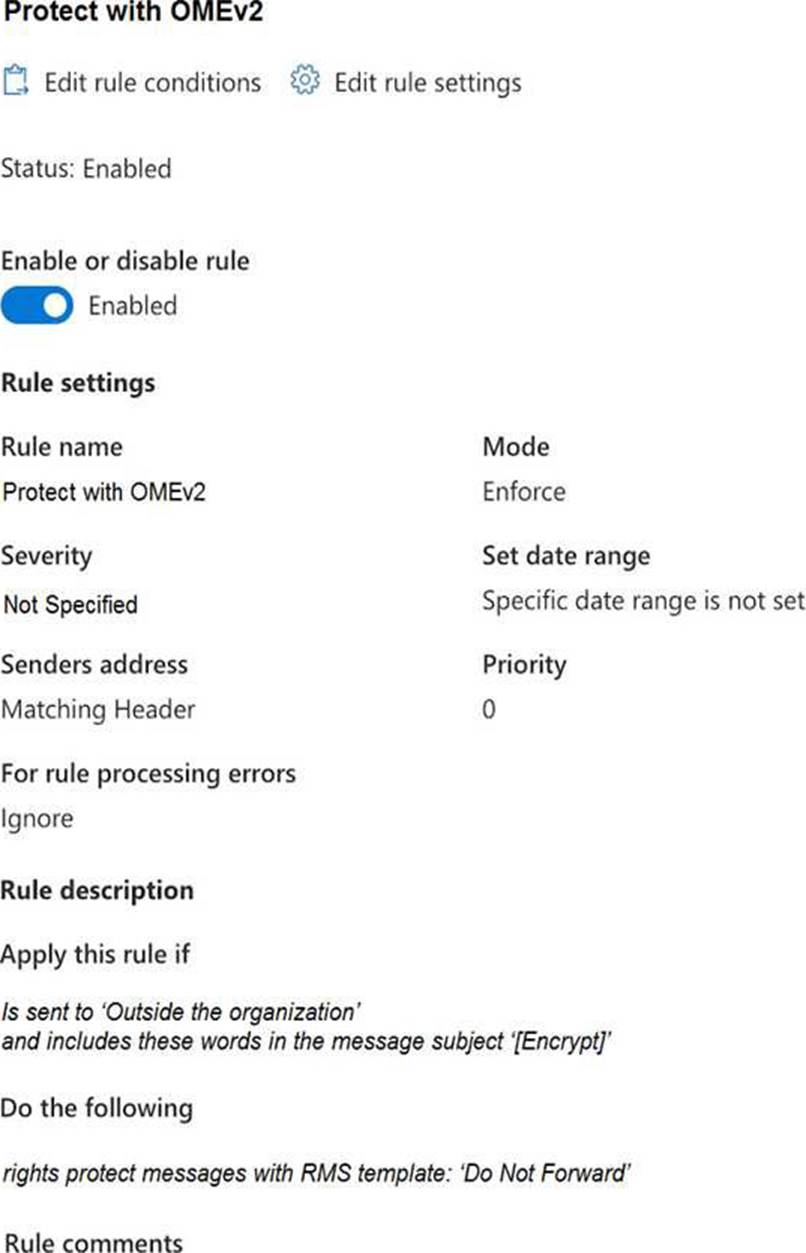
Use the drop-down menus to select the answer choice that completes each statement based on the information presented in the graphic.
HOTSPOT
You have a Microsoft 365 subscription.
You have a Microsoft SharePoint Online site named Site 1.
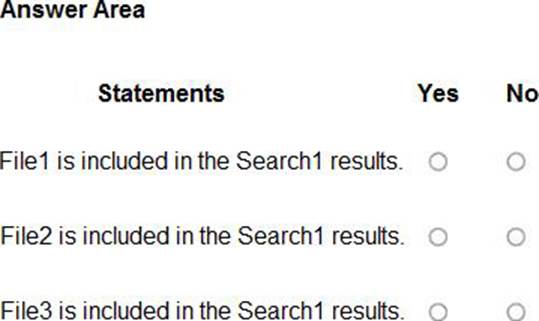
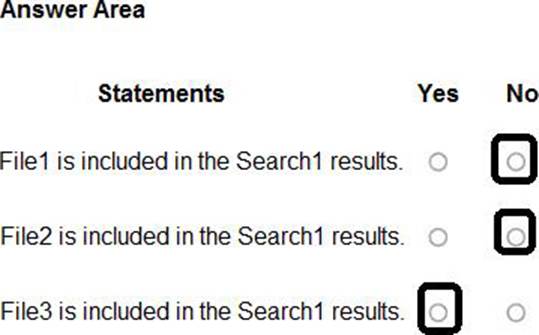
Site1 has a document library that contains the files shown in the following table.
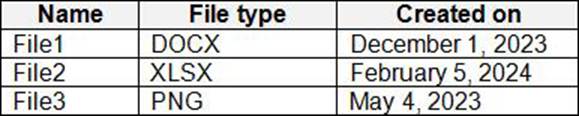
From the Microsoft Purview compliance portal, for Site1 you create a content search named Search1 that has the date in the YYYY-MM-DD format as shown in the following exhibit.
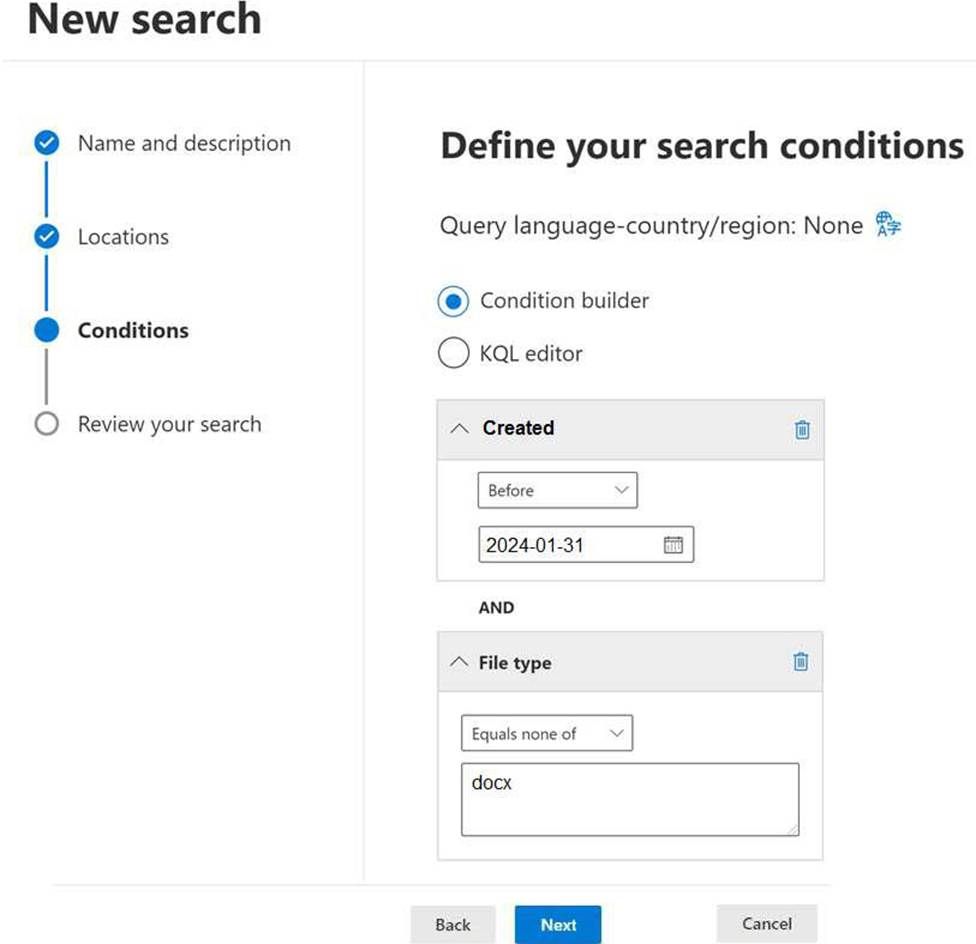
For each of the following statements, select Yes if the statement is true. Otherwise, select No. NOTE: Each correct selection is worth one point.
SIMULATION
Username and password
Use the following login credentials as needed:
To enter your username, place your cursor in the Sign in box and select the username below.
To enter your password, place your cursor in the Enter password box and select the password below.
Microsoft 365 Username:
[email protected]
Microsoft 365 Password: XXXXXXXXX
If the Microsoft Edge browser or Microsoft 365 portal does not load successfully, select the Microsoft Edge browser icon from the task bar, type the URL “https://admin microsoft.com”, and press Enter.
The following information is for technical support purposes only:
Lab Instance: XXXXXXXX.
Task 5
You need to ensure that a group named U.S. Sales can store files containing information subject to General Data Protection Regulation (GDPR) in their OneDrive accounts. All other current GDPR restrictions must remain in effect.
DLP policy templates are sorted into four categories:
* policies that can detect and protect types of Financial information.
* Medical and health
* Privacy
– Includes General Data Protection Regulation (GDPR) Enhanced
* Custom policy
Step 1: Sign in to the Microsoft Purview compliance portal.
Step 2: In the Microsoft Purview compliance portal > left navigation>Solutions >Data loss prevention>
Policies> +Create policy.
Step 3: Select Custom from the Categories list.
Step 4: Select Custom from the Regulations list.
Step 5: Give the policy a name.
Step 6: Fill in a description. (Skip)
Step 7: Select Next.
Step 8: Select Full directory under Admin units.
Step 9: Set the OneDrive location status to On. Set all the other location status to Off.
Step 10: Edit the OneDrive accounts scope. Select All users and group >Include users and groups> + Include > Include groups and add the U.S. Sales group.
Question is: You need to ensure that a group named U.S. Sales can store files containing information subject to General Data Protection Regulation (GDPR) in their OneDrive accounts. All other current GDPR restrictions must remain in effect.
Step 11: Select Done. Select Done. Select Next.
Step 12: On the Define policy settings page, the Create or customize advanced DLP rules option should already be selected.
Step 13: Select Next. Select Create rule. Name the rule and provide a description.
Step 14: Under Conditions select + Add condition>
Step 15: Select Content contains>Add>Sensitive info types>General Data Protection Regulation (GDPR). Choose Add.
Step 16: Under Actions, select Add an action> Allow Access (or similar)
Step 17: Finish the wizard: Choose Save. Choose Next. Choose Done
Reference:
https://learn.microsoft.com/en-us/purview/dlp-policy-reference
https://learn.microsoft.com/en-us/purview/dlp-create-deploy-policy
You have a Microsoft 365 E5 subscription that uses Microsoft Purview.
You create a communication compliance policy named Policy1 and select Detect Microsoft Copilot interactions.
Which two trainable classifiers will be added to Policy1 automatically? Each correct answer presents part of the solution . NOTE: Each correct selection is worth one point.
- A . Unauthorized disclosure
- B . Prompt Shields
- C . Threat
- D . Corporate Sabotage
- E . Protected Materials
You have a Microsoft 365 E5 subscription.
You need to enable support for sensitivity labels in Microsoft SharePoint Online.
What should you use?
- A . the Microsoft Purview portal
- B . the Microsoft Entra admin center
- C . the SharePoint admin center
- D . the Microsoft 365 admin center
You have a Microsoft 365 E5 tenant.
You need to add a new keyword dictionary.
What should you create?
- A . a trainable classifier
- B . a retention policy
- C . a sensitivity label
- D . a sensitive info type
HOTSPOT
You have a Microsoft 365 ES subscription that uses Microsoft Exchange Online and Teams.
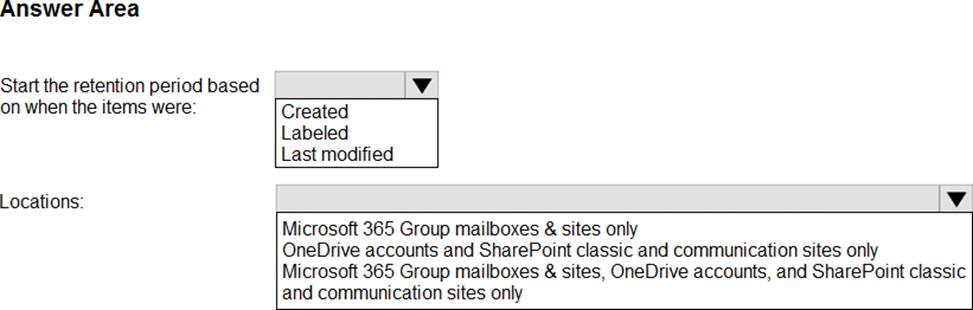
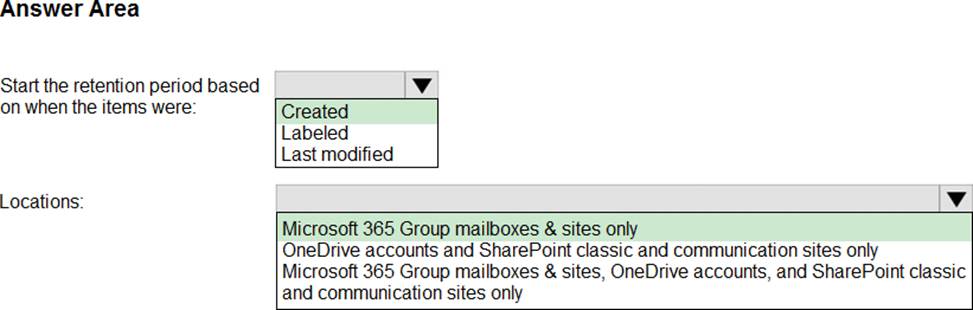
You need to ensure that when a user sends a message containing a cloud attachment, a retention label is applied to the cloud attachment by using an auto-labeling policy.
How should you configure the retention label to start the retention period, and to which locations should you apply the auto-labeling policy? To answer, select the appropriate options in the answer area . NOTE: Each correct selection is worth one point.