
Practice Free XK0-006 Exam Online Questions
A Linux administrator needs to add a new HTTP service on the server.
Which of the following commands allows other systems to communicate with the service after the system is restarted?
- A . firewall-cmd –add-service=http –reload
- B . firewall-cmd –add-port=http –complete-reload
- C . firewall-cmd –add-service=http –permanent
- D . firewall-cmd –add-service=http
C
Explanation:
The correct answer is C. firewall-cmd –add-service=http –permanent because it ensures that the firewall rule allowing HTTP traffic remains in effect even after a system reboot. In Linux systems using firewalld, rules can be applied in two modes: runtime and permanent.
By default, when a rule is added using firewall-cmd –add-service=http (Option D), it is applied only to the runtime configuration. This means the rule will allow HTTP traffic immediately, but it will be lost once the system is restarted or the firewall service is reloaded.
The –permanent flag ensures that the rule is written to the persistent configuration files, so it survives reboots. After adding a permanent rule, administrators typically run firewall-cmd –reload to apply the changes to the runtime environment as well.
Option A is incorrect because while it reloads the firewall, it does not specify the rule as permanent, so the configuration will not persist after reboot.
Option B is incorrect because –add-port=http is not valid syntax (ports must be specified numerically, e.g., 80/tcp), and –complete-reload is not appropriate here.
Option D is incorrect because it only applies the rule temporarily (runtime only).
From a Linux+ security perspective, managing firewall rules persistently is essential for maintaining secure and consistent network access. Using the –permanent option ensures services like HTTP remain accessible across system restarts while still being controlled by firewall policies.
A user reports recurrent issues with an application, which is currently operational.
The systems administrator gathers the following outputs to diagnose the issue:
Out of memory: Kill process (mariadb)
Killed process (mariadb)
mariadb invoked oom-killer
egrep ‘Out of memory’ /var/log/messages
Multiple entries showing mariadb being killed by OOM killer
free -m
Mem: total 15819, used 10026, free 5174, available 5134
Swap: 0 0 0
sar -r
kbmemused ~67%, no swap usage
Which of the following is a possible cause of this issue?
- A . A backup is consuming all the system memory.
- B . The system is using all the swap.
- C . The cached memory is approaching the system’s limits.
- D . The process is showing signs of a memory leak.
D
Explanation:
The correct answer is D. The process is showing signs of a memory leak because the logs clearly indicate repeated activation of the OOM (Out Of Memory) killer, specifically targeting the mariadb process. The OOM killer is triggered when the Linux kernel determines that the system is running critically low on memory and must terminate processes to maintain system stability.
The repeated log entries showing mariadb invoked oom-killer and multiple instances of the process being killed strongly suggest that this application is consuming increasing amounts of memory over time without releasing it properly. This is a classic symptom of a memory leak, where an application continuously allocates memory but fails to free it, eventually exhausting available system resources.
The free -m output shows that while there is still some free memory, swap space is completely unused (0 total). This means the system has no fallback memory, making it more susceptible to OOM conditions. However, the absence of swap alone does not explain why a specific process is repeatedly being killed.
Option A is incorrect because there is no indication of a backup process consuming memory.
Option B is incorrect because the system is not using swap at all.
Option C is incorrect because cached memory is reclaimable by the kernel and does not typically trigger the OOM killer.
From a Linux+ troubleshooting perspective, identifying repeated OOM events tied to a specific process is a strong indicator of inefficient memory handling or a memory leak. Administrators should investigate the application, apply updates or patches, or restart the service periodically while implementing proper monitoring and possibly adding swap space as a temporary mitigation.
A Linux user needs to download the latest Debian image from a Docker repository.
Which of the following commands makes this task possible?
- A . docker image init debian
- B . docker image pull debian
- C . docker image import debian
- D . docker image save debian
B
Explanation:
The correct answer is B. docker image pull debian because it is the standard Docker command used to download container images from a remote repository such as Docker Hub. In Docker terminology, “pulling” an image means retrieving it from a remote registry and storing it locally so it can be used to create containers.
When a user executes docker image pull debian, Docker connects to the default registry (Docker Hub), searches for the official Debian image, and downloads the latest version (by default, the “latest” tag unless otherwise specified). This command is essential in container-based workflows and is commonly used in automation, orchestration, and DevOps environments.
Option A (docker image init debian) is incorrect because there is no valid Docker command called init under docker image. Initialization of containers is handled differently, typically via docker run.
Option C (docker image import debian) is incorrect because import is used to create a Docker image from a local tarball or file, not to download from a remote repository.
Option D (docker image save debian) is incorrect because save is used to export an existing local image into a tar archive for backup or transfer purposes. It does not download images.
From a Linux+ perspective, understanding container management is a key part of automation and orchestration. Commands like docker pull allow administrators to quickly provision environments, deploy applications, and maintain consistency across systems. This makes it a fundamental skill for modern Linux system administration and DevOps practices
SIMULATION
You are a systems administrator and have created an uncompressed backup of the application directory. Several hours later, you must restore the application from backup.
INSTRUCTIONS
Within each tab, click on an object to form the appropriate command used to create the backup and restore the application.
Command objects may only be used once, and not all will be used. Click the arrow to remove any unwanted objects from your command.
If at any time you would like to bring back the initial state of the simulation, please click the Reset All button.
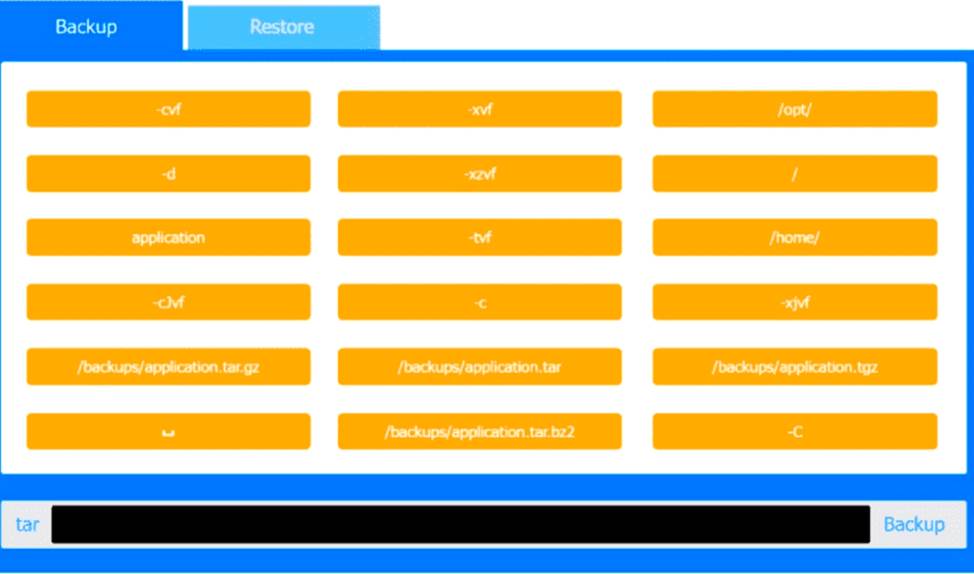
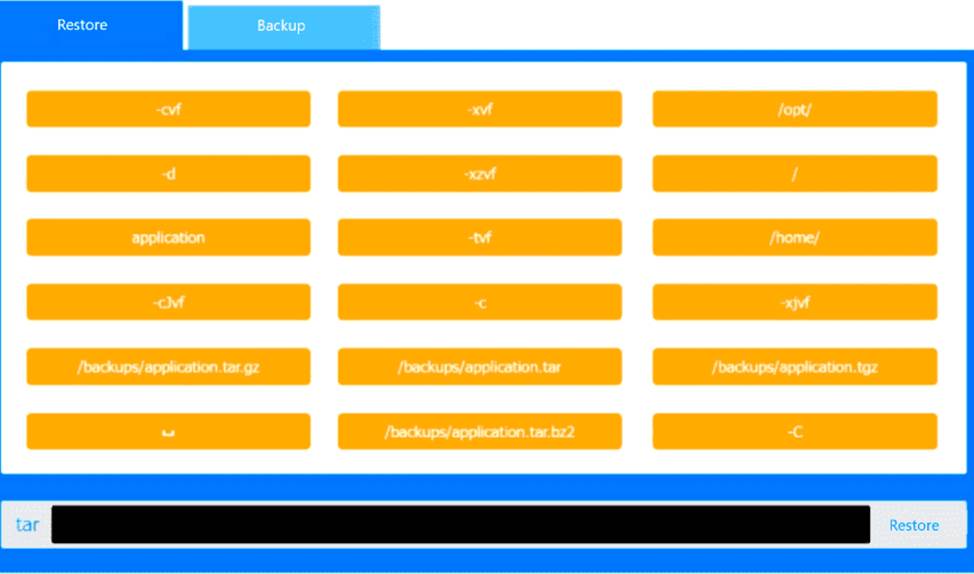
Explanation:
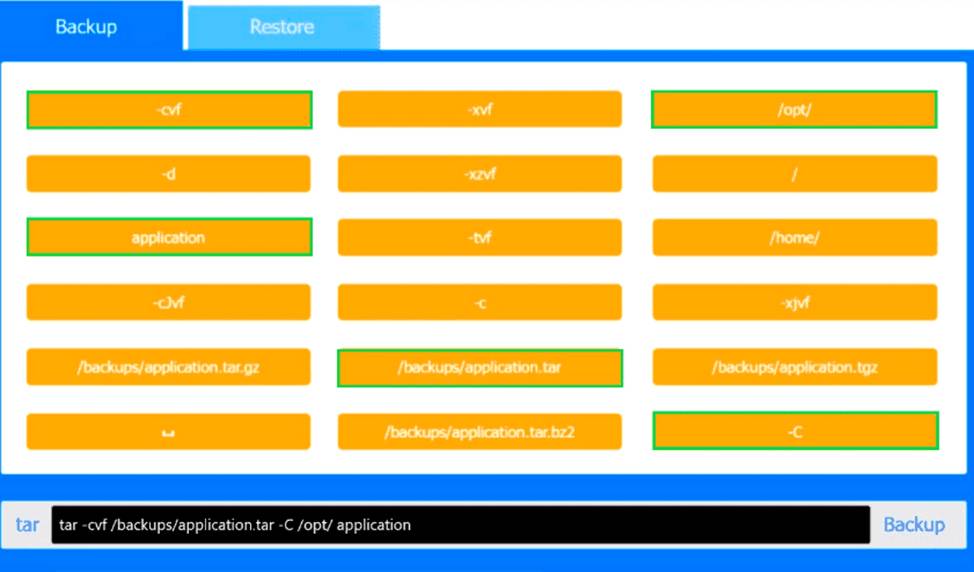
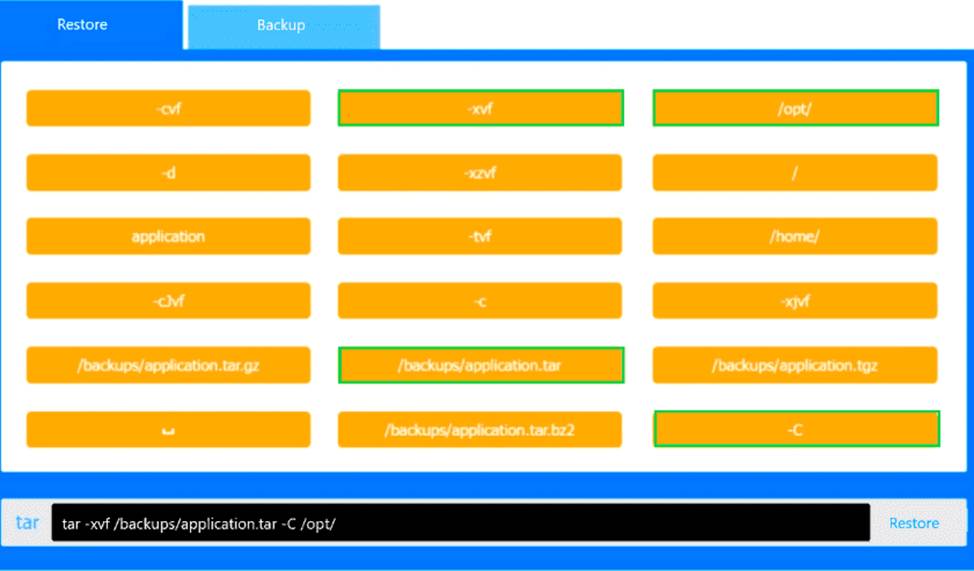
This performance-based question tests correct use of the tar utility for backup and restore operations, which is part of System Management in CompTIA Linux+ V8. The key detail is that the backup is explicitly described as uncompressed, so the correct archive file must be a plain .tar file rather than .tar.gz, .tgz, or .tar.bz2.
For the backup command, the correct syntax is:
tar -cvf /backups/application.tar -C /opt/ application
Here, -c creates the archive, -v enables verbose output
tored, and -f identifies the archive file. The -C /opt/ option ensures the archived application directory is res, and -f specifies the archive filename. The -C /opt/ option changes to the /opt/ directory before archiving, and application is then archived relative to that location. This is the correct Linux+ method because it avoids storing unnecessary leading path components in the archive.
For the restore command, the correct syntax is:
tar -xvf /backups/application.tar -C /opt/
Here, -x extracts the archive, -v displays files being res tored back into /opt/, recreating /opt/application correctly.
The other file choices such as /backups/application.tar.gz, /backups/application.tgz, and /backups/application.tar.bz2 are incorrect because they indicate compressed backups, which the question specifically rules out. Likewise, options such as -xzvf or -xjvf are used for gzip- or bzip2- compressed archives and would not apply here.
Therefore, the verified correct PBQ answers are:
Backup: tar -cvf /backups/application.tar -C /opt/ application
Restore: tar -xvf /backups/application.tar -C /opt/
Which of the following commands should an administrator use to convert a KVM disk file to a different format?
- A . qemu-kvm
- B . qemu-ng
- C . qemu-io
- D . qemu-img
D
Explanation:
Virtualization management is part of Linux system administration and is included in Linux+ V8 objectives. KVM virtual machines commonly use disk image formats such as qcow2, raw, or vmdk. Converting between these formats is a routine administrative task.
The correct tool for disk image conversion is qemu-img. This utility allows administrators to create, convert, resize, and inspect virtual disk images. For example, converting a qcow2 image to raw format can be accomplished using qemu-img convert. This capability is explicitly referenced in Linux+ V8 documentation related to virtualization tooling.
The other options are incorrect. qemu-kvm refers to the hypervisor component, not disk manipulation. qemu-ng is not a valid QEMU utility. qemu-io is used for low-level I/O testing and debugging, not image format conversion.
Therefore, the correct answer is D. qemu-img.
A systems administrator needs to check access to all company servers.
The administrator uses the following script, which does not complete:
for i in $(cat /home/user1.file)
do
echo $i
ssh $i uptime
Which of the following is missing from the script?
- A . fi
- B . else
- C . while
- D . done
D
Explanation:
Shell scripting is a primary method for automating repetitive tasks in Linux. According to the CompTIA Linux+ V8 scripting objectives, administrators must understand the syntax for various control structures, including loops.
A for loop in Bash and other POSIX-compliant shells has a specific required structure:
The for statement (to define the iteration).
The do keyword (to start the block of commands).
The loop body (the commands to execute).
The done keyword (to terminate the loop block).
In the script provided, the administrator has correctly initiated the loop with for i in … and opened the execution block with do. However, the script lacks the concluding done token. Without done, the shell interpreter will continue waiting for more input or return a syntax error because it does not know where the loop ends. This is why the script "does not complete" or run correctly.
The other options are related to different control structures. fi (Option A) is the closing token for an if statement, not a for loop. else (Option B) is an optional branch within an if statement. while (Option
C) is a different type of loop entirely and is not a required token for a for loop. Therefore, the missing token is verified as done.
Application owners are reporting that their application stops responding after several days of running, and they need to restart it.
A Linux administrator obtains the following details from the dmesg command:
invoked oom-killer
Call Trace:
out_of_memory
oom_kill_process
The application owners mentioned that resources to the system have been increased, and the error takes longer to appear.
Which of the following best describes the reason the process is being terminated by OOM?
- A . The CPU type is incompatible with the application.
- B . The kernel has panicked.
- C . The application might have a memory leak.
- D . The swap configuration is not correctly sized.
C
Explanation:
The correct answer is C. The application might have a memory leak because the dmesg output clearly shows that the Linux kernel is invoking the OOM (Out Of Memory) killer, which terminates processes when the system runs out of available memory. The presence of entries such as invoked oom-killer, out_of_memory, and oom_kill_process confirms that the system is exhausting its memory resources over time.
A key detail in the scenario is that the application runs for several days before failing, and when system resources (RAM) are increased, the issue takes longer to occur. This behavior is a classic indicator of a memory leak, where an application gradually consumes more memory without releasing it. Instead of stabilizing, memory usage continuously grows until it reaches the system limit, at which point the OOM killer terminates the process to prevent system instability.
Option A (CPU type is incompatible) is incorrect because CPU incompatibility would cause immediate execution failures, not delayed memory exhaustion.
Option B (kernel panic) is incorrect because a kernel panic would crash the entire system, not selectively terminate a user-space
process.
Option D (swap configuration not correctly sized) is partially plausible but not the best answer; while insufficient swap can contribute to OOM conditions, it does not explain the gradual memory consumption pattern observed.
In Linux+ troubleshooting, identifying memory leaks is critical when dealing with long-running applications. Administrators should monitor memory usage using tools like top, htop, or ps, and investigate application behavior. Applying patches, optimizing code, or restarting services periodically are common mitigation strategies, along with configuring appropriate memory and swap resources.
A Linux administrator attempts to log in to a server over SSH as root and receives the following error message: Permission denied, please try again. The administrator is able to log in to the console of the server directly with root and confirms the password is correct.
The administrator reviews the configuration of the SSH service and gets the following output:
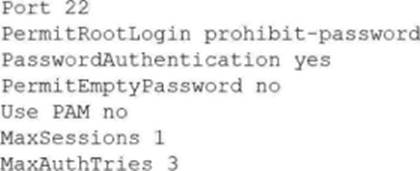
Based on the above output, which of the following will most likely allow the administrator to log in over SSH to the server?
- A . Log out other user sessions because only one is allowed at a time.
- B . Enable PAM and configure the SSH module.
- C . Modify the SSH port to use 2222.
- D . Use a key to log in as root over SSH.
D
Explanation:
The SSH configuration option PermitRootLogin prohibit-password prevents the root user from logging in with password authentication. This setting means root cannot use a password to log in via SSH; only key-based authentication is permitted for root. The administrator can still log in as root locally, which is not affected by this SSH configuration. To allow SSH access as root, the administrator must use an SSH key instead of a password.
Other options:
Which of the following commands can be used to display real-time running processes on a Linux system?
- A . ps
- B . top
- C . df
- D . free
B
Explanation:
The correct answer is B. top because it provides a dynamic, real-time view of running processes and system resource usage. The top command is an essential Linux system monitoring utility that continuously updates information about CPU usage, memory consumption, running processes, load averages, and system uptime. It is widely used by system administrators for performance monitoring and troubleshooting.
When executed, top displays a full-screen interface showing active processes sorted by resource usage (typically CPU by default). It updates at regular intervals, allowing administrators to observe changes in real time. Additionally, it offers interactive features such as sorting processes, killing processes, and filtering output, which enhances system management capabilities.
Option A (ps) is incorrect because although it lists running processes, it provides only a snapshot at a specific moment in time. It does not update dynamically unless repeatedly executed or combined with other tools.
Option C (df) is incorrect because it displays disk space usage of filesystems, not running processes.
Option D (free) is incorrect because it shows memory usage statistics, including total, used, and available memory, but does not display process-level activity.
From a Linux+ perspective, understanding tools like top is crucial under System Management objectives. It enables administrators to monitor system health, identify resource-intensive processes, and take corrective actions when necessary. Real-time monitoring is particularly important in production environments where performance issues must be diagnosed and resolved quickly.
A systems administrator troubleshoots a connectivity issue and needs to determine whether port 449 is open locally.
Which of the following commands should the administrator use?
- A . ip link 449
- B . dig localhost:449
- C . tracepath localhost 449
- D . ss -an | grep 449
D
Explanation:
In Linux troubleshooting, identifying which ports are listening for connections is a foundational skill. According to CompTIA Linux+ V8, the ss (socket statistics) utility is the modern replacement for the older netstat command. It is used to dump socket statistics and provides information similar to netstat, but it is faster and can display more detailed TCP and state information.
To check if a specific port (like 449) is open locally, the administrator would run ss -an | grep 449.
-a: Displays both listening and non-listening (for established connections) sockets.
-n: Shows numerical port numbers instead of attempting to resolve them to service names (e.g., showing 443 instead of https).
| grep 449: Filters the output to show only lines containing the desired port number.
If the output shows a line with the state LISTEN on port *:449 or 127.0.0.1:449, the service is successfully running and bound to that port.
The other options are incorrect for the following reasons: ip link (Option A) is used to manage network interfaces (layer 2) and does not show port information (layer 4). dig (Option B) is a DNS lookup tool and cannot check port status. tracepath (Option C) is used to trace the network path to a host and detect MTU issues; it does not report on the state of specific local ports.
Therefore, ss is the verified tool for this troubleshooting task.