
Practice Free AB-730 Exam Online Questions
You are using Microsoft 365 Copilot to enhance your productivity in Microsoft Teams.
Which two tasks can you achieve by using Copilot in Teams? Each correct answer presents a complete the solution. NOTE: Each correct selection is worth one point.
- A . Mute and unmute participants in a meeting based on their location.
- B . Create a custom background and add the background to your video calls.
- C . Create a meeting summary, including key decisions and action items.
- D . Draft a response to a channel message based on the context of the conversation.
C, D
Explanation:
Copilot in Microsoft Teams is designed to help users work faster by summarizing meeting content and assisting with message composition in chats and channels. Microsoft guidance highlights that Copilot can synthesize what was discussed in a meeting by generating a structured recap that includes key points, decisions, and action items. This directly matches option C. Copilot can also help you respond more quickly in Teams conversations by drafting replies grounded in the context of the existing chat or channel thread, which matches option D.
Options A and B are not Copilot capabilities. Muting and unmuting participants is a meeting control function handled by Teams meeting roles and settings, and it is not automatically driven by Copilot based on participant location. Creating custom backgrounds is a Teams visual feature (and can involve Designer or image tools), but it is not a Copilot-in-Teams productivity function for summarization or drafting based on conversation context.
Therefore, the two tasks you can achieve using Copilot in Teams are generating meeting summaries with decisions and action items, and drafting responses to channel messages based on conversation context.
You are creating a custom analytics agent in the Microsoft 365 Copilot app. The agent will use Microsoft Excel files that contain sales data as knowledge.
You need to ensure that the agent can create visualizations, perform mathematical operations, create aggregations, and analyze the data in the files.
What should you add to the agent?
- A . code interpreter
- B . image generator
- C . a suggested prompt
- D . a template
A
Explanation:
When building a custom analytics agent in Microsoft 365 Copilot that must process structured data from Excel files, advanced analytical capabilities are required. According to Microsoft AI Business Professional guidance, tasks such as performing mathematical calculations, generating aggregations, creating charts, and conducting structured data analysis require programmatic execution capabilities rather than simple text generation.
A code interpreter enables the agent to run Python-based analytical operations in a secure execution environment. This allows the agent to manipulate datasets, compute totals and averages, perform grouping and filtering, and generate visualizations such as bar charts or line graphs based on the Excel data. The interpreter bridges the gap between natural language instructions and executable analytical logic.
An image generator is designed for creative visual content and is unrelated to structured data analytics. Suggested prompts and templates improve usability and consistency but do not provide computational or visualization capabilities.
Therefore, to enable mathematical operations, aggregation, data analysis, and visualization of Excel sales data, the correct component to add to the agent is a code interpreter.
You join an internal Microsoft Teams meeting late and want to catch up on what you missed. The meeting is being recorded. You need to summarize the portion of the meeting that you missed as soon as possible.
What is the best approach to achieve the goal? More than one answer choice may achieve the goal. Select the BEST answer.
- A . From the Teams app, ask Copilot in Teams to summarize what you missed so far.
- B . From the meeting, read the transcript.
- C . From the Microsoft 365 Copilot app, ask Copilot to tell you what you missed.
- D . From the Teams app, view the intelligent recap.
A
Explanation:
Microsoft 365 Copilot in Teams is designed to provide real-time meeting assistance, including summarizing discussions, identifying key decisions, and highlighting action items. When joining a meeting late, the most efficient and immediate method to catch up is to directly prompt Copilot within the Teams meeting experience.
Option A is the best answer because Copilot in Teams can summarize what has occurred so far during the live meeting. It leverages the meeting transcript, speaker attribution, and contextual signals to generate a concise, structured summary in real time. This minimizes delay and provides actionable insights instantly.
Reading the transcript (Option B) would require manual review and is not the fastest method. Intelligent recap (Option D) is typically available after the meeting concludes and processes recording data. Asking Copilot from the separate Microsoft 365 Copilot app (Option C) may not provide immediate, in-meeting contextual awareness.
Therefore, the fastest and most effective approach is to ask Copilot in Teams to summarize what you missed.
HOTSPOT
For each of the following statements, select Yes if the statement is true. Otherwise, select No. NOTE: Each correct selection is worth one point.
Explanation:
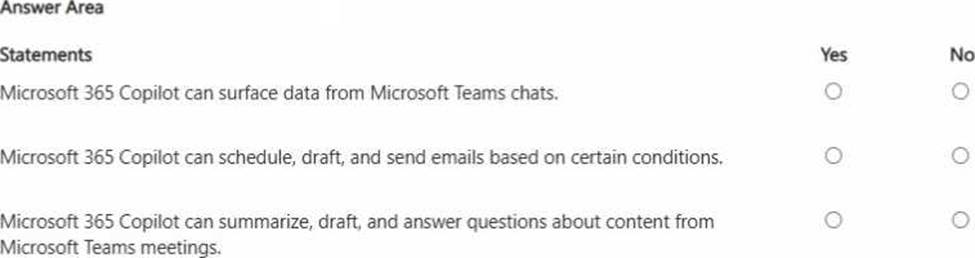
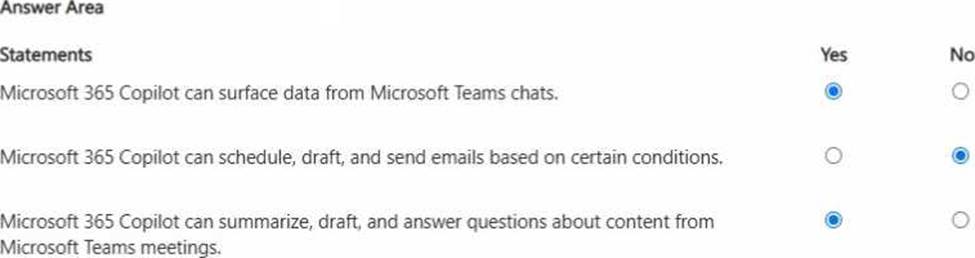
Microsoft 365 Copilot can use Microsoft Graph-grounded data (based on the user’s permissions) to help users work with Microsoft 365 content. This includes surfacing and summarizing information from Teams chats, so statement 1 is true. Copilot can also summarize and generate content related to Teams meetings (for example, meeting recap details, key discussion points, and follow-up actions when meeting artifacts such as transcript/notes are available), and it can answer questions and draft related content―so statement 3 is true.
Statement 2 is false because, while Copilot can draft emails and help prepare messages, it does not independently schedule and send emails automatically “based on conditions” as a native Copilot function. Conditional sending is typically handled through workflow automation tools (for example, Power Automate) and still requires appropriate configuration, permissions, and governance. In enterprise environments, this separation helps reduce risk by ensuring that automated outbound communication remains controlled, auditable, and compliant.
You plan to use a notebook in Microsoft 365 Copilot.
What is the purpose of a notebook?
- A . to create a transcript of a conversation that you can easily email to other users
- B . to provide a private location that can be used to organize reference materials across related conversations
- C . to generate a summary of all the interactions you had with Copilot during a specific conversation
B
Explanation:
In Microsoft 365 Copilot, a notebook is a workspace intended to organize and ground related Copilot work. Microsoft guidance describes notebooks as a way to bring together multiple conversations and keep them aligned to the same set of reference materials―such as documents, notes, links, or other resources―so you don’t have to repeatedly attach or restate the same context. This improves consistency and prompt-grounding across a set of related tasks (for example, managing a project, developing a proposal, or maintaining a recurring report).
Option B correctly captures this purpose: a notebook provides a private, organized location where reference materials can be curated and reused across related Copilot conversations.
Option A is incorrect because notebooks are not primarily designed to generate email-ready transcripts of conversations.
Option C is incorrect because generating a summary of interactions is a conversation-level function; notebooks are broader organizational containers for materials and related workstreams, not a “summary generator” of a single chat thread.
Therefore, the purpose of a notebook is to organize reference materials across related conversations.
HOTSPOT
For each of the following statements, select Yes if the statement is true. Otherwise, select No. NOTE: Each correct selection is worth one point.
Explanation:
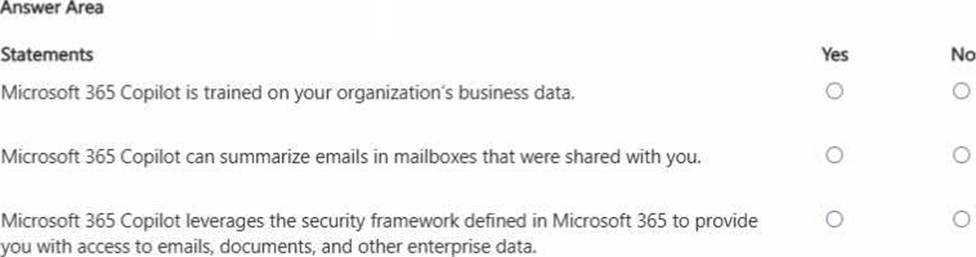
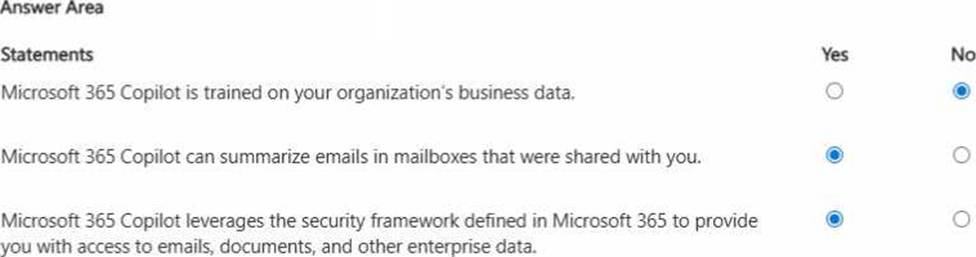
Microsoft 365 Copilot does not train the underlying large language model on your organization’s tenant data. Instead, it uses your organization’s data at run time to ground responses (for example, by retrieving relevant emails or documents you have permission to access). This separation protects confidentiality and supports enterprise compliance.
If a mailbox (or specific folders) is shared with you and your account has the required permissions, Copilot can summarize emails from that shared content because Copilot respects Microsoft 365 access controls (“permission trimming”).
Copilot also relies on Microsoft 365’s established security and compliance framework―identity, permissions, and policy enforcement―so it only surfaces content you’re authorized to see. This ensures Copilot’s outputs remain aligned with organizational governance, information protection, and least-privilege access principles.
You receive several images from a colleague.
You suspect that the images were generated by using Microsoft 365 Copilot.
What can you use to verify whether the images were AI-generated?
- A . file names
- B . watermarks
- C . content credentials
- D . file descriptions
C
Explanation:
Microsoft’s approach to transparency for AI-generated media relies on provenance signals rather than cosmetic indicators. File names and descriptions can be edited easily and are not reliable evidence of how an image was created. Watermarks may appear in some contexts, but they are not consistently applied across all AI image-generation workflows and can sometimes be removed or lost through copying, screenshotting, or file conversion.
Microsoft supports the use of content credentials to help users verify whether digital content was created or modified with AI. Content credentials are part of a provenance standard (often associated with C2PA) that can embed tamper-evident metadata into media files. When present, these credentials can show information about the tool or process used to generate or edit the image, providing a verifiable chain of origin.
Therefore, the most dependable way to verify whether the images were AI-generated is to check for content credentials (option C), since they are designed specifically to provide authenticity and provenance information for AI-created or AI-edited content.
HOTSPOT
For each of the following statements, select Yes if the statement is true. Otherwise, select No. NOTE: Each correct selection is worth one point.
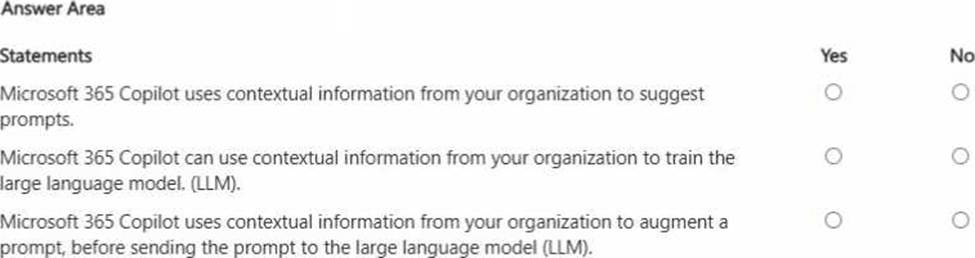
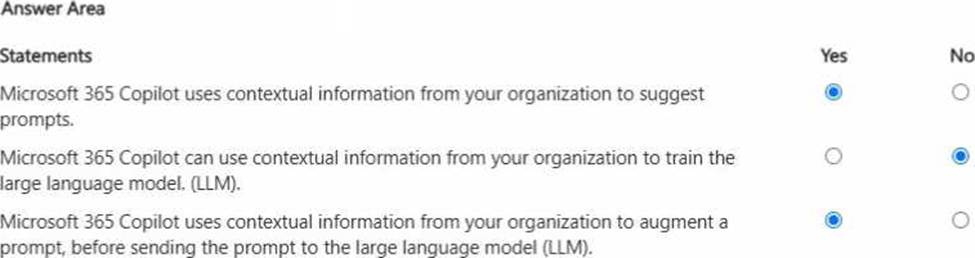
Explanation:
Microsoft 365 Copilot is designed to be helpful by using work context―for example, the files you have access to, recent activity, meetings, emails, and SharePoint/OneDrive content―to suggest relevant prompts and help you start tasks faster. It also uses this context to augment your prompt before it is sent to the LLM. This is the grounding approach (often described as retrieval-augmented generation): Copilot retrieves relevant organizational content you’re permitted to access and adds it as supporting context so responses are accurate and business-relevant. However, Microsoft 365 Copilot does not use your organization’s contextual data to train the underlying foundation model. That separation is critical for enterprise privacy and compliance: your prompts, responses, and tenant data are used to generate the answer for your session and permissions, but are not used to improve or retrain the base LLM. This approach supports responsible AI, protects confidential business information, and ensures outputs respect access controls.
You use Microsoft 365 Copilot.
Which two factors should you consider when creating an effective prompt? Each correct answer presents a complete solution. NOTE: Each correct selection is worth one point.
- A . adding context to the prompt
- B . using a broad range of instructions in the prompt
- C . using acronyms in the prompt
- D . providing a clear goal in the prompt
- E . keeping the prompt generic
A, D
Explanation:
Microsoft guidance for effective prompting emphasizes clarity and context as the two most important factors. Providing context (Option A) ensures that Copilot understands the background, data sources, and constraints relevant to the task. This improves grounding and reduces ambiguity, leading to more accurate and useful responses.
Providing a clear goal (Option D) is equally critical. A well-defined objective―such as summarizing, analyzing, or drafting―helps Copilot determine the correct approach, structure, and level of detail for the response. Without a clear goal, outputs may be generic or misaligned with user expectations.
Using a broad range of instructions can introduce confusion rather than clarity. Acronyms may reduce clarity unless explicitly defined. Keeping prompts generic is discouraged because specificity improves quality and relevance of responses.
Therefore, the correct answers are A (adding context) and D (providing a clear goal).
HOTSPOT
Select the answer that correctly completes the sentence.


Explanation:
Enterprise data protection (EDP) (often referred to as commercial data protection) is the capability that ensures Microsoft 365 Copilot handles organizational data under enterprise security and privacy guarantees. With EDP, Copilot processes prompts and responses within the customer’s Microsoft 365 boundary, respecting tenant isolation and identity-based access controls. This means Copilot only retrieves and uses data that the signed-in user is permitted to access, and the data remains governed by Microsoft 365 compliance features (such as retention, eDiscovery, audit, and Purview controls). Critically, EDP ensures that your organization’s prompts and the retrieved business content are not used to train the underlying AI foundation models. This is essential for protecting confidential business information and meeting regulatory and contractual requirements. The other options (Common Data Model, sensitivity labels, and Zero Trust) support data structure, classification, and security posture, but they do not specifically represent the Copilot guarantee that tenant data stays protected and is not used for model training.