Practice Free NSE4_FGT_AD-7.6 Exam Online Questions
An administrator manages a FortiGate model that supports NTurbo How does NTurbo acceleration enhance antivirus performance?
- A . For flow-based inspection. NTurbo establishes a dedicated data path to redirect traffic between the IPS engine and FortiGate ingress and egress interfaces.
- B . For flow-based inspection. NTurbo creates two inspection sessions on the FortiGate device.
- C . For proxy-based inspection. NTurbo offloads traffic to the content processor.
- D . For proxy-based inspection. NTurbo buffers the whole file and then sends it to the antivirus engine.
A
Explanation:
According to the FortiOS 7.6 Administration Guide and Fortinet hardware acceleration (NTurbo) documentation, the correct answer is A.
What NTurbo Is (FortiOS 7.6 C Verified)
NTurbo is a hardware-based acceleration feature available on specific FortiGate models. It is designed to improve antivirus and IPS performance when operating in flow-based inspection mode.
NTurbo works by creating a fast, optimized data path between:
FortiGate ingress interface
IPS/AV engine
FortiGate egress interface
This minimizes CPU involvement and reduces packet traversal overhead.
Why Option A Is Correct
Refer to the exhibit.

What would be the impact of these settings on the Server certificate SNI check configuration on FortiGate?
- A . FortiGate will accept and use the CN in the server certificate for URL filtering if the SNI does not match the CN or SAN fields.
- B . FortiGate will accept the connection with a warning if the SNI does not match the CN or SAN fields.
- C . FortiGate will close the connection if the SNI does not match the CN or SAN fields.
- D . FortiGate will close the connection if the SNI does not match the CN and SAN fields
C
Explanation:
Based on the exhibit and the FortiOS 7.6 SSL/SSH Inspection documentation, the correct answer is C.
Understanding the Exhibit Configuration
In the SSL/SSH Inspection Profile, the following settings are shown:
Inspection method: Full SSL Inspection
Server certificate SNI check: Strict
This setting directly controls how FortiGate validates the Server Name Indication (SNI) provided by the client during the TLS handshake.
FortiOS 7.6 Behavior of “Server certificate SNI check”
FortiOS supports three modes for Server certificate SNI check:
Disable
No validation between SNI and server certificate.
Enable
FortiGate checks SNI against the certificate.
If mismatch occurs, FortiGate may still allow the session with reduced validation.
Strict
FortiGate enforces a strict match.
The SNI must match either the CN (Common Name) or one of the SAN (Subject Alternative Name) entries in the server certificate.
If the SNI does not match either CN or SAN, the TLS session is immediately terminated.
The exhibit clearly shows Strict selected.
Why Option C is Correct
With Strict enabled, FortiGate rejects the TLS connection when:
The SNI does not match the CN, and
The SNI does not match any SAN entry
This results in the connection being closed, not allowed with warnings or fallback behavior.
Therefore:
C. FortiGate will close the connection if the SNI does not match the CN or SAN fields is exactly the documented behavior.
Why the Other Options Are Incorrect
A: FortiGate does not fall back to using the CN for URL filtering when Strict is enabled.
B: There is no “accept with warning” behavior in Strict mode.
D: Incorrect logical condition. FortiGate does not require mismatch with both CN and SAN simultaneously; a mismatch with either valid field set is sufficient to close the connection.
A network administrator has enabled full SSL inspection and web filtering on FortiGate. When visiting any HTTPS websites, the browser reports certificate warning errors. When visiting HTTP websites, the browser does not report errors.
What is the reason for the certificate warning errors?
- A . The option invalid SSL certificates is set to allow on the SSL/SSH inspection profile.
- B . The matching firewall policy is set to proxy inspection mode.
- C . The browser does not trust the certificate used by FortiGate for SSL inspection.
- D . The certificate used by FortiGate for SSL inspection does not contain the required certificate extensions.
C
Explanation:
With full SSL inspection, FortiGate performs a man-in-the-middle process: it decrypts the HTTPS session, inspects it, then re-encrypts it. To do this, FortiGate presents a substitute certificate to the client, signed by the CA certificate configured in the SSL/SSH inspection profile (for example, Fortinet_CA_SSL or a custom enterprise CA).
Browsers will show certificate warning errors when the issuing CA is not trusted by the client device/browser trust store. This only happens for HTTPS because certificates are used in TLS; HTTP has no certificate exchange, so no warning appears.
Why the other options are incorrect:
A: Allowing invalid server certificates affects whether FortiGate blocks/permits connections to sites with bad certs; it does not fix the client warning about FortiGate’s substituted cert.
B: Proxy vs flow inspection mode does not inherently cause certificate warnings; the warning is about trust of the signing CA.
D: Missing extensions is not the typical reason across “any HTTPS website”; the standard reason is the client does not trust the FortiGate inspection CA
Refer to the exhibit.

Why is the Antivirus scan switch grayed out when you are creating a new antivirus profile for FTP?
- A . Antivirus scan is disabled under System -> Feature visibility
- B . None of the inspected protocols are active in this profile.
- C . The Feature Set for the profile is Flow-based but it must be Proxy-based
- D . FortiGate. with less than 2 GB RAM. does not support the Antivirus scan feature.
B
Explanation:
In FortiOS 7.6, the Antivirus scan master switch in an antivirus profile becomes available only after at least one supported protocol is enabled for inspection.
What the exhibit shows
A new antivirus profile named FTP_AV_Profile Feature set: Flow-based
Antivirus scan switch is grayed out
All Inspected Protocols (HTTP, SMTP, POP3, IMAP, FTP, CIFS) are currently disabled
Why the Antivirus scan switch is grayed out
In FortiOS antivirus profiles:
The Antivirus scan toggle is a dependent control
It cannot be enabled unless at least one inspected protocol is selected This prevents enabling AV scanning when there is no traffic type to scan
This behavior is documented in the FortiOS 7.6 Antivirus Profile configuration section.
Once you enable a protocol (for example, FTP), the Antivirus scan switch becomes active and configurable.
Why option B is correct
B. None of the inspected protocols are active in this profile.
All protocol toggles are OFF
Therefore, FortiGate disables (grays out) the Antivirus scan option
This is expected and correct behavior
Why the other options are incorrect
Which two statements describe characteristics of automation stitches? (Choose two answers)
- A . Actions involve only devices included in the Security Fabric.
- B . An automation stitch can have multiple triggers.
- C . Multiple actions can run in parallel.
- D . Triggers can involve external connectors.
C, D
Explanation:
According to the FortiOS 7.6 Administration Guide and Security Fabric documentation, automation stitches are designed to automate responses to security and system events across the network. A core characteristic of these stitches is their flexibility in action execution; specifically, multiple actions can run in parallel (Statement C). While the system allows for sequential execution with configurable delays between actions, the default behavior or configuration option allows for simultaneous responses, such as sending an email notification while simultaneously triggering a webhook or quarantining a host.
Furthermore, triggers can involve external connectors (Statement D). While many triggers are local to the FortiGate (such as reboots or log events), the Security Fabric allows the FortiGate to monitor and react to events from external components like FortiAnalyzer, FortiSIEM, or FortiClient EMS. For example, a FortiAnalyzer event handler can act as the trigger for a stitch on the root FortiGate.
Statement A is incorrect because actions can target external systems like AWS Lambda or Slack which are not internal Fabric devices. Statement B is incorrect because each automation stitch is typically defined by a single trigger, though that trigger itself can be broad (e.g., "Any Security Rating Notification").
Refer to the exhibit.

FortiGate has two separate firewall policies for Sales and Engineering to access the same web server with the same security profiles.
Which action must the administrator perform to consolidate the two policies into one?
- A . Select port1 and port2 subnets in a single firewall policy.
- B . Create an Aggregate interface that includes port1 and port2 to create a single firewall policy.
- C . Replace port1 and port2 with the any interface in a single firewall policy.
- D . Enable Multiple Interface Policies to select port1 and port2 in the same firewall policy.
D
Explanation:
“By default, you can select only a single interface as the incoming interface and a single interface as
the outgoing interface. This is because the option to select multiple interfaces, or any interface in a firewall policy, is disabled on the GUI. However, you can enable the Multiple Interface Policies option on the Feature Visibility page to disable the single interface restriction.”
“You can also specify multiple interfaces, or use the any option, if you configure a firewall policy on the CLI, regardless of the default GUI setting.”
Technical Deep Dive:
The correct answer is D.
The policies are identical except for the incoming interface: one is for Sales and one is for Engineering. FortiGate GUI policy creation normally restricts you to one incoming interface per policy. To consolidate both into a single GUI policy, the administrator must enable Multiple Interface Policies so both port1 and port2 can be selected in the same rule.
Why the others are wrong:
A is not enough, because policy matching also includes the incoming interface, not just the source subnets.
B changes the network design and is unnecessary.
C would work too broadly by matching traffic from any interface, which is not the intended controlled consolidation.
A matching CLI-style concept would be: config firewall policy
edit <id>
set srcintf "port1" "port2"
set dstintf "<server-interface>"
set srcaddr "Sales_Subnet" "Engineering_Subnet" set dstaddr "<web-server>"
set service "HTTP" "HTTPS" set action accept
next end
That preserves a single policy while still being specific about which interfaces are allowed.
Refer to the exhibit.

Based on the routing table shown in the exhibit, which two statements are true? (Choose two.)
- A . A packet with the source IP address 10.0.13.10 arriving on port2 is allowed if strict RPF is disabled.
- B . A packet with the source IP address 10.100.110.10 arriving on port2 is allowed if strict RPF is enabled.
- C . A packet with the source IP address 10.100.110.10 arriving on port3 is allowed if strict RPF is disabled.
- D . A packet with the source IP address 10.10.10.10 arriving on port2 is allowed if strict RPF is enabled.
Refer to the exhibits.

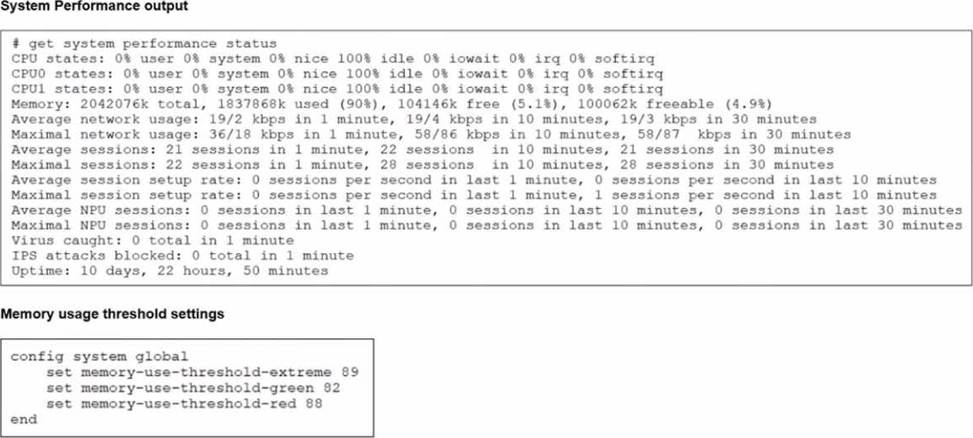
The exhibits show the system performance output and default configuration of high memory usage thresholds on a FortiGate device.
Based on the system performance output, what are the two possible outcomes? (Choose two.)
- A . FortiGate drops new sessions.
- B . Administrators can access FortiGate only through the console port.
- C . Administrators can change the configuration.
- D . FortiGate has entered conserve mode.
A, D
Explanation:
“Three different configurable thresholds define when FortiGate enters and exits conserve mode. If memory usage goes above the percentage of total RAM defined as the red threshold, FortiGate enters conserve mode.”
“If memory usage keeps increasing, it might exceed the extreme threshold. While memory usage is above this highest threshold, all new sessions are dropped.”
“What actions does FortiGate take to preserve memory while in conserve mode?
• FortiGate does not accept configuration changes, because they might increase memory usage.”
“However, if the memory usage exceeds the extreme threshold, new sessions are always dropped, regardless of the FortiGate configuration.”
Technical Deep Dive:
The system performance output shows Memory: 2042076k total, 1837868k used (90%). The configured thresholds shown are:
green = 82
red = 88
extreme = 89
Because memory usage is 90%, it is:
Above the red threshold (88%) → so FortiGate has entered conserve mode
Above the extreme threshold (89%) → so all new sessions are dropped
That makes A and D correct.
Why the others are wrong:
B is not stated anywhere in the study guide as an automatic outcome of conserve mode.
C is the opposite of what the guide says. In conserve mode, FortiGate does not accept configuration changes.
A useful verification command is:
diagnose hardware sysinfo conserve
Operationally, once a FortiGate crosses the red threshold, it starts protecting itself by limiting behavior that could increase memory usage. Once it crosses the extreme threshold, it becomes more severe and drops new sessions to keep the system from becoming unstable.
Which three strategies are valid SD-WAN rule strategies for member selection? (Choose three
answers)
- A . Lowest Cost (SLA) without load balancing
- B . Manual with load balancing
- C . Lowest Quality (SLA) with load balancing
- D . Lowest Cost (SLA) with load balancing
- E . Best Quality with load balancing
A, B, D
Explanation:
According to the FortiOS 7.6 Administrator Study Guide and official documentation, SD-WAN rules (services) determine the path selection for traffic matching specific criteria. Version 7.6 provides specific flexibility regarding how these strategies handle multiple member interfaces.
First, Manual with load balancing (Statement B) is a valid configuration. In the Manual strategy, the administrator orders interfaces by preference, but by enabling the Load balancing toggle, the FortiGate can distribute traffic across all members that are up.
Second, the Lowest Cost (SLA) strategy has been enhanced to support two modes. When the load balancing option is disabled, it acts as Lowest Cost (SLA) without load balancing (Statement A), selecting the single lowest-cost link that meets the SLA. Alternatively, by enabling the toggle, it functions as Lowest Cost (SLA) with load balancing (Statement D), where the FortiGate distributes traffic across all interfaces that satisfy the SLA target, regardless of their individual costs.
Statements C and E are incorrect because "Lowest Quality" is not a recognized SD-WAN strategy, and the Best Quality strategy is specifically a priority-based selection for a single "best" link, meaning the load balancing toggle is not available in the GUI when this mode is selected.
DRAG DROP
An administrator wants to form an HA cluster using the FGCP protocol. Both FortiGate devices are configured with the set override enable command. Arrange the criteria in the order in which the FGCP protocol uses them to elect the primary FortiGate. Select the criteria in the left column, hold and drag it to a blank position in the column on the right. Place the four correct steps in order, placing the first step in the first position. Once you place a step, you can move it again if you want to change your answer before moving to the next question.
You need to drop four criteria in the work area. Select and drag the screen divider to change the viewable area of the source and work areas. (Choose four answers)

Explanation:
“This slide shows the different criteria that a cluster considers during the primary FortiGate election process. The criteria order evaluation depends on the HA override setting.”
For the default case shown in the guide:
“1. The cluster compares the number of monitored interfaces that have a status of up. The member with the most available monitored interfaces becomes the primary.