
Practice Free AB-730 Exam Online Questions
HOTSPOT
For each of the following statements, select Yes if the statement is true. Otherwise, select No. NOTE: Each correct selection is worth one point.
Explanation:
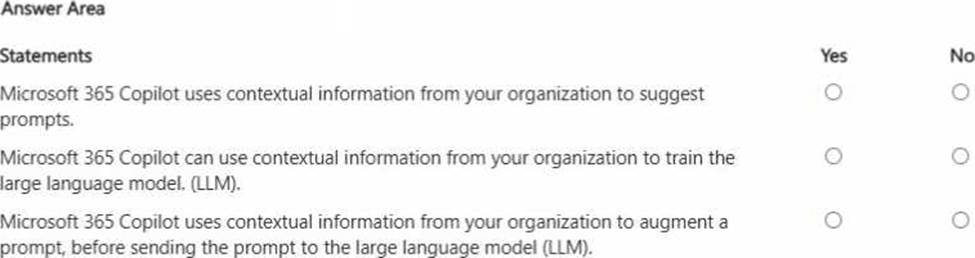
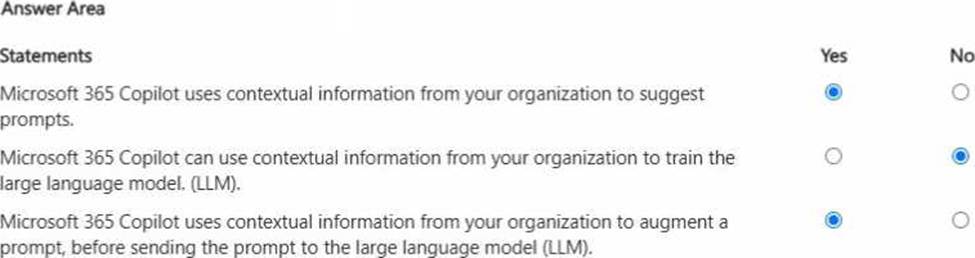
Microsoft 365 Copilot is designed to be helpful by using work context―for example, the files you have access to, recent activity, meetings, emails, and SharePoint/OneDrive content―to suggest relevant prompts and help you start tasks faster. It also uses this context to augment your prompt before it is sent to the LLM. This is the grounding approach (often described as retrieval-augmented generation): Copilot retrieves relevant organizational content you’re permitted to access and adds it as supporting context so responses are accurate and business-relevant. However, Microsoft 365 Copilot does not use your organization’s contextual data to train the underlying foundation model. That separation is critical for enterprise privacy and compliance: your prompts, responses, and tenant data are used to generate the answer for your session and permissions, but are not used to improve or retrain the base LLM. This approach supports responsible AI, protects confidential business information, and ensures outputs respect access controls.
In a Microsoft 365 Copilot conversation, you generate a report, and then edit the report in a page.
You need to collaborate with a colleague on the report.
What are two ways to achieve the goal?
- A . @mention the colleague in the page.
- B . Add the page to a notebook.
- C . Open the page in Microsoft Word.
- D . Share the page link.
A, D
Explanation:
Microsoft 365 Copilot Pages supports collaboration similarly to other Microsoft 365 documents.
Collaboration requires notifying or granting access to colleagues.
Using @mentions within the page (Option A) directly notifies the colleague and facilitates collaborative engagement. Sharing the page link (Option D) allows others to access and edit the content according to permissions. These two methods provide complete collaboration workflows.
Adding the page to a notebook does not grant collaborative access. Opening the page in Word changes the editing surface but does not inherently enable collaboration unless shared.
Therefore, the correct answers are A and D.
You create a Microsoft 365 Copilot notebook and add a file named Process.docx from a local folder. Yesterday, you updated Process.docx in the local folder.
What will occur when you chat in the notebook?
- A . The chat will reference both versions of Process.docx.
- B . The chat will reference the most recent version of Process.docx.
- C . The chat will reference only the original version of Process.docx.
C
Explanation:
Microsoft 365 Copilot notebooks use the version of a file that was uploaded or attached at the time it was added to the notebook. When a document such as Process.docx is added from a local folder, Copilot references that uploaded snapshot of the file. If the file is later modified locally, the notebook does not automatically sync or refresh with the updated local version unless the updated file is re-uploaded.
Microsoft guidance on grounding and file references explains that Copilot works with the specific content stored in Microsoft 365 or the attached artifact within the notebook session. Since the updated version remains in the local folder and was not reattached, Copilot continues to use the originally added version.
Therefore, during subsequent chats in the notebook, Copilot references only the original uploaded version of Process.docx.
HOTSPOT
You create an agent in the Microsoft 365 Copilot app by using a template.
For each of the following statements, select Yes if the statement is true. Otherwise, select No. NOTE: Each correct selection is worth one point.
Explanation:
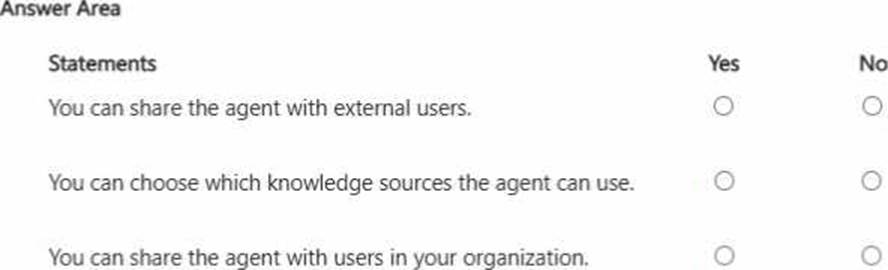
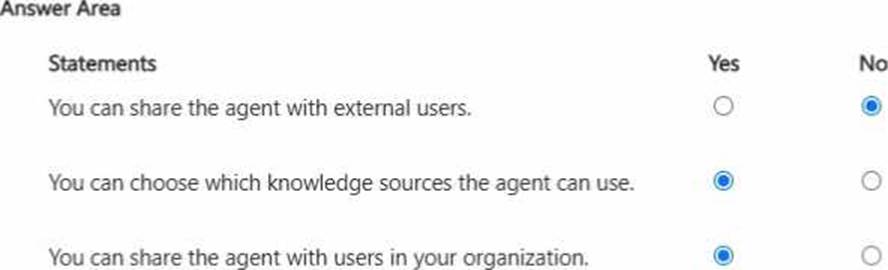
When creating an agent in the Microsoft 365 Copilot app using a template, administrators or authorized users can configure specific behaviors and knowledge sources for the agent. Therefore, it is correct that you can choose which knowledge sources the agent can use. This ensures proper grounding in approved Microsoft 365 data such as SharePoint sites, OneDrive folders, or other organizational repositories. Controlling knowledge sources supports responsible AI principles, including data security, relevance, and compliance.
Agents created within Microsoft 365 are designed primarily for internal organizational use. As a result, sharing the agent with users inside the organization is supported, enabling collaboration and productivity improvements across teams.
However, sharing the agent with external users is not supported by default. External sharing would introduce security and compliance risks, so Microsoft enforces tenant-level boundaries to protect enterprise data.
These capabilities reflect best practices in managing AI prompts and agents securely within enterprise environments.
You receive the following response to a prompt: "Sorry, it looks like I can’t respond to this. Let’s try a different topic."
What is a possible cause of the response?
- A . The prompt is too vague to elicit a response.
- B . The prompt contains language that violates safety guidelines.
- C . The prompt contains more than five requests.
- D . The prompt is larger than the allowed context window.
B
Explanation:
Microsoft 365 Copilot follows Microsoft’s Responsible AI principles and enforces strict content safety policies. When a prompt violates safety guidelines―such as containing harmful, abusive, illegal, or restricted content―the system may refuse to generate a response. The refusal message shown is consistent with safety filtering behavior.
Generative AI systems include moderation layers that evaluate prompts before generating output. If the prompt is classified as unsafe or non-compliant with policy, Copilot blocks the request and encourages the user to try a different topic.
A vague prompt typically results in a generic or clarifying response rather than a refusal. There is no fixed limit of five requests per prompt. Exceeding the context window usually results in truncation or processing errors, not a safety-based refusal message.
Therefore, the most likely cause of the response is that the prompt contains language that violates safety guidelines.