
Practice Free XDR-Analyst Exam Online Questions
Which of the following represents the correct relation of alerts to incidents?
- A . Only alerts with the same host are grouped together into one Incident in a given time frame.
- B . Alerts that occur within a three-hour time frame are grouped together into one Incident.
- C . Alerts with same causality chains that occur within a given time frame are grouped together into an Incident.
- D . Every alert creates a new Incident.
C
Explanation:
The correct relation of alerts to incidents is that alerts with same causality chains that occur within a given time frame are grouped together into an incident. A causality chain is a sequence of events that are related to the same malicious activity, such as a malware infection, a lateral movement, or a data exfiltration. Cortex XDR uses a set of rules that take into account different attributes of the alerts, such as the alert source, type, and time period, to determine if they belong to the same causality chain. By grouping related alerts into incidents, Cortex XDR reduces the number of individual events to review and provides a complete picture of the attack with rich investigative details1.
Option A is incorrect, because alerts with the same host are not necessarily grouped together into one incident in a given time frame. Alerts with the same host may belong to different causality chains, or may be unrelated to any malicious activity. For example, if a host has a malware infection and a network anomaly, these alerts may not be grouped into the same incident, unless they are part of the same attack.
Option B is incorrect, because alerts that occur within a three hour time frame are not always grouped together into one incident. The time frame is not the only criterion for grouping alerts into incidents. Alerts that occur within a three hour time frame may belong to different causality chains, or may be unrelated to any malicious activity. For example, if a host has a file download and a registry modification within a three hour time frame, these alerts may not be grouped into the same incident, unless they are part of the same attack.
Option D is incorrect, because every alert does not create a new incident. Creating a new incident for every alert would result in alert fatigue and inefficient investigations. Cortex XDR aims to reduce the number of incidents by grouping related alerts into one incident, based on their causality chains and other attributes.
Reference: Palo Alto Networks Certified Detection and Remediation Analyst (PCDRA) Study Guide, page 9 Palo Alto Networks Cortex XDR Documentation, Incident Management Overview2 Cortex XDR: Stop Breaches with AI-Powered Cybersecurity1
Which statement is true based on the following Agent Auto Upgrade widget?
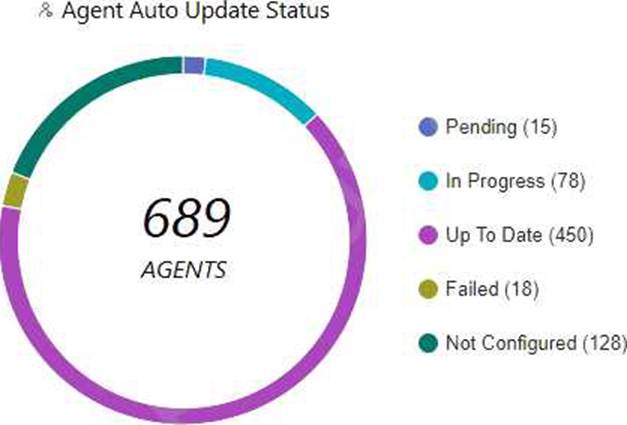
- A . There are a total of 689 Up To Date agents.
- B . Agent Auto Upgrade was enabled but not on all endpoints.
- C . Agent Auto Upgrade has not been enabled.
- D . There are more agents in Pending status than In Progress status.
B
Explanation:
The Agent Auto Upgrade widget shows the status of the agent auto upgrade feature on the endpoints. The widget displays the number of agents that are up to date, in progress, pending, failed, and not configured. In this case, the widget shows that there are 450 agents that are up to date, 78 in progress, 15 pending, 18 failed, and 128 not configured. This means that the agent auto upgrade feature was enabled but not on all endpoints.
Reference: Cortex XDR Agent Auto Upgrade
PCDRA Study Guide
Which two types of exception profiles you can create in Cortex XDR? (Choose two.)
- A . exception profiles that apply to specific endpoints
- B . agent exception profiles that apply to specific endpoints
- C . global exception profiles that apply to all endpoints
- D . role-based profiles that apply to specific endpoints
B, C
Explanation:
Cortex XDR allows you to create two types of exception profiles: agent exception profiles and global exception profiles. Agent exception profiles apply to specific endpoints that are assigned to the profile. Global exception profiles apply to all endpoints in your network. You can use exception profiles to configure different types of exceptions, such as process exceptions, support exceptions, behavioral threat protection rule exceptions, local analysis rules exceptions, advanced analysis exceptions, or digital signer exceptions. Exception profiles help you fine-tune the security policies for your endpoints and reduce false positives.
Reference: Exception Security Profiles
Create an Agent Exception Profile
Create a Global Exception Profile
You can star security events in which two ways? (Choose two.)
- A . Create an alert-starring configuration.
- B . Create an Incident-starring configuration.
- C . Manually star an alert.
- D . Manually star an Incident.
C, D
Explanation:
You can star security events in Cortex XDR in two ways: manually star an alert or an incident, or create an alert-starring or incident-starring configuration. Starring security events helps you prioritize and track the events that are most important to you. You can also filter and sort the events by their star status in the Cortex XDR console.
To manually star an alert or an incident, you can use the star icon in the Alerts table or the Incidents table. You can also star an alert from the Causality View or the Query Center Results table. You can star an incident from the Incident View or the Query Center Results table. You can also unstar an event by clicking the star icon again.
To create an alert-starring or incident-starring configuration, you can use the Alert Starring Configuration or the Incident Starring Configuration pages in the Cortex XDR console. You can define the criteria for starring alerts or incidents based on their severity, category, source, or other attributes. You can also enable or disable the configurations as needed.
Reference: Star Security Events
Create an Alert Starring Configuration
Create an Incident Starring Configuration
With a Cortex XDR Prevent license, which objects are considered to be sensors?
- A . Syslog servers
- B . Third-Party security devices
- C . Cortex XDR agents
- D . Palo Alto Networks Next-Generation Firewalls
C
Explanation:
The objects that are considered to be sensors with a Cortex XDR Prevent license are Cortex XDR agents and Palo Alto Networks Next-Generation Firewalls. These are the two sources of data that Cortex XDR can collect and analyze for threat detection and response. Cortex XDR agents are software components that run on endpoints, such as Windows, Linux, and Mac devices, and provide protection against malware, exploits, and fileless attacks. Cortex XDR agents also collect and send endpoint data, such as process activity, network traffic, registry changes, and user actions, to the Cortex Data Lake for analysis and correlation. Palo Alto Networks Next-Generation Firewalls are network security devices that provide visibility and control over network traffic, and enforce security policies based on applications, users, and content. Next-Generation Firewalls also collect and send network data, such as firewall logs, DNS logs, HTTP headers, and WildFire verdicts, to the Cortex Data Lake for analysis and correlation. By integrating data from both Cortex XDR agents and Next-Generation Firewalls, Cortex XDR can provide a comprehensive view of the attack surface and detect threats across the network and endpoint layers.
Reference: Cortex XDR Prevent License
Cortex XDR Agent Features
Next-Generation Firewall Features
Which built-in dashboard would be the best option for an executive, if they were looking for the Mean Time to Resolution (MTTR) metric?
- A . Security Manager Dashboard
- B . Data Ingestion Dashboard
- C . Security Admin Dashboard
- D . Incident Management Dashboard
D
Explanation:
The Incident Management Dashboard provides a high-level overview of the incident response process, including the Mean Time to Resolution (MTTR) metric. This metric measures the average time it takes to resolve an incident from the moment it is created to the moment it is closed. The dashboard also shows the number of incidents by status, severity, and assigned analyst, as well as the top alerts by category, source, and destination. The Incident Management Dashboard is designed for executives and managers who want to monitor the performance and efficiency of their security teams.
Reference: [PCDRA Study Guide], page 18.
What is the outcome of creating and implementing an alert exclusion?
- A . The Cortex XDR agent will allow the process that was blocked to run on the endpoint.
- B . The Cortex XDR console will hide those alerts.
- C . The Cortex XDR agent will not create an alert for this event in the future.
- D . The Cortex XDR console will delete those alerts and block ingestion of them in the future.
B
Explanation:
The outcome of creating and implementing an alert exclusion is that the Cortex XDR console will hide those alerts that match the exclusion criteria. An alert exclusion is a policy that allows you to filter out alerts that are not relevant, false positives, or low priority, and focus on the alerts that require your attention. When you create an alert exclusion, you can specify the criteria that define which alerts you want to exclude, such as alert name, severity, source, or endpoint. After you create an alert exclusion, Cortex XDR will hide any future alerts that match the criteria, and exclude them from incidents and search query results. However, the alert exclusion does not affect the behavior of the Cortex XDR agent or the security policy on the endpoint. The Cortex XDR agent will still create an alert for the event and apply the appropriate action, such as blocking or quarantining, according to the security policy. The alert exclusion only affects the visibility of the alert on the Cortex XDR console, not the actual protection of the endpoint. Therefore, the correct answer is B, the Cortex XDR console will hide those alerts12
Reference: Alert Exclusions
Create an Alert Exclusion Policy
What is the Wildfire analysis file size limit for Windows PE files?
- A . No Limit
- B . 500MB
- C . 100MB
- D . 1GB
C
Explanation:
The Wildfire analysis file size limit for Windows PE files is 100MB. Windows PE files are executable files that run on the Windows operating system, such as .exe, .dll, .sys, or .scr files. Wildfire is a cloud-based service that analyzes files and URLs for malicious behavior and generates signatures and protections for them. Wildfire can analyze various file types, such as PE, APK, PDF, MS Office, and others, but each file type has a different file size limit. The file size limit determines the maximum size of the file that can be uploaded or forwarded to Wildfire for analysis. If the file size exceeds the limit, Wildfire will not analyze the file and will return an error message.
According to the Wildfire documentation1, the file size limit for Windows PE files is 100MB. This means that any PE file that is larger than 100MB will not be analyzed by Wildfire. However, the firewall can still apply other security features, such as antivirus, anti-spyware, vulnerability protection, and file blocking, to the PE file based on the security policy settings. The firewall can also perform local analysis on the PE file using the Cortex XDR agent, which uses machine learning models to assess the file and assign it a verdict2.
Reference: WildFire File Size Limits: This document provides the file size limits for different file types that can be analyzed by Wildfire.
Local Analysis: This document explains how the Cortex XDR agent performs local analysis on files that cannot be sent to Wildfire for analysis.
As a Malware Analyst working with Cortex XDR you notice an alert suggesting that there was a prevented attempt to download Cobalt Strike on one of your servers. Days later, you learn about a massive ongoing supply chain attack. Using Cortex XDR you recognize that your server was compromised by the attack and that Cortex XDR prevented it.
What steps can you take to ensure that the same protection is extended to all your servers?
- A . Create Behavioral Threat Protection (BTP) rules to recognize and prevent the activity.
- B . Enable DLL Protection on all servers but there might be some false positives.
- C . Create IOCs of the malicious files you have found to prevent their execution.
- D . Enable Behavioral Threat Protection (BTP) with cytool to prevent the attack from spreading.
A
Explanation:
To ensure that the same protection is extended to all your servers, you need to create Behavioral Threat Protection (BTP) rules to recognize and prevent the activity. BTP is a feature of Cortex XDR that allows you to create custom rules that detect and block malicious or suspicious behaviors on your endpoints, such as file execution, process injection, network connection, or registry modification. BTP rules can use various operators, functions, and variables to define the criteria and the actions for the rules. By creating BTP rules that match the behaviors of the supply chain attack, you can prevent the attack from compromising your servers12.
Let’s briefly discuss the other options to provide a comprehensive explanation:
B. Enable DLL Protection on all servers but there might be some false positives: This is not the correct answer. Enabling DLL Protection on all servers will not ensure that the same protection is extended to all your servers. DLL Protection is a feature of Cortex XDR that allows you to block the execution of unsigned or untrusted DLL files on your endpoints. DLL Protection can help to prevent some types of attacks that use malicious DLL files, but it may not be effective against the supply chain attack that used a Trojanized DLL file that was digitally signed by a trusted vendor. DLL Protection may also cause some false positives, as it may block some legitimate DLL files that are unsigned or untrusted3.
C. Create IOCs of the malicious files you have found to prevent their execution: This is not the correct answer. Creating IOCs of the malicious files you have found will not ensure that the same protection is extended to all your servers. IOCs are indicators of compromise that you can create to detect and respond to known threats on your endpoints, such as file hashes, registry keys, IP addresses, domain names, or full paths. IOCs can help to identify and block the malicious files that you have already discovered, but they may not be effective against the supply chain attack that used different variants of the malicious files with different hashes or names. IOCs may also become outdated, as the attackers may change or update their files to evade detection4.
D. Enable Behavioral Threat Protection (BTP) with cytool to prevent the attack from spreading: This is not the correct answer. Enabling BTP with cytool will not ensure that the same protection is extended to all your servers. BTP is a feature of Cortex XDR that allows you to create custom rules that detect and block malicious or suspicious behaviors on your endpoints, such as file execution, process injection, network connection, or registry modification. BTP rules can help to prevent the attack from spreading, but they need to be created and configured in the Cortex XDR app, not with cytool. Cytool is a command-line tool that allows you to perform various operations on the Cortex XDR agent, such as installing, uninstalling, upgrading, or troubleshooting. Cytool does not have an option to enable or configure BTP rules.
In conclusion, to ensure that the same protection is extended to all your servers, you need to create BTP rules to recognize and prevent the activity. By using BTP rules, you can create custom and flexible prevention rules that match the behaviors of the supply chain attack.
Reference: Behavioral Threat Protection
Create a BTP Rule
DLL Protection
Create an IOC Rule
[Cytool]
Which module provides the best visibility to view vulnerabilities?
- A . Live Terminal module
- B . Device Control Violations module
- C . Host Insights module
- D . Forensics module
C
Explanation:
The Host Insights module provides the best visibility to view vulnerabilities on your endpoints. The Host Insights module is an add-on feature for Cortex XDR that combines vulnerability management, application and system visibility, and a Search and Destroy feature to help you identify and contain threats. The vulnerability management feature allows you to scan your Windows endpoints for known vulnerabilities and missing patches, and view the results in the Cortex XDR console. You can also filter and sort the vulnerabilities by severity, CVSS score, CVE ID, or patch availability. The Host Insights module helps you reduce your exposure to threats and improve your security posture.
Reference: Host Insights
Vulnerability Management