
Practice Free Sales-Admn-202 Exam Online Questions
An admin has created a Small Business Bundle product with List Price = $5.00 with these Product Options:
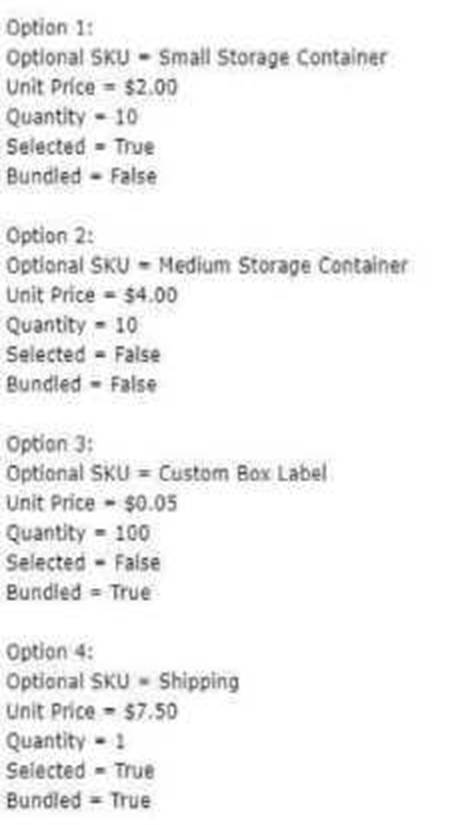
If a user adds this bundle and saves it without making changes to the configuration, what will the Package Total be on the Small Business Bundle parent product Quote Line?
- A . $17.50
- B . $25.00
- C . $37.50
- D . $5.00
B
Explanation:
Bundle Configuration:
Small Storage Container (Option 1): $2.00 × 10 = $20.00
Shipping (Option 4): $7.50 (bundled).
Other Options (Option 2 and Option 3):
Medium Storage Container: Not selected.
Custom Box Label: Not selected.
Calculation:
Bundle Parent Product Price: $5.00
Total Price: $5.00 (bundle) + $20.00 (Option 1) + $7.50 (Option 4) = $25.00
Why Other Answers Are Incorrect:
A: Ignores bundled Option 4 price.
C: Includes non-selected options in the total.
D: Excludes all Option prices, which is inaccurate. Salesforce CPQ
Reference: Bundling logic and pricing are covered under Bundle Configuration Guidelines .
Universal Containers (UC) wants to sell products with monthly subscription terms. UC wants additional days to round up to the nearest month for calculating the prorated price.
Which CPQ package settings should UC use to meet the business requirement?
- A . Subscription Term unit: MonthSubscription Prorate Precision: Day
- B . Subscription Term unit: MonthSubscription Prorate Precision: Month
- C . Subscription Term unit: MonthSubscription Prorate Precision: Month + Daily
- D . Subscription Term unit: DaySubscription Prorate Precision: Day.
B
Explanation:
Requirement Overview:
Universal Containers wants to sell monthly subscriptions and round additional days up to the nearest
month when calculating prorated prices.
Solution Details:
Subscription Term Unit = Month: Ensures that subscriptions are billed on a monthly basis.
Subscription Prorate Precision = Month: Rounds up additional days to the next month.
Steps to Configure:
Navigate to CPQ Package Settings > Subscription and Renewal Settings.
Set the Subscription Term Unit to Month.
Set the Subscription Prorate Precision to Month.
Save and test the configuration by creating a Quote with subscription products.
Validation:
Ensure that additional days are rounded up to the next month in the prorated pricing calculation.
Universal Containers sends a company PDF brochure with each Quote to potential customers. Sales rep attach the brochure to each email sent.
What should the Admin do to simplify this process?
- A . Manually attach the PDF as an Additional Document on each Quote the sales rep sends.
- B . Add the PDF as a required Additional Document on the Quote Template.
- C . Upload the PDF into the Documents object folder named Output Attachments.
- D . Create an HTML Template Content record for the PDF and include it in a Template Section.
B
Explanation:
Simplification Method:
By adding the PDF as a required Additional Document in the Quote Template, Salesforce CPQ ensures the PDF is automatically included with each generated Quote. Steps to Configure:
Navigate to the Quote Template.
Add the PDF file under the Additional Documents section.
Mark it as required for automatic inclusion.
Salesforce CPQ
Reference: The Additional Documents feature simplifies document management in Quote Templates .
Universal Containers wants to update the Quantity of a Product in the Line Editor with a Price Rule.
The rule should apply only for this one specific Product.
What should the Admin do to ensure that the Price Rule only changes Quote Lines referencing this Product?
- A . Create a Price Condition against a Quote Line field that contains a value that is unique to the product selected.
- B . Create an Error Condition against a Quote Line field that contains a value that is unique to the product selected.
- C . Fill in the Product field on the Price Rule with the Product.
- D . Fill in the Lookup Object field on the Price Rule with the Product.
A
Explanation:
Requirement Overview:
Universal Containers wants to update the Quantity of a specific Product in the Quote Line Editor via a Price Rule.
The Price Rule should target only this specific Product.
Key Mechanism:
Use a Price Condition on the Price Rule to evaluate a Quote Line field that uniquely identifies the
Product (e.g., Product Code or Product Name).
Steps to Configure:
Navigate to the Price Rule.
Add a Price Condition:
Field: Select a field from the Quote Line that identifies the Product.
Operator: Equals.
Value: Enter the unique value (e.g., Product Code or Name). Configure the Price Action to update the Quantity field. Validation:
Test the rule by adding the specific Product to a Quote and confirming that the rule updates its Quantity as expected.