
Practice Free Sales-Admn-202 Exam Online Questions
Universal Containers has a series of required PDF documents that need to be attached to the output document when generated. These PDF files are already stored in Documents.
What should the admin do on the Quote Template to meet this requirement?
- A . Create a new Template Section for each PDF document.
- B . Create a new Additional Document on the Quote Template for each PDF document.
- C . Select the correct Documents Folder from the Documents field on the Quote Template.
- D . Reference each PDF Document in Custom Template Content records.
B
Explanation:
Requirement Overview:
Universal Containers needs to attach required PDF documents stored in Salesforce Documents to the
Quote output.
Solution:
Use the Additional Document feature on the Quote Template to include PDF files in the generated output.
Steps to Configure:
Navigate to the Quote Template.
Create an Additional Document for each required PDF:
Reference the document stored in Salesforce.
Save the Quote Template.
Validation:
Generate a Quote document and confirm that the Additional Documents are included as attachments.
Universal Containers sells Tiny Boxes for $0,005 each. Tiny Boxes are Non Discountable.
How should the admin set the decimal precision for the unit price7
- A . Edit the Unit Price field on the Quote Line object and set the precision to 3.
- B . Set the Unit Price Scale to 3 in the Pricing and Calculation Package Settings.
- C . Set the Unit Price Scale field to 3 on the tiny boxes Product record.
- D . Use a Price Rule that sets the Net Unit Price to $0,005 when the product is added to a Quote.
B
Explanation:
Requirement:
Ensure the price of Tiny Boxes ($0.005) is handled with proper decimal precision.
Solution:
Adjust the Unit Price Scale to 3 in the Pricing and Calculation Package Settings, enabling Salesforce
CPQ to handle prices up to three decimal places.
Why Other Options Are Incorrect:
A: Field-level precision on Quote Line does not control pricing precision.
C: The Product record’s Unit Price Scale cannot override global settings.
D: Price Rules are unnecessary for simple decimal precision adjustments. Salesforce CPQ
Reference: Decimal precision configuration is described in CPQ Pricing Settings .
How should an admin enable renewal uplift on an Account?
- A . Change the Renewal Pricing Method to Same on the Account.
- B . Select the Combine Subscription Quantities checkbox on the Contract record related to the Account.
- C . Update the Renewal Pricing Method to Uplift on the Account, then populate the Renewal Uplift
(%) field on the Contract record. - D . Update the Markup (%) field on the Renewal Quote.
C
Explanation:
Requirement Overview:
Enable Renewal Uplift for the Account to adjust pricing for renewals.
Steps to Configure:
Renewal Pricing Method:
Navigate to the Account record.
Set the Renewal Pricing Method field to Uplift.
Renewal Uplift (%):
On the related Contract record, populate the Renewal Uplift (%) field with the desired percentage
increase.
Validation:
Test the renewal process by generating a Renewal Quote and ensuring the Uplift applies to subscription pricing.
Users at Universal Containers have reported when amending a contract, the net pricing of some products is incorrect. The Admin has done a preliminary investigation and found that the issue only happens on existing products when their quantity is adjusted.
What is the likely cause?
- A . The Revised Quantity has been set on the Subscription record.
- B . The Products have a Discount Schedule and Cross Order is not selected.
- C . A Price Rule is firing Before Calculate and changing the Regular Unit Price.
- D . A Price Rule is firing On Calculate and changing the Effective Quantity.
B
Explanation:
Background Context:When amending a contract in Salesforce CPQ, issues with net pricing arise if the
amendment impacts existing subscription products. Subscription products often rely on Discount
Schedules for calculating discounts, especially when quantity changes. The "Cross Order" field on
Discount Schedules ensures discounts account for cumulative quantities across multiple orders or
contracts.
Problem Analysis:
The reported issue involves incorrect net pricing specifically when the quantity of existing products is adjusted during contract amendments.
This aligns with the functionality of Discount Schedules, where the total quantity determines the
discount applied. Without "Cross Order" enabled, Salesforce CPQ considers only the current order’s
quantities rather than aggregating across orders.
Root Cause Identification:
Discount Schedule and Cross Order:If the Discount Schedule associated with these products does not
have "Cross Order" enabled, any amendments won’t consider cumulative quantities. Instead, the system recalculates based on only the new or adjusted quantities, leading to incorrect net pricing. Supporting Evidence:
Salesforce documentation highlights that Cross Order must be selected in the Discount Schedule for accurate discount calculations across multiple orders or contracts. Otherwise, amendments operate in isolation.
The feature ensures that ongoing contracts retain accurate pricing based on total historical
quantities.
Recommended Resolution:
Navigate to the Discount Schedule associated with the affected products.
Verify and enable the Cross Order checkbox:
Go to Setup > Discount Schedules.
Locate the relevant Discount Schedule.
Edit the schedule and enable Cross Order.
Test the functionality by amending the contract and verifying the net pricing calculations.
Preventative Actions:
For all subscription-based products relying on Discount Schedules, ensure Cross Order is enabled during initial configuration.
Provide training to Salesforce CPQ admins to understand the implications of Discount Schedule settings on pricing.
By following these steps and verifying the Discount Schedule configuration, the issue can be resolved, ensuring consistent and accurate net pricing during contract amendments.
An Admin wants to set up a product so a user can all available options and selected options by scrolling in a single page.
Which updates should the Admin male to meet this requirement
- A . Update Option Layout on the parent Product record to Wizard.
- B . Create Features related to the parent Product and assign each Feature the Option Selection method Dynamic
- C . Create feature to the parent product and assign all Option to one of the created features.
- D . Update option layout on the parent Product record to Sections.
D
Explanation:
Requirement:
Users must view and select product options by scrolling on a single page.
Solution Details:
Setting the Option Layout to Sections groups options into expandable/collapsible sections.
This creates a scrollable view without navigating multiple pages.
Steps to Update:
Go to the parent Product Record.
Update the Option Layout field to Sections.
Validation:Test the configuration in the Quote Line Editor. Options should now appear grouped by sections.
Universal Containers only sells lid Products as part of a container Product. The admin wants to hide
all lid Products from Product Selection.
How should the admin set up lid Products?
- A . Check the Component checkbox.
- B . Set the Product Family value to Accessory.
- C . Check the Hidden checkbox.
- D . Include lid Products in the description of container Products.
C
Explanation:
Requirement Overview:
Universal Containers wants to hide lid Products from the Product Selection screen since they are only
sold as part of a container Product.
Solution:
By selecting the Hidden checkbox on the lid Product record, the Product is removed from the Product Selection page while remaining available within bundles. Steps to Configure:
Navigate to the Product Record for each lid Product.
Select the Hidden checkbox.
Save the changes.
Validation:
Verify that the lid Products no longer appear on the Product Selection screen but remain accessible as part of their parent container bundles.
Universal Containers only sells lid Products as part of a container Product. The admin wants to hide
all lid Products from Product Selection.
How should the admin set up lid Products?
- A . Check the Component checkbox.
- B . Set the Product Family value to Accessory.
- C . Check the Hidden checkbox.
- D . Include lid Products in the description of container Products.
C
Explanation:
Requirement Overview:
Universal Containers wants to hide lid Products from the Product Selection screen since they are only
sold as part of a container Product.
Solution:
By selecting the Hidden checkbox on the lid Product record, the Product is removed from the Product Selection page while remaining available within bundles. Steps to Configure:
Navigate to the Product Record for each lid Product.
Select the Hidden checkbox.
Save the changes.
Validation:
Verify that the lid Products no longer appear on the Product Selection screen but remain accessible as part of their parent container bundles.
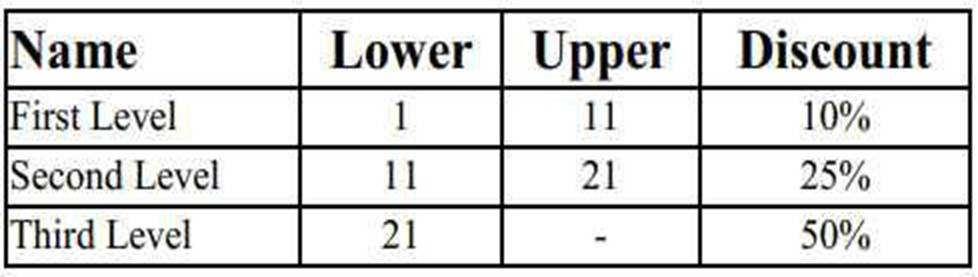
Universal Containers has a slab Discount Schedule for Product A with these Discount Tiers:
If Product A has a List Price of $100.00, what is the Net Total for a Quote Line with the quantity of 21?
- A . $1,050.00
- B . $1,725.00
- C . $1,700.00
- D . $1,575.00
C
Explanation:
Scenario Breakdown:
List Price = $100.00 per unit.
Quantity = 21 units.
Discount Schedule:
First Level (1C11 units): 10% discount.
Second Level (11C21 units): 25% discount.
Third Level (21+ units): 50% discount.
Slab Discount Calculation:
First Level (1C11 units):
Price = $100 × 10 = $1,000
Discount = 10% = $1,000 × 0.10 = $100
Net = $1,000 – $100 = $900
Second Level (11C21 units):
Price = $100 × 10 = $1,000
Discount = 25% = $1,000 × 0.25 = $250
Net = $1,000 – $250 = $750
Total Net = $900 + $750 = $1,700
Validation:This matches Salesforce CPQ’s standard behavior for Slab Discount Schedules, where discounts are applied per tier.
An admin wants to map Configuration Attribute values to Quote Lines that are for parent bundle products only. The fields are set up to correctly map between Quote Lines and Product Options.
Which setup will ensure this condition is met?
- A . On the child options. Apply Immediately is False and Apply Immediately Context is Always.
- B . On the Configuration Attribute. Auto-Select is False.
- C . On the Configuration Attribute. Apply to Product Options is False.
- D . On the bundled parent. Apply to Product Options is False.
D
Explanation:
Requirement:
Ensure Configuration Attribute values are mapped only to parent bundle Quote Lines, not child
Product Options.
Solution:
Setting Apply to Product Options to False on the parent bundle ensures the Configuration Attribute’s
value is mapped only to the parent Quote Line.
Why Other Options Are Incorrect:
A: Changing Apply Immediately settings for child options does not control parent-quote mapping.
B: Auto-Select = False does not relate to mapping Configuration Attributes.
C: Apply to Product Options must be set on the parent bundle, not the Configuration Attribute itself. Salesforce CPQ
Reference: Configuration Attributes Mapping Behavior is detailed in CPQ Bundling Configuration Guidelines .
Users at Universal Containers want to know how Approval requests will be routed prior to submitting a Quote for approval.
How can the admin meet this requirement?
- A . Using Native Approvals, build a custom Visualforce Page to display the Approval Process for the Quote.
- B . Using Advanced Approvals, place the Preview Approval button on the Quote page layout.
- C . Using Advanced Approvals, build a custom Visualforce Page to display the Approval Chains for the Quote.
- D . Using Native Approvals, build a custom button to display the approval matrix to users.
B
Explanation:
Requirement:
Sales reps need visibility into the Approval Chain before submitting a Quote for approval.
Solution:
The Preview Approval button in Advanced Approvals allows users to view the Approval Chain directly from the Quote page.
Why Other Options Are Incorrect:
A and C: Building custom Visualforce pages is unnecessary with Advanced Approvals.
D: Native Approvals do not offer a built-in preview feature.
Salesforce CPQ
Reference: Advanced Approvals functionality, including the Preview Approval button, is detailed in CPQ Approval Configuratio .