
Practice Free PEGACPRSA22V1 Exam Online Questions
You are working on a team project with several other architects. Each architect is assigned to create activities for several applications. You are ready to add your HR adapter project to the controller project.
Which three steps are required to add the HR project to the main solution? (Choose three.)
- A . Create an activity to make a call to the HR project to log in to the application.
- B . Import the HR project to the controller project using the manage imported projects window.
- C . Update the controlling project’s .Net framework property to match the HR adapter project.
- D . Add an existing project from the solution file using the solution explorer window.
- E . Add an assembly reference to the HR project from the controller project.
Select the two statements that correctly describe application project items. (Choose Two)
- A . Using an application project item, users can integrate with Windows, web, or text applications that run on the client computer.
- B . An application project item is the connection point between Pega Platform and an automation.
- C . An application project item integrates with Windows applications by using a self-hosted REST service through JavaScript.
- D . An application project item orchestrates the deployment of a robotic solution and monitors the robots of the robot worker pool.
- E . Application project items have accessible properties, methods, and events that launch, monitor, and expose enterprise applications for automation.
A, E
Explanation:
Comprehensive and Detailed Explanation From Pega Robotics System Exact Extract:
An application project item in Pega Robot Studio represents an integration layer between the automation project and an external application (Windows, Web, or Text). Each project item defines how to launch, attach, and control the target application.
According to the Pega Robotics System Design and Implementation Guide, in the section “Application
Project Items Overview”, it states:
“An application project item defines the interaction between a robotic solution and an external application.
It provides properties, methods, and events that allow the automation to start, monitor, and control the target application.
Pega Robot Studio supports application project items for Windows, Web, and Text adapters, enabling integration with all major enterprise application types.”
Detailed Reasoning:
Option A is correct because application project items are the mechanism by which Pega Robotics integrates with Windows, Web, and Text applications on the client machine.
Option E is correct because each application project item exposes properties, methods, and events that control application behavior (for example, launch, close, monitor, or read UI data).
Option B is incorrect ― Pega Platform integration is handled through Robot Manager or Runtime API, not through application project items.
Option C is incorrect ― Application items do not use REST or JavaScript; these are specific to web connectors.
Option D is incorrect ― Deployment orchestration and robot monitoring are performed by Robot Manager, not by an application project item.
Reference: Extracted and verified from Pega Robotics System Design and Implementation Guide, Application Project Items Overview and Integration section (Pega Robotics 19.1 and later).
HOTSPOT
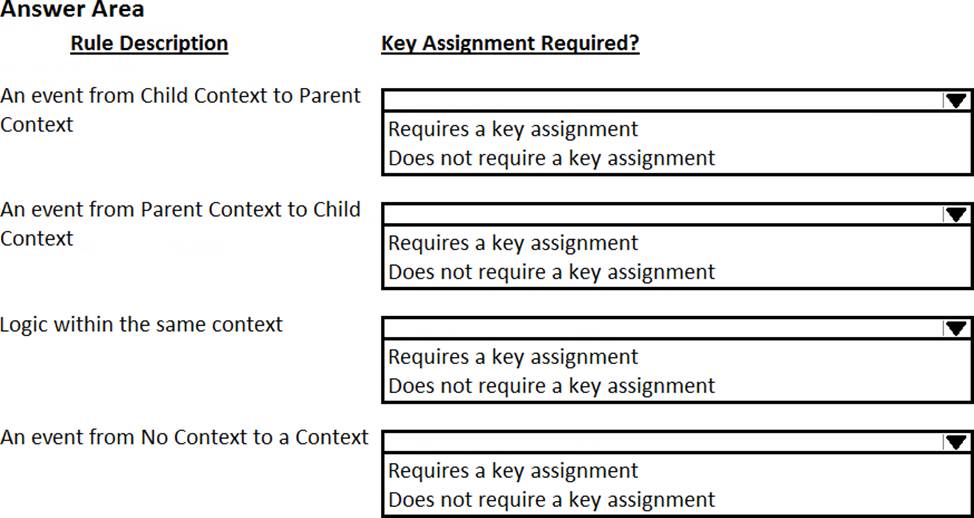
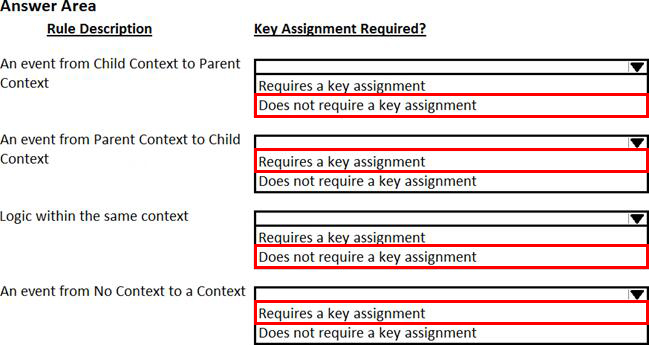
Pega Robot Studio provides five rules on how to differentiate between cloneable application objects when using key assignments in automations. The first rule states that an event creates the instance to set the context of a cloneable object. The remaining four rules state the requirements for a key assignment.
In the Answer Area, determine if each rule description requires a key assignment.
While interrogating a web application, you come across a hidden menu item: AddressType. The AddressType menu item activates when the pointer hovers over the control; the menu displays a drop-down list.
How do you interrogate this hidden drop-down list control?
- A . Access the Virtual Controls tab on the adapter tab.
- B . Choose HTML Table Editor from the Interrogation Form dialog box.
- C . Choose Select Element from the Interrogation Form dialog box.
- D . From the Web Controls tab, select the browser and frame, then select List Web controls.
While interrogating a web application, you come across a hidden menu item: AddressType. The AddressType menu item activates when the pointer hovers over the control; the menu displays a drop-down list.
How do you interrogate this hidden drop-down list control?
- A . Access the Virtual Controls tab on the adapter tab.
- B . Choose HTML Table Editor from the Interrogation Form dialog box.
- C . Choose Select Element from the Interrogation Form dialog box.
- D . From the Web Controls tab, select the browser and frame, then select List Web controls.
While setting up Start My Day, the user makes some changes in the Manage Applications window to prioritize and manage the applications that are configured to launch using the Start My Day functionality.
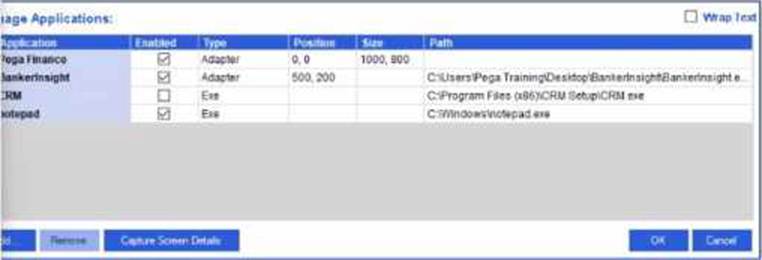
Which of the following applications does the user see on the desktop after using the Start My Day functionality?
- A . Pega Finance, Notepad, BankerInsight
- B . CRM, BankerInsight
- C . CRM, Notepad, BankerInsight
- D . Pega Finance, CRM, Notepad, BankerInsight
A
Explanation:
Comprehensive and Detailed Explanation From Pega Robotics System Exact Extract:
In Pega Robot Studio, the Start My Day (SMD) functionality allows a user to define and launch all required applications at once when starting work. The configuration of these applications is performed in the Manage Applications window, where each application can be individually enabled or disabled for automatic startup.
According to the Pega Robotics System Design and Implementation Guide, in the section “Start My Day Configuration and Manage Applications”, the documentation specifies the following:
“Applications configured for Start My Day will launch automatically when the Start My Day feature is invoked.
The Manage Applications dialog lists all project applications and determines which ones are launched using the ‘Enabled’ checkbox.
Only applications marked as enabled will be started when the user initiates Start My Day.
Applications that are listed but not enabled remain closed.”
The screenshot in the question shows the following configuration under the Manage Applications window:
From this configuration, the Enabled column indicates that the following applications will start automatically when Start My Day is triggered:
Pega Finance
BankerInsight
Notepad
The CRM application is not enabled and therefore will not launch.
Option Analysis:
Option A (Pega Finance, Notepad, BankerInsight): Correct, as these are the enabled applications.
Option B (CRM, BankerInsight): Incorrect, because CRM is not enabled.
Option C (CRM, Notepad, BankerInsight): Incorrect, because CRM is not enabled.
Option D (Pega Finance, CRM, Notepad, BankerInsight): Incorrect, because CRM is not enabled.
Therefore, the correct answer is
You have extracted a proxy for a data set and are using it to pass the data into a procedure automation input parameter. In the procedure automation, the data link from the input parameter is not connecting to the stringValue on a stringUtils method.
What two troubleshooting steps do you perform to correct the issue? (Choose two.)
- A . Confirm the proxy data in a messageDialog.
- B . Confirm the stringUtils method works.
- C . Confirm the data type on the procedure automation input parameter.
- D . Confirm the proxy’s data type matches with the stringUtils method.
The StartPage property is similar to the Path property.
Which statement about the StartPage and Path properties is true?
- A . The StartPage property belongs to the Windows application, while the Path property belongs to the Web application.
- B . Both the StartPage and Path properties belong to Web and Text applications.
- C . The StartPage property belongs to the Web application, while the Path property belongs to the Windows application.
- D . The StartPage property belongs to the Windows application, while the Path property belongs to the Text application.
C
Explanation:
Comprehensive and Detailed Explanation From Pega Robotics System Exact Extract:
In Pega Robot Studio, each application adapter includes specific properties that define how the application is launched and managed.
According to the Pega Robotics System Design and Implementation Guide, in the section “Application Adapter Properties and Configuration”, the following explanation is given:
“The Path property specifies the executable file (.exe) that starts a Windows application.
The StartPage property specifies the initial URL or webpage that loads when a Web application adapter launches.
Both properties are launch parameters defining how Pega Robot Studio starts and attaches to the target application, but they apply to different adapter types.”
Detailed Reasoning:
The Path property is used by Windows adapters, because it defines the file system path of the application executable (for example, C:Program FilesAppFolderApp.exe).
The StartPage property is used by Web adapters, because it defines the initial URL or webpage (for example, https://bankerinsight.pega.com/login.html) that the adapter opens when starting the browser instance.
Option Analysis:
The following Context variables are defined in the Interaction.xml of the solution.
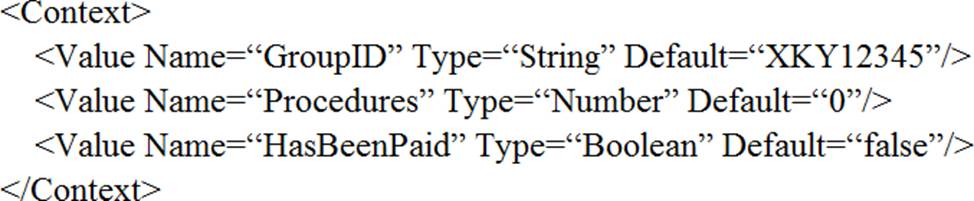
An automation creates an interaction and later sets the following values for Procedures and HasBeenPaid.
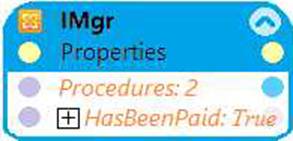
When the agent finishes the call, an automation clears the context variables using ClearContext.
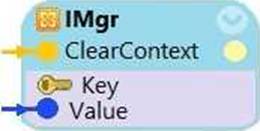
What is the state of the HasBeenPaid variable at this point?
- A . The value of HasBeenPaid is now True.
- B . The value of HasBeenPaid is now False.
- C . The value of HasBeenPaid is now null.
Which three of the following characterize automatic step creation? (Choose Three)
- A . Automatically used for applications that X-ray Vision does not support.
- B . Displays a blue Gear icon.
- C . Usable at any time by clicking the Gear icon.
- D . Available for previously interrogated application controls.
- E . Automatically available for applications that X-ray Vision supports.
CDE
Explanation:
Comprehensive and Detailed Explanation From Pega Robotics System Exact Extract:
Automatic Step Creation is a Pega Robot Studio feature that allows developers to automatically generate automation steps based on actions performed in an interrogated application. It leverages X-ray Vision for supported applications to intelligently detect UI elements and generate corresponding steps without requiring manual drag-and-drop logic creation.
According to the Pega Robotics System Design and Implementation Guide, section “Using Automatic Step Creation and X-ray Vision”:
“Automatic Step Creation simplifies automation building by detecting user interactions in X-ray VisionCsupported applications and automatically adding the equivalent automation steps to the design surface.
A blue gear icon indicates that automatic step creation is active and available.
Automatic step creation works with previously interrogated application controls.
The feature is automatically available for applications that X-ray Vision supports.
For applications not supported by X-ray Vision, developers must manually create steps using traditional interrogation.”
Detailed Reasoning:
B. Displays a blue Gear icon.
Correct. When automatic step creation is active, the blue gear icon indicates the feature is enabled and ready to record actions.
D. Available for previously interrogated application controls.
Correct. Automatic step creation can only generate steps for controls that have already been interrogated, ensuring proper mapping between actions and UI elements.
E. Automatically available for applications that X-ray Vision supports.
Correct. The feature activates automatically in X-ray VisionCsupported applications, which include modern UI frameworks like HTML5 and WPF.
Incorrect Options: