
Practice Free NCM-MCI-6.10 Exam Online Questions
A bank customer purchases several Huawei flash storage devices to store upper-layer Oracle database service data. If an Oracle database fault occurs, engineers need to collect Oracle alert log files to locate the fault.
Which of the following commands cannot be used to query the alert log path?
- A . ioscan -funC disk > /home/pvlinks_disk
- B . CRS_HOME/bin/diagcollection.sh
- C . show parameter background_dump_dest
- D . db2support outpath -d db_name -c
Topic 1, Performance Based Questions
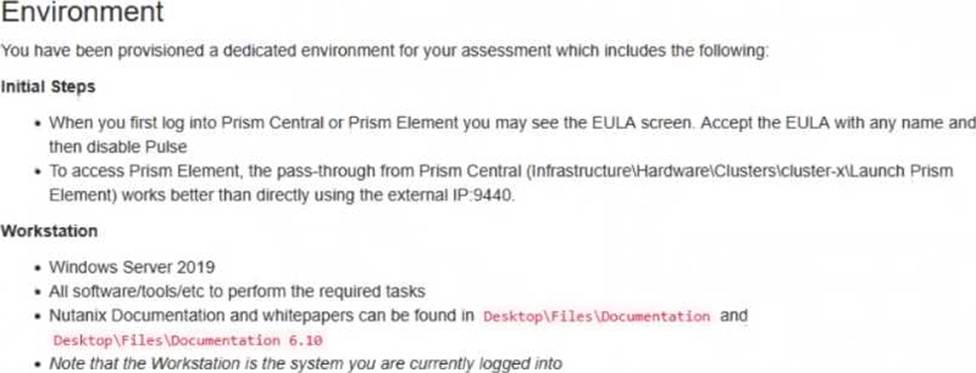
Environment
You have been provisioned a dedicated environment for your assessment which includes the following:
Workstation
• windows Server 2019
• All software/tools/etc to perform the required tasks
• Nutanix Documentation and whitepapers can be found in desktopfilesDocumentation
• Note that the workstation is the system you are currently togged into
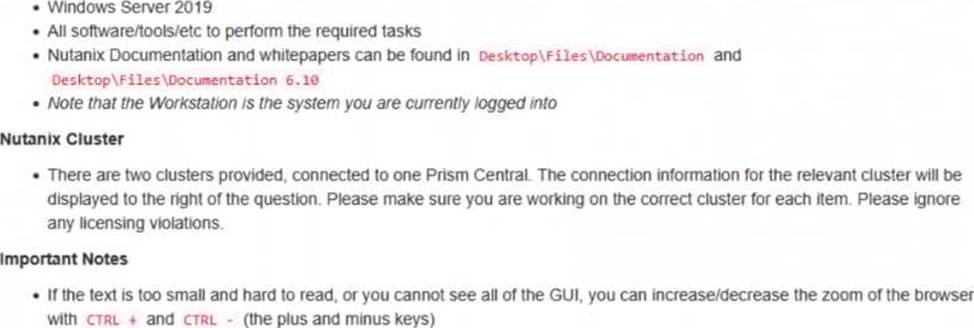
Nutanix Cluster
• There are three clusters provided. The connection information for the relevant cluster will be displayed to the high of the question Please make sure you are working on the correct cluster for each item Please ignore any licensing violations
• Cluster A is a 3-node cluster with Prism Central 2022.6 where most questions will be performed
• Cluster B is a one-node cluster and has one syslog item and one security item to perform
• Cluster D is a one-node duster with Prism Central 5.17 and has a security policy item to perform Important Notes
• If the text is too small and hard to read, or you cannot see an of the GUI. you can increase/decrease the zoom of the browser with CTRL +, and CTRL + (the plus and minus keys)
You will be given 3 hours to complete the scenarios for Nutanix NCMMCI
Once you click the start button below, you will be provided with:
– A Windows desktop A browser page with the scenarios and credentials (Desktopinstructions) Notes for this exam delivery:
The browser can be scaled lo Improve visibility and fit all the content on the screen.
– Copy and paste hot-keys will not work Use your mouse for copy and paste.
– The Notes and Feedback tabs for each scenario are to leave notes for yourself or feedback for
– Make sure you are performing tasks on the correct components.
– Changing security or network settings on the wrong component may result in a falling grade.
– Do not change credentials on an component unless you are instructed to.
– All necessary documentation is contained in the DesktopFilesDocumentation directory
Task 1
An administrator has been asked to configure a storage for a distributed application which uses large data sets across multiple worker VMs.
The worker VMs must run on every node. Data resilience is provided at the application level and low cost per GB is a Key Requirement.
Configure the storage on the cluster to meet these requirements. Any new object created should include the phrase Distributed_App in the name.
Log in to Prism Element of cluster A using the credentials provided.
Go to Storage > Storage Pools and click on Create Storage Pool.
Enter a name for the new storage pool, such as Distributed_App_Storage_Pool, and select the disks to include in the pool. You can choose any combination of SSDs and HDDs, but for low cost per GB, you may prefer to use more HDDs than SSDs.
Click Save to create the storage pool.
Go to Storage > Containers and click on Create Container.
Enter a name for the new container, such as Distributed_App_Container, and select the storage pool that you just created, Distributed_App_Storage_Pool, as the source.
Under Advanced Settings, enable Erasure Coding and Compression to reduce the storage footprint of the data. You can also disable Replication Factor since data resilience is provided at the application level.
These settings will help you achieve low cost per GB for the container.
Click Save to create the container.
Go to Storage > Datastores and click on Create Datastore.
Enter a name for the new datastore, such as Distributed_App_Datastore, and select NFS as the datastore type. Select the container that you just created, Distributed_App_Container, as the source.
Click Save to create the datastore.
The datastore will be automatically mounted on all nodes in the cluster. You can verify this by going to Storage > Datastores and clicking on Distributed_App_Datastore. You should see all nodes listed under Hosts.
You can now create or migrate your worker VMs to this datastore and run them on any node in the cluster. The datastore will provide low cost per GB and high performance for your distributed application.
Topic 1, Performance Based Questions
Environment
You have been provisioned a dedicated environment for your assessment which includes the following:
Workstation
• windows Server 2019
• All software/tools/etc to perform the required tasks
• Nutanix Documentation and whitepapers can be found in desktopfilesDocumentation
• Note that the workstation is the system you are currently togged into
Nutanix Cluster
• There are three clusters provided. The connection information for the relevant cluster will be displayed to the high of the question Please make sure you are working on the correct cluster for each item Please ignore any licensing violations
• Cluster A is a 3-node cluster with Prism Central 2022.6 where most questions will be performed
• Cluster B is a one-node cluster and has one syslog item and one security item to perform
• Cluster D is a one-node duster with Prism Central 5.17 and has a security policy item to perform Important Notes
• If the text is too small and hard to read, or you cannot see an of the GUI. you can increase/decrease the zoom of the browser with CTRL +, and CTRL + (the plus and minus keys)
You will be given 3 hours to complete the scenarios for Nutanix NCMMCI
Once you click the start button below, you will be provided with:
– A Windows desktop A browser page with the scenarios and credentials (Desktopinstructions) Notes for this exam delivery:
The browser can be scaled lo Improve visibility and fit all the content on the screen.
– Copy and paste hot-keys will not work Use your mouse for copy and paste.
– The Notes and Feedback tabs for each scenario are to leave notes for yourself or feedback for
– Make sure you are performing tasks on the correct components.
– Changing security or network settings on the wrong component may result in a falling grade.
– Do not change credentials on an component unless you are instructed to.
– All necessary documentation is contained in the DesktopFilesDocumentation directory
Task 1
An administrator has been asked to configure a storage for a distributed application which uses large data sets across multiple worker VMs.
The worker VMs must run on every node. Data resilience is provided at the application level and low cost per GB is a Key Requirement.
Configure the storage on the cluster to meet these requirements. Any new object created should include the phrase Distributed_App in the name.
Log in to Prism Element of cluster A using the credentials provided.
Go to Storage > Storage Pools and click on Create Storage Pool.
Enter a name for the new storage pool, such as Distributed_App_Storage_Pool, and select the disks to include in the pool. You can choose any combination of SSDs and HDDs, but for low cost per GB, you may prefer to use more HDDs than SSDs.
Click Save to create the storage pool.
Go to Storage > Containers and click on Create Container.
Enter a name for the new container, such as Distributed_App_Container, and select the storage pool that you just created, Distributed_App_Storage_Pool, as the source.
Under Advanced Settings, enable Erasure Coding and Compression to reduce the storage footprint of the data. You can also disable Replication Factor since data resilience is provided at the application level.
These settings will help you achieve low cost per GB for the container.
Click Save to create the container.
Go to Storage > Datastores and click on Create Datastore.
Enter a name for the new datastore, such as Distributed_App_Datastore, and select NFS as the datastore type. Select the container that you just created, Distributed_App_Container, as the source.
Click Save to create the datastore.
The datastore will be automatically mounted on all nodes in the cluster. You can verify this by going to Storage > Datastores and clicking on Distributed_App_Datastore. You should see all nodes listed under Hosts.
You can now create or migrate your worker VMs to this datastore and run them on any node in the cluster. The datastore will provide low cost per GB and high performance for your distributed application.
Topic 1, Performance Based Questions
Environment
You have been provisioned a dedicated environment for your assessment which includes the following:
Workstation
• windows Server 2019
• All software/tools/etc to perform the required tasks
• Nutanix Documentation and whitepapers can be found in desktopfilesDocumentation
• Note that the workstation is the system you are currently togged into
Nutanix Cluster
• There are three clusters provided. The connection information for the relevant cluster will be displayed to the high of the question Please make sure you are working on the correct cluster for each item Please ignore any licensing violations
• Cluster A is a 3-node cluster with Prism Central 2022.6 where most questions will be performed
• Cluster B is a one-node cluster and has one syslog item and one security item to perform
• Cluster D is a one-node duster with Prism Central 5.17 and has a security policy item to perform Important Notes
• If the text is too small and hard to read, or you cannot see an of the GUI. you can increase/decrease the zoom of the browser with CTRL +, and CTRL + (the plus and minus keys)
You will be given 3 hours to complete the scenarios for Nutanix NCMMCI
Once you click the start button below, you will be provided with:
– A Windows desktop A browser page with the scenarios and credentials (Desktopinstructions) Notes for this exam delivery:
The browser can be scaled lo Improve visibility and fit all the content on the screen.
– Copy and paste hot-keys will not work Use your mouse for copy and paste.
– The Notes and Feedback tabs for each scenario are to leave notes for yourself or feedback for
– Make sure you are performing tasks on the correct components.
– Changing security or network settings on the wrong component may result in a falling grade.
– Do not change credentials on an component unless you are instructed to.
– All necessary documentation is contained in the DesktopFilesDocumentation directory
Task 1
An administrator has been asked to configure a storage for a distributed application which uses large data sets across multiple worker VMs.
The worker VMs must run on every node. Data resilience is provided at the application level and low cost per GB is a Key Requirement.
Configure the storage on the cluster to meet these requirements. Any new object created should include the phrase Distributed_App in the name.
Log in to Prism Element of cluster A using the credentials provided.
Go to Storage > Storage Pools and click on Create Storage Pool.
Enter a name for the new storage pool, such as Distributed_App_Storage_Pool, and select the disks to include in the pool. You can choose any combination of SSDs and HDDs, but for low cost per GB, you may prefer to use more HDDs than SSDs.
Click Save to create the storage pool.
Go to Storage > Containers and click on Create Container.
Enter a name for the new container, such as Distributed_App_Container, and select the storage pool that you just created, Distributed_App_Storage_Pool, as the source.
Under Advanced Settings, enable Erasure Coding and Compression to reduce the storage footprint of the data. You can also disable Replication Factor since data resilience is provided at the application level.
These settings will help you achieve low cost per GB for the container.
Click Save to create the container.
Go to Storage > Datastores and click on Create Datastore.
Enter a name for the new datastore, such as Distributed_App_Datastore, and select NFS as the datastore type. Select the container that you just created, Distributed_App_Container, as the source.
Click Save to create the datastore.
The datastore will be automatically mounted on all nodes in the cluster. You can verify this by going to Storage > Datastores and clicking on Distributed_App_Datastore. You should see all nodes listed under Hosts.
You can now create or migrate your worker VMs to this datastore and run them on any node in the cluster. The datastore will provide low cost per GB and high performance for your distributed application.
Topic 1, Performance Based Questions
Environment
You have been provisioned a dedicated environment for your assessment which includes the following:
Workstation
• windows Server 2019
• All software/tools/etc to perform the required tasks
• Nutanix Documentation and whitepapers can be found in desktopfilesDocumentation
• Note that the workstation is the system you are currently togged into
Nutanix Cluster
• There are three clusters provided. The connection information for the relevant cluster will be displayed to the high of the question Please make sure you are working on the correct cluster for each item Please ignore any licensing violations
• Cluster A is a 3-node cluster with Prism Central 2022.6 where most questions will be performed
• Cluster B is a one-node cluster and has one syslog item and one security item to perform
• Cluster D is a one-node duster with Prism Central 5.17 and has a security policy item to perform Important Notes
• If the text is too small and hard to read, or you cannot see an of the GUI. you can increase/decrease the zoom of the browser with CTRL +, and CTRL + (the plus and minus keys)
You will be given 3 hours to complete the scenarios for Nutanix NCMMCI
Once you click the start button below, you will be provided with:
– A Windows desktop A browser page with the scenarios and credentials (Desktopinstructions) Notes for this exam delivery:
The browser can be scaled lo Improve visibility and fit all the content on the screen.
– Copy and paste hot-keys will not work Use your mouse for copy and paste.
– The Notes and Feedback tabs for each scenario are to leave notes for yourself or feedback for
– Make sure you are performing tasks on the correct components.
– Changing security or network settings on the wrong component may result in a falling grade.
– Do not change credentials on an component unless you are instructed to.
– All necessary documentation is contained in the DesktopFilesDocumentation directory
Task 1
An administrator has been asked to configure a storage for a distributed application which uses large data sets across multiple worker VMs.
The worker VMs must run on every node. Data resilience is provided at the application level and low cost per GB is a Key Requirement.
Configure the storage on the cluster to meet these requirements. Any new object created should include the phrase Distributed_App in the name.
Log in to Prism Element of cluster A using the credentials provided.
Go to Storage > Storage Pools and click on Create Storage Pool.
Enter a name for the new storage pool, such as Distributed_App_Storage_Pool, and select the disks to include in the pool. You can choose any combination of SSDs and HDDs, but for low cost per GB, you may prefer to use more HDDs than SSDs.
Click Save to create the storage pool.
Go to Storage > Containers and click on Create Container.
Enter a name for the new container, such as Distributed_App_Container, and select the storage pool that you just created, Distributed_App_Storage_Pool, as the source.
Under Advanced Settings, enable Erasure Coding and Compression to reduce the storage footprint of the data. You can also disable Replication Factor since data resilience is provided at the application level.
These settings will help you achieve low cost per GB for the container.
Click Save to create the container.
Go to Storage > Datastores and click on Create Datastore.
Enter a name for the new datastore, such as Distributed_App_Datastore, and select NFS as the datastore type. Select the container that you just created, Distributed_App_Container, as the source.
Click Save to create the datastore.
The datastore will be automatically mounted on all nodes in the cluster. You can verify this by going to Storage > Datastores and clicking on Distributed_App_Datastore. You should see all nodes listed under Hosts.
You can now create or migrate your worker VMs to this datastore and run them on any node in the cluster. The datastore will provide low cost per GB and high performance for your distributed application.
Topic 1, Performance Based Questions
Environment
You have been provisioned a dedicated environment for your assessment which includes the following:
Workstation
• windows Server 2019
• All software/tools/etc to perform the required tasks
• Nutanix Documentation and whitepapers can be found in desktopfilesDocumentation
• Note that the workstation is the system you are currently togged into
Nutanix Cluster
• There are three clusters provided. The connection information for the relevant cluster will be displayed to the high of the question Please make sure you are working on the correct cluster for each item Please ignore any licensing violations
• Cluster A is a 3-node cluster with Prism Central 2022.6 where most questions will be performed
• Cluster B is a one-node cluster and has one syslog item and one security item to perform
• Cluster D is a one-node duster with Prism Central 5.17 and has a security policy item to perform Important Notes
• If the text is too small and hard to read, or you cannot see an of the GUI. you can increase/decrease the zoom of the browser with CTRL +, and CTRL + (the plus and minus keys)
You will be given 3 hours to complete the scenarios for Nutanix NCMMCI
Once you click the start button below, you will be provided with:
– A Windows desktop A browser page with the scenarios and credentials (Desktopinstructions) Notes for this exam delivery:
The browser can be scaled lo Improve visibility and fit all the content on the screen.
– Copy and paste hot-keys will not work Use your mouse for copy and paste.
– The Notes and Feedback tabs for each scenario are to leave notes for yourself or feedback for
– Make sure you are performing tasks on the correct components.
– Changing security or network settings on the wrong component may result in a falling grade.
– Do not change credentials on an component unless you are instructed to.
– All necessary documentation is contained in the DesktopFilesDocumentation directory
Task 1
An administrator has been asked to configure a storage for a distributed application which uses large data sets across multiple worker VMs.
The worker VMs must run on every node. Data resilience is provided at the application level and low cost per GB is a Key Requirement.
Configure the storage on the cluster to meet these requirements. Any new object created should include the phrase Distributed_App in the name.
Log in to Prism Element of cluster A using the credentials provided.
Go to Storage > Storage Pools and click on Create Storage Pool.
Enter a name for the new storage pool, such as Distributed_App_Storage_Pool, and select the disks to include in the pool. You can choose any combination of SSDs and HDDs, but for low cost per GB, you may prefer to use more HDDs than SSDs.
Click Save to create the storage pool.
Go to Storage > Containers and click on Create Container.
Enter a name for the new container, such as Distributed_App_Container, and select the storage pool that you just created, Distributed_App_Storage_Pool, as the source.
Under Advanced Settings, enable Erasure Coding and Compression to reduce the storage footprint of the data. You can also disable Replication Factor since data resilience is provided at the application level.
These settings will help you achieve low cost per GB for the container.
Click Save to create the container.
Go to Storage > Datastores and click on Create Datastore.
Enter a name for the new datastore, such as Distributed_App_Datastore, and select NFS as the datastore type. Select the container that you just created, Distributed_App_Container, as the source.
Click Save to create the datastore.
The datastore will be automatically mounted on all nodes in the cluster. You can verify this by going to Storage > Datastores and clicking on Distributed_App_Datastore. You should see all nodes listed under Hosts.
You can now create or migrate your worker VMs to this datastore and run them on any node in the cluster. The datastore will provide low cost per GB and high performance for your distributed application.
Task 7
An administrator has environment that will soon be upgraded to 6.5. In the meantime, they need to implement log and apply a security policy named Staging_Production, such that not VM in the Staging Environment can communicate with any VM in the production Environment,
Configure the environment to satisfy this requirement.
Note: All other configurations not indicated must be left at their default values.
Log in to Prism Central and go to Network > Security Policies > Create Security Policy. Enter Staging_Production as the name of the security policy and select Cluster A as the cluster.
In the Scope section, select VMs as the entity type and add the VMs that belong to the Staging Environment and the Production Environment as the entities. You can use tags or categories to filter the VMs based on their environment.
In the Rules section, create a new rule with the following settings:
Direction: Bidirectional
Protocol: Any
Source: Staging Environment
Destination: Production Environment
Action: Deny
Save the security policy and apply it to the cluster.
This will create a security policy that will block any traffic between the VMs in the Staging Environment and the VMs in the Production Environment. You can verify that the security policy is working by trying to ping or access any VM in the Production Environment from any VM in the Staging Environment, or vice versa. You should not be able to do so.
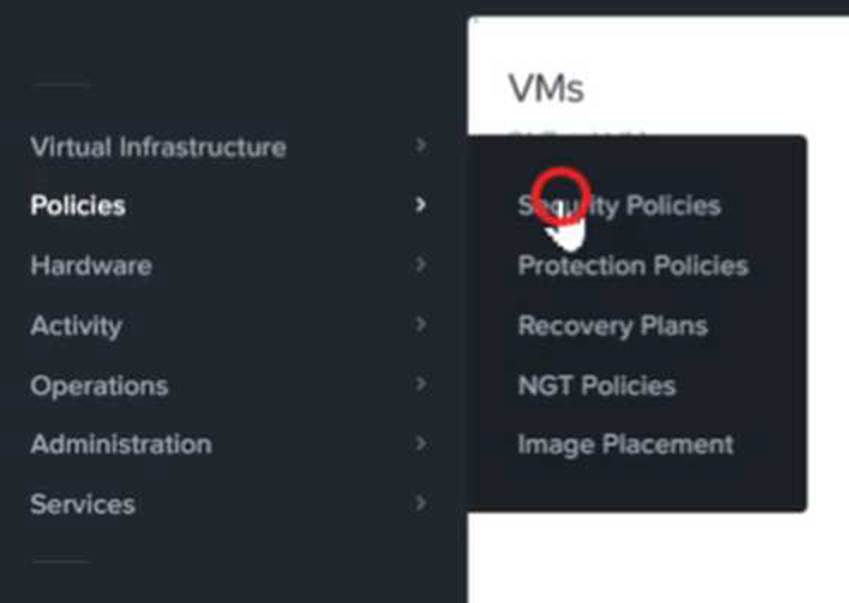
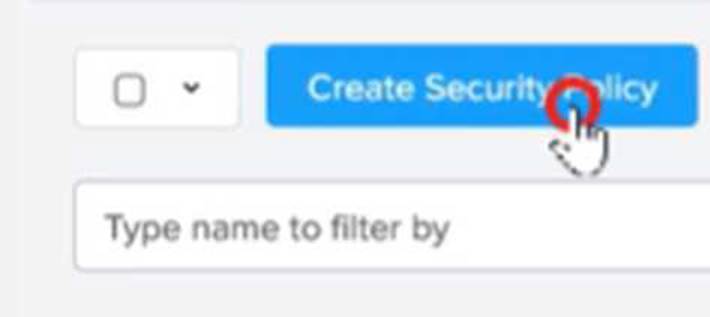
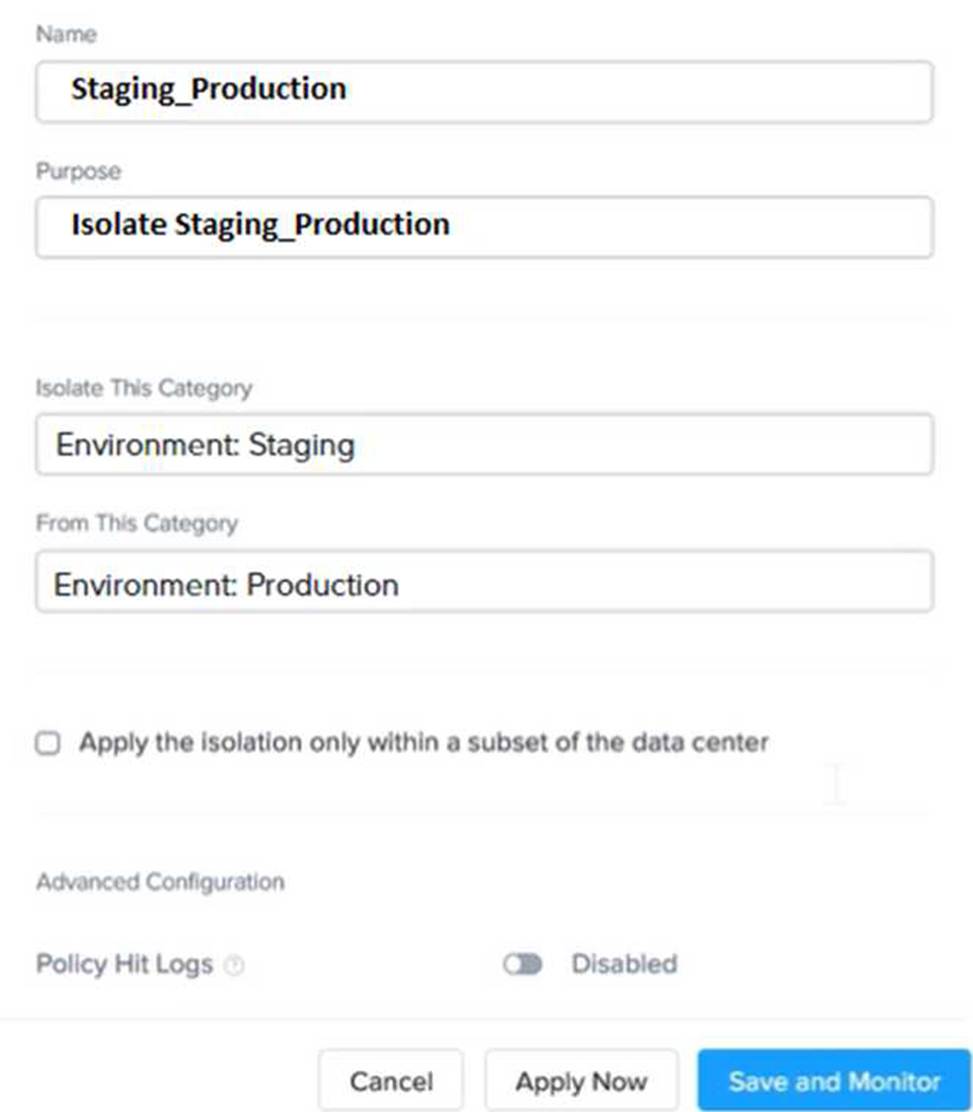

Refer to the exhibit.
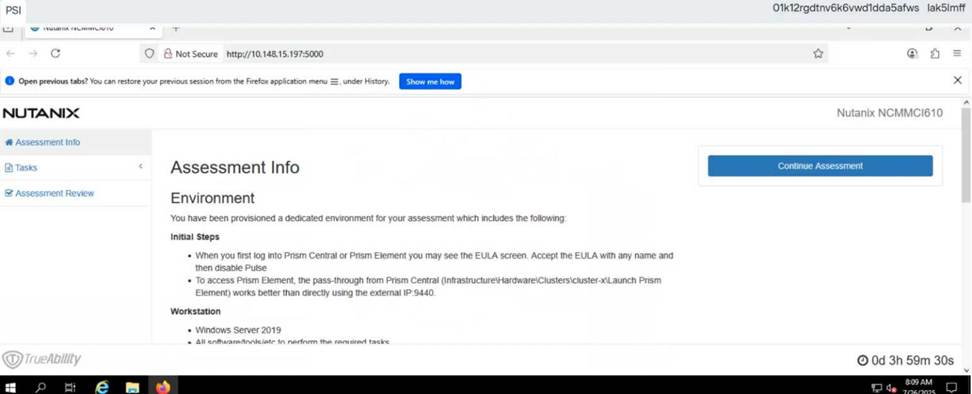
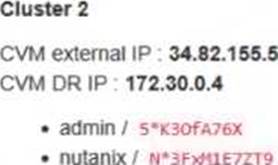
Task1
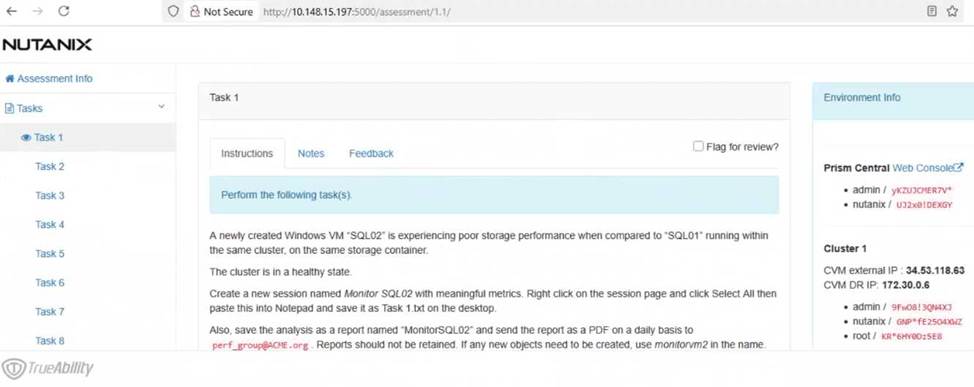
A newly created Windows VM “SQL02” is experiencing poor storage performance when compared to “SQL01” running within the same cluster, on the same storage container.
The cluster is in a healthy state.
Create a new session named Monitor SQL02 with meaningful metrics. Right click on the session page and click Select All then paste this into Notepad and save it as Task 1.txt on the desktop.
Also, save the analysis as a report named “MonitorSQL02” and send the report as a PDF on a daily basis to [email protected]. Reports should not be retained. If any new objects need to be created, use monitorvm2 in the name.
Finally, correct the issue within “SQL02”
Notes:
Do not power on the VMs.
While you will be creating a session, you will need to examine the VM configurations to determine the issue.
Do not delete the VM to resolve the issue, any other destructive change is acceptable
Here is the step-by-step solution to complete Task 1.
Part 1: Analysis and Reporting
Create the Session
Log in to Prism Central (or Prism Element, depending on the exam environment, but Analysis is usually a PC feature).
Navigate to Operations -> Analysis.
Click New Session.
Name: Monitor SQL02
Entity: Search for and select the VM named SQL02.
Metrics: Since the issue is storage performance, search for and add these specific metrics:
Hypervisor IOPS (or Controller IOPS)
Hypervisor IO Latency (or Controller IO Latency)
Hypervisor IO Bandwidth
Click Save.
Save Session Data (Task 1.txt)
Open the "Monitor SQL02" session you just created.
(Per instructions): Right-click anywhere on the chart/data area -> Click Select All.
Copy the selected text (Ctrl+C).
Open Notepad on the provided desktop.
Paste the data.
Save the file as Task 1.txt on the Desktop.
Create and Schedule the Report
While still in the Analysis session, click the Create Report (or "Add to Report") button.
Report Name: MonitorSQL02
Report Settings:
Format: PDF
Frequency: Daily
Email Recipient: [email protected]
Retention: 0 (or "Do not retain", as requested).
Note: If the system forces you to create a new Report object and MonitorSQL02 is rejected, use monitorvm2 as the name per the instructions.
Save/Schedule the report.
Part 2: Diagnose and Fix the Issue
The Issue:
VM SQL02 was likely created with its data disks set to IDE or SATA.
Why this causes poor performance: IDE/SATA are emulated hardware with high CPU overhead and low queue depths (single-threaded).
The Standard: SQL01 (the healthy VM) is using SCSI, which is multithreaded and optimized for virtualization.
The Fix (Steps):
Navigate to the VM list in Prism.
Select SQL02 and click Update (or Edit).
Scroll down to the Disks section.
Identify the data disk(s). You will see the Bus Type listed as IDE or SATA.
Do not delete the VM. instead, perform a disk conversion (destructive change to the disk is allowed, but we want to keep the data).
Method to Convert (Clone to SCSI):
Hover over the IDE/SATA disk to see the path/filename of the vDisk (or write it down).
Click Add New Disk.
Operation: select Clone from ADSF file.
Path: Browse to the storage container and select the file associated with the current IDE disk.
Bus Type: Select SCSI (This is the critical fix).
Index: Ensure it doesn’t conflict with existing disks (usually index 1 or higher for data).
Click Add.
Once the new SCSI disk is added, find the original IDE/SATA disk and click the X to remove it.
Click Save.
Note: You do not need to power on the VM to verify. The change from IDE to SCSI allows the VM to use the Nutanix VirtIO drivers for maximum storage performance.
Task 5
An administrator has been informed that a new workload requires a logically segmented network to meet security requirements.
Network configuration:
VLAN: 667
Network: 192.168.0.0
Subnet Mask: 255.255.255.0
DNS server: 34.82.231.220
Default Gateway: 192.168.0.1
Domain: cyberdyne.net
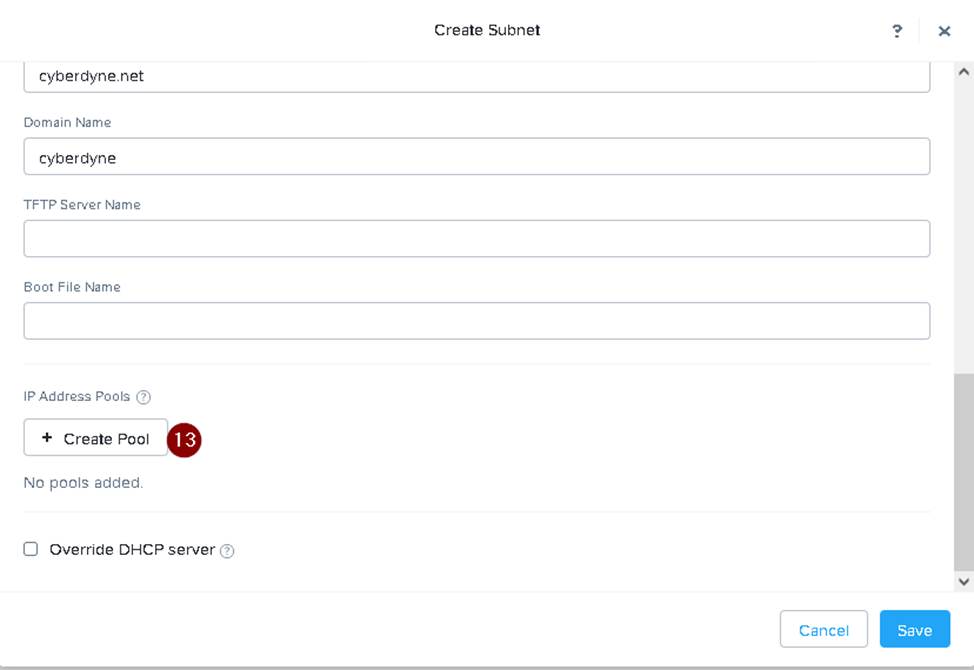
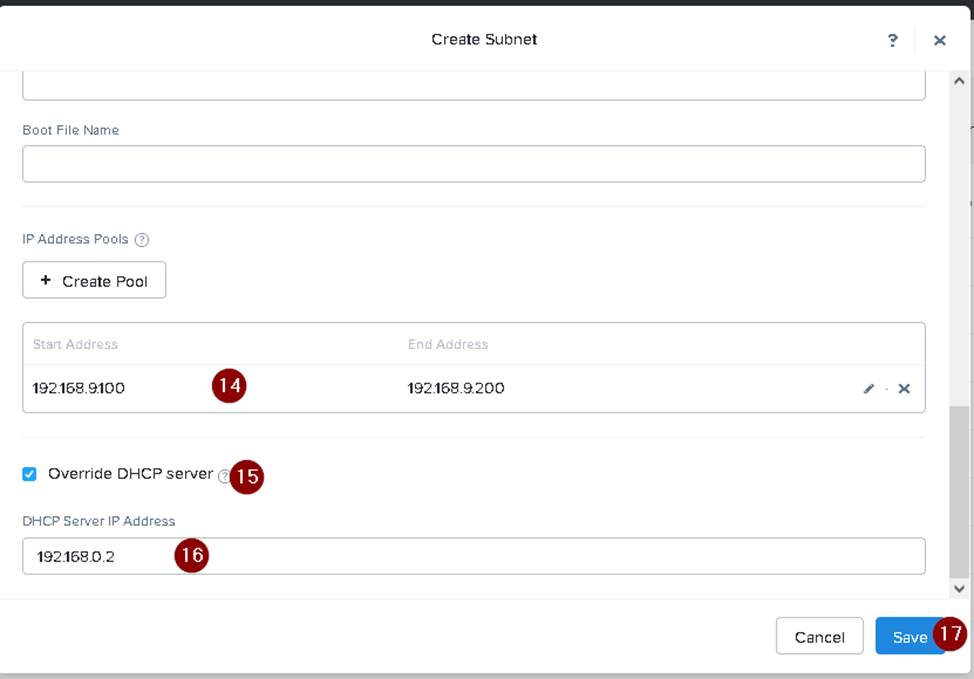
IP Pool: 192.168.9.100-200
DHCP Server IP: 192.168.0.2
Configure the cluster to meet the requirements for the new workload if new objects are required, start the name with 667.
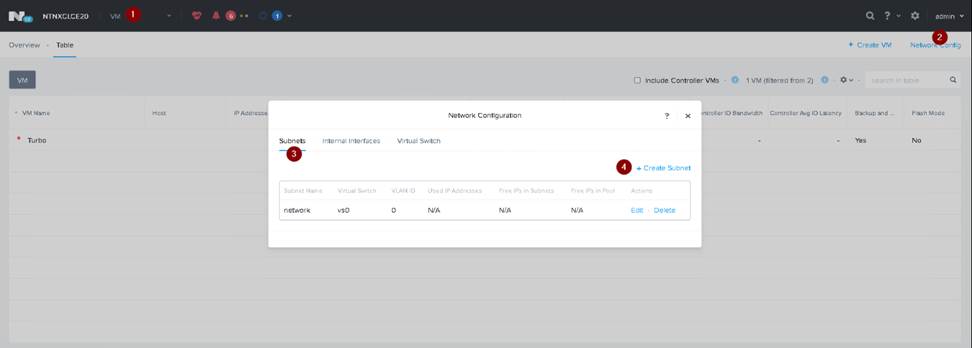
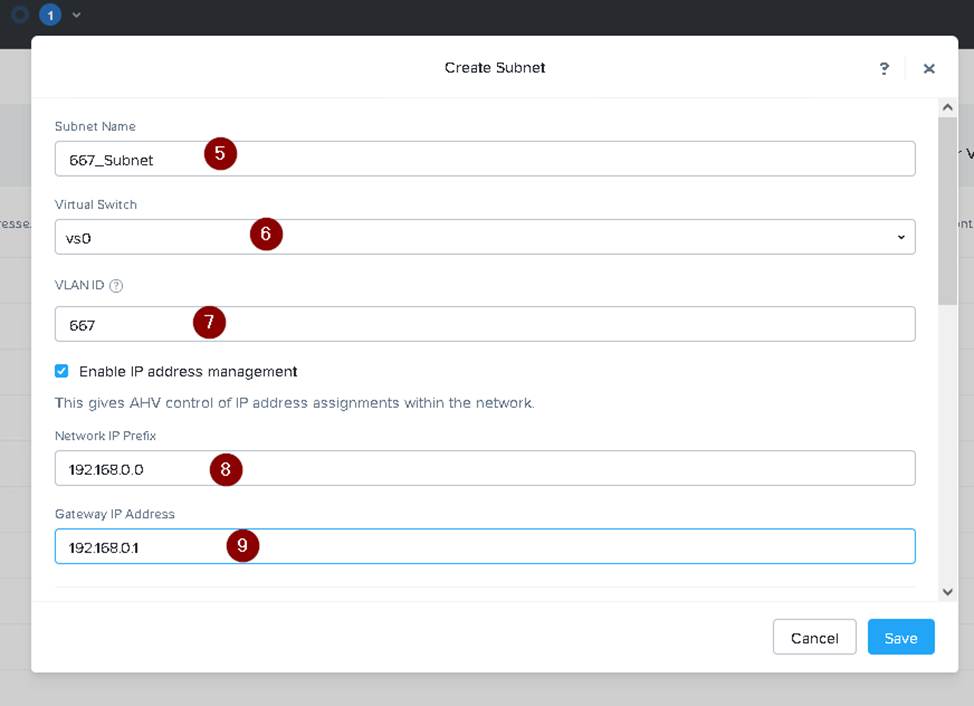
Create a new VLAN with ID 667 on the cluster. You can do this by logging in to Prism Element and going to Network Configuration > VLANs > Create VLAN. Enter 667 as the VLAN ID and a name for the VLAN, such as 667_VLAN.
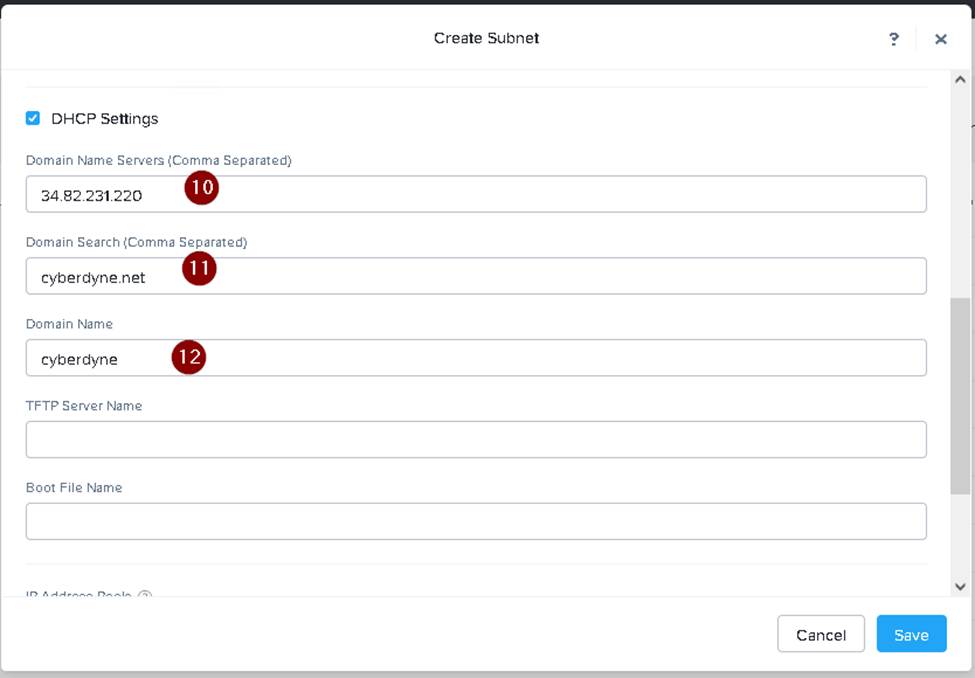
Create a new network segment with the network details provided. You can do this by logging in to Prism Central and going to Network > Network Segments > Create Network Segment. Enter a name for the network segment, such as 667_Network_Segment, and select 667_VLAN as the VLAN. Enter 192.168.0.0 as the Network Address and 255.255.255.0 as the Subnet Mask. Enter 192.168.0.1 as the Default Gateway and 34.82.231.220 as the DNS Server. Enter cyberdyne.net as the Domain Name.
Create a new IP pool with the IP range provided. You can do this by logging in to Prism Central and going to Network > IP Pools > Create IP Pool. Enter a name for the IP pool, such as 667_IP_Pool, and select 667_Network_Segment as the Network Segment. Enter 192.168.9.100 as the Starting IP Address and 192.168.9.200 as the Ending IP Address.
Configure the DHCP server with the IP address provided. You can do this by logging in to Prism Central and going to Network > DHCP Servers > Create DHCP Server. Enter a name for the DHCP server, such as 667_DHCP_Server, and select 667_Network_Segment as the Network Segment. Enter 192.168.0.2 as the IP Address and select 667_IP_Pool as the IP Pool.
Task 5
An administrator has been informed that a new workload requires a logically segmented network to meet security requirements.
Network configuration:
VLAN: 667
Network: 192.168.0.0
Subnet Mask: 255.255.255.0
DNS server: 34.82.231.220
Default Gateway: 192.168.0.1
Domain: cyberdyne.net
IP Pool: 192.168.9.100-200
DHCP Server IP: 192.168.0.2
Configure the cluster to meet the requirements for the new workload if new objects are required, start the name with 667.
Create a new VLAN with ID 667 on the cluster. You can do this by logging in to Prism Element and going to Network Configuration > VLANs > Create VLAN. Enter 667 as the VLAN ID and a name for the VLAN, such as 667_VLAN.
Create a new network segment with the network details provided. You can do this by logging in to Prism Central and going to Network > Network Segments > Create Network Segment. Enter a name for the network segment, such as 667_Network_Segment, and select 667_VLAN as the VLAN. Enter 192.168.0.0 as the Network Address and 255.255.255.0 as the Subnet Mask. Enter 192.168.0.1 as the Default Gateway and 34.82.231.220 as the DNS Server. Enter cyberdyne.net as the Domain Name.
Create a new IP pool with the IP range provided. You can do this by logging in to Prism Central and going to Network > IP Pools > Create IP Pool. Enter a name for the IP pool, such as 667_IP_Pool, and select 667_Network_Segment as the Network Segment. Enter 192.168.9.100 as the Starting IP Address and 192.168.9.200 as the Ending IP Address.
Configure the DHCP server with the IP address provided. You can do this by logging in to Prism Central and going to Network > DHCP Servers > Create DHCP Server. Enter a name for the DHCP server, such as 667_DHCP_Server, and select 667_Network_Segment as the Network Segment. Enter 192.168.0.2 as the IP Address and select 667_IP_Pool as the IP Pool.