
Practice Free MS-721 Exam Online Questions
DRAG DROP
Your company has a main office in New York and a branch office in Calgary. All offices connect to each other by using a dedicated WAN.
You have a Microsoft Teams Phone deployment.
You need to recommend a Direct Routing solution that meets the following requirements:
• If a Session Border Controller (SBQ fails in the New York office, PSTN services must remain available through a local PSTN egress in New York. The Calgary office must prioritize a local PSTN egress and ensure that PSTN services remain available in the event of a local SBC outage.
• The number of SBCs must be minimized.
What should you recommend for each office? To answer, drag the appropriate components to the correct offices. Each component may be used once, more than once, or not at all. You may need to drag the split bar between panes or scroll to view content. NOTE: Each correct selection is worth one point.


HOTSPOT
You have a Teams Phone deployment that contains a Session Border Controller (SBC) named SBC1.
You deploy a second SBC named SBC2 that is configured as shown in the following exhibit.
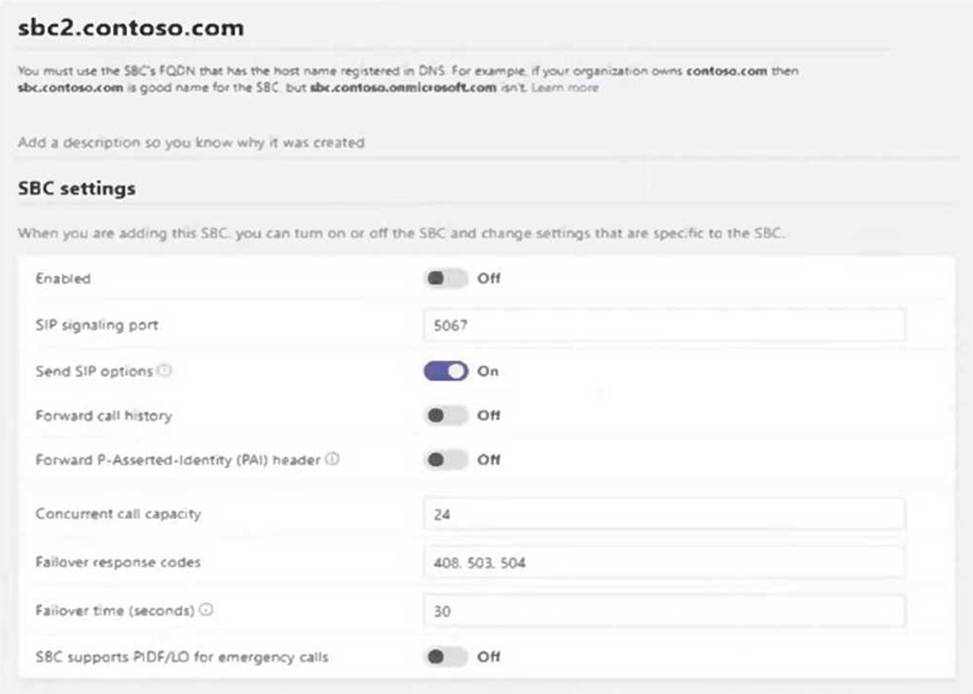
You discover that SBC2 fails to receive SIP Options packets from Microsoft SIP gateways and you notice that calls take a long time to connect.
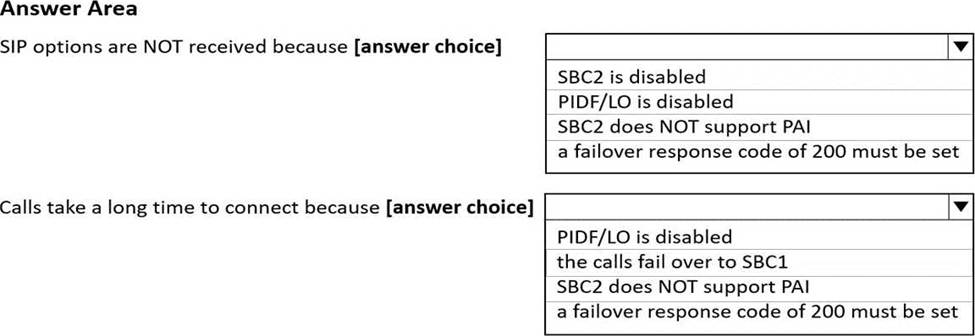
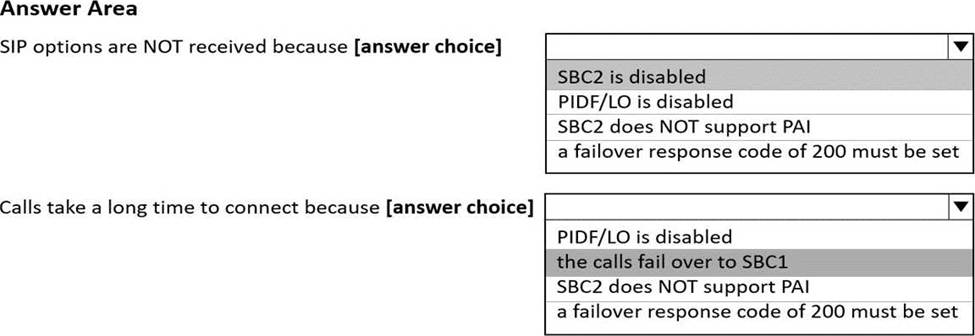
Use the drop down menus to select the answer choice that completes each statement based on the information presented in the graphic. NOTE: Each correct selection is worth one point.
Explanation:
Box 1: SBC2 is disabled
SBC Settings: Enabled Off
Box 2: the calls fail over to SBC1
HOTSPOT
You have a Teams Phone deployment that contains a Session Border Controller (SBC) named SBC1.
You deploy a second SBC named SBC2 that is configured as shown in the following exhibit.
You discover that SBC2 fails to receive SIP Options packets from Microsoft SIP gateways and you notice that calls take a long time to connect.
Use the drop down menus to select the answer choice that completes each statement based on the information presented in the graphic. NOTE: Each correct selection is worth one point.
Explanation:
Box 1: SBC2 is disabled
SBC Settings: Enabled Off
Box 2: the calls fail over to SBC1
You have a Microsoft Teams Phone deployment.
You have Teams devices located in meeting rooms and public areas.
You need to turn on Device lock for the devices.
What should you configure?
- A . a calling policy
- B . a setup policy
- C . a Teams policy
- D . a configuration profile
D
Explanation:
Microsoft Teams Physical Device Management
NOTE: As at June 2020, there are no options to configure the Device Configuration Profiles by API or PowerShell.
There are a number of Microsoft Teams certified devices on the market from several different manufactures.
These devices are listed on the Microsoft Teams Devices Page.
Once a device is logged in and the user setup, the device is registered to the tenant and a policy applied against it from the Configuration Profiles listed in the Microsoft Teams Admin Portal.
These Configuration Profiles allow you to set options like the devices:
Timeout and lock status
Language
Timezone
Time format
Screen saver
Network settings; and
To enable or disable the second PC port
If the Microsoft 365 tenant also has Intune setup, then the device is registered to Intune and any compliance policies are applied when the first user logs in.
Different Confiugration Profiles can be used to setup phones with common attributes
Reference: https://sbcconnect.com.au/pages/physical-device-management.html
You have a Microsoft Teams Phone deployment that has 10 offices. Each office has a Session Border Controller (SBC).
A user reports that she can make internal calls by using the dial pad, but cannot use the dial pad to make external calls.
What is a possible cause of the issue?
- A . The user has the incorrect Teams app setup policy applied.
- B . The user has the incorrect voice routing policy applied.
- C . The user is missing a validated emergency address.
- D . Enterprise Voice is disabled for the user.
B
Explanation:
Reference: https://docs.microsoft.com/en-us/microsoftteams/manage-voice-routing-policies
DRAG DROP
You have a Microsoft Teams deployment.
You plan to deploy Teams Rooms.
The solution must meet the following requirements:
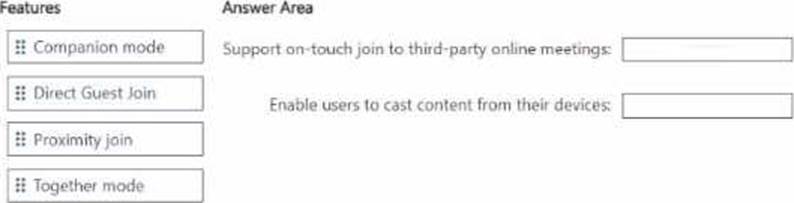
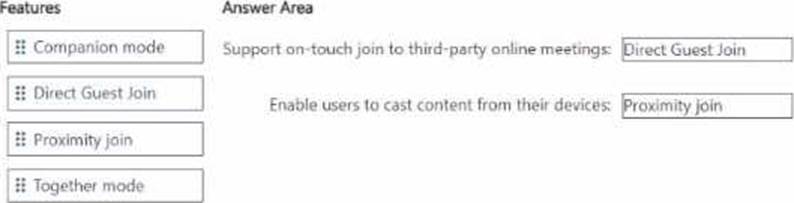
• Support one-touch join to third-party online meetings.
• Enable users to cast content from their devices.
What should you configure for each requirement? To answer, drag the appropriate features to the correct requirements. Each feature may be used once, more than once, or not at all. You may need to drag the split bar between panes or scroll to view content. NOTE: Each correct selection is worth one point.
You have a Microsoft Teams deployment
You have a meeting room that contains a Teams Rooms for Android device assigned to an account named Room1. You deploy a Teams panel to the entrance of the meeting room and sign in the panel by using the Room1 account. You need to ensure that attendees are notified when participants of the next meeting are waiting to use the room.
What should you configure from Device settings on the Teams panel?
- A . Device pairing
- B . Allow room reservation extensions
- C . Max room occupancy notification
- D . Allow early check-out
HOTSPOT
You have a Microsoft Teams deployment.
You configure an events policy as shown in the following exhibit.
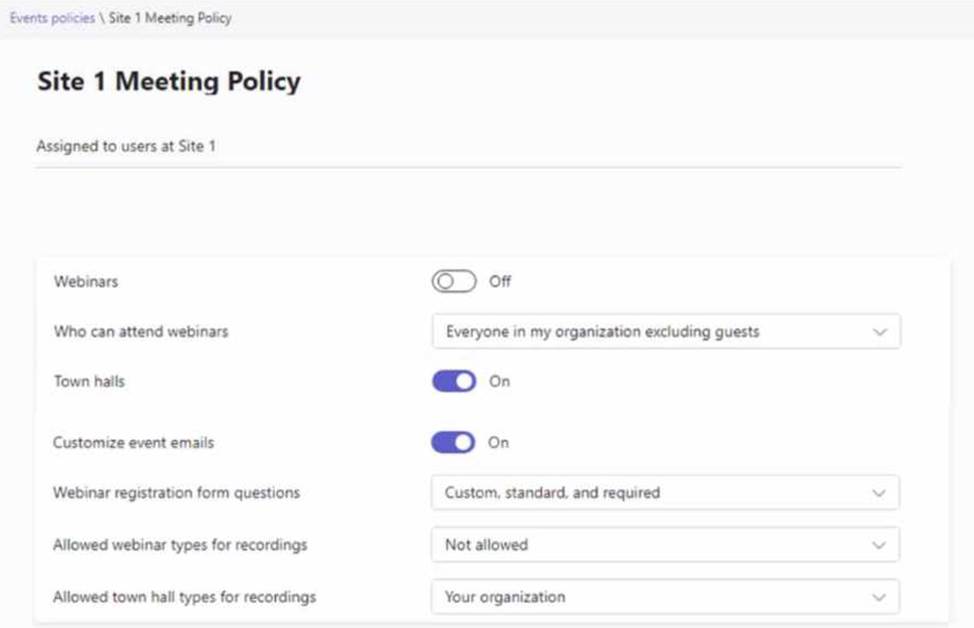
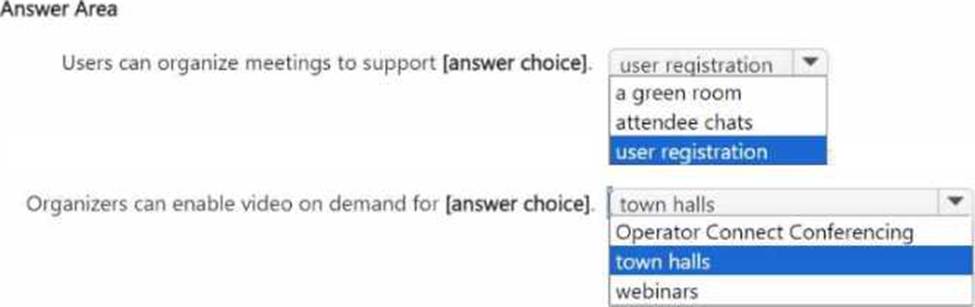
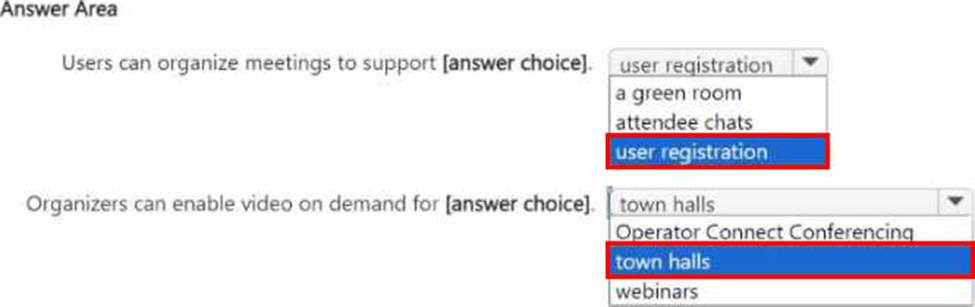
Use the drop-down menus to select the answer choice that completes each statement based on the information presented in the graphic. NOTE: Each correct selection is worth one point.
You are deploying Teams Rooms to a Windows device.
You need to prevent meeting attendees from using room remote in the Teams mobile app.
What should you configure in the Microsoft Teams admin center?
- A . Supported meeting mode
- B . Coordinated Meetings
- C . Front row experience
- D . Bluetooth beaconing
D
Explanation:
Manage a Microsoft Teams Rooms console settings remotely with an XML configuration file
This article discusses remote management of the default settings used by a Microsoft Teams Rooms device. It discusses how to create a master settings file and links to discussions of how to place them as needed on Teams Rooms.
It is possible for you to change default settings of Teams Rooms by updating a master XML file and sending copies to the remote Teams Rooms devices.
Create an XML configuration file
Any text editor can be used to create a settings file. The XML Elements table explains the elements shown in this sample SkypeSettings.xml (required file name) configuration file.
<SkypeSettings>
<AutoScreenShare>1</AutoScreenShare>
<HideMeetingName>1</HideMeetingName>
<AutoExitMeetingEnabled>true</AutoExitMeetingEnabled>
<AudioRenderDefaultDeviceVolume>70</AudioRenderDefaultDeviceVolume>
* Details omitted* <AllowRoomRemoteEnabled>true</AllowRoomRemoteEnabled>
Incorrect:
Not B: If you have one or more Microsoft Teams Rooms on Windows devices or Surface Hubs in a meeting room, you can set up Coordinated Meetings. Coordinated Meetings lets you set up your Teams Rooms on Windows devices and Surface Hubs so that when you join a meeting on one device,
the other devices in the room are also joined to the same meeting. You can configure your cameras, speakers, and microphones so that the ones that give participants the best experience are enabled while others are disabled. This avoids the dreaded echo and feedback noise participants can experience when adding multiple devices to a meeting.
Not C: Front Row layout in Teams RoomsC Additional functionality with the Front Row experience, a layout for hybrid meetings that enables users to see remote attendees at eye level and on dual screens. Users can see Chat in the right panel and participants with raised hands on the left panel. And, Meeting Chat is added in the Gallery, Large Gallery, and Together Mode layouts.
Reference:
https://learn.microsoft.com/en-us/microsoftteams/rooms/xml-config-file
https://learn.microsoft.com/en-us/microsoftteams/rooms/coordinated-meetings
You have a Microsoft Teams Phone deployment that uses Direct Routing.
You create a new Teams user named User1.
You need to enable User1 as an agent in a call queue.
What should you do first?
- A . Assign a dial plan to User1.
- B . Assign a phone number to User1.
- C . Enable hosted voicemail for User1.
- D . Enable Enterprise Voice for User1.
D
Explanation:
Reference: https://docs.microsoft.com/en-us/microsoftteams/plan-auto-attendant-call-queue