Practice Free AZ-800 Exam Online Questions
HOTSPOT
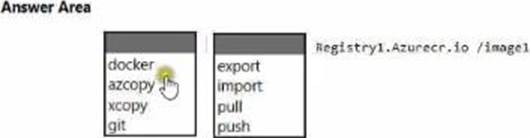
You have a Windows Server container host named Server1 and an Azure subscription.
You deploy an Azure container registry named Registry1 to the subscription.
On Server1, you create a container image named image1.
You need to store imager in Registry1.
Which command should you run on Server1? To answer, select the appropriate options in the answer area. NOTE: Each correct selection is worth one point.
Explanation:
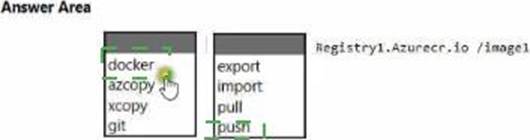
In the Administering Windows Server Hybrid Core Infrastructure objectives for managing containers and Azure Container Registry (ACR), the documented workflow to publish a locally built container image to ACR is to use the Docker CLI and push the image to the registry’s login server. The guidance states that you first authenticate to the registry, tag the local image with the fully qualified name of the registry, and then push it.
The canonical sequence is:
docker login <registryLoginServer> → docker tag <localImage> <registryLoginServer>/<repo>:<tag> → docker push <registryLoginServer>/<repo>:<tag>.
Applying this to the scenario: the registry login server is registry1.azurecr.io and the image is image1, so you would tag and then docker push registry1.azurecr.io/image1:latest (or another tag). The push command uploads the image layers to the remote registry so the image is stored in ACR. By contrast, docker pull retrieves images from a registry, export/import deal with container/filesystem archives, and tools like azcopy/xcopy/git are not used for publishing container images (azcopy/xcopy copy files/blobs; git manages source code, not OCI images). Therefore, the correct command pair for the hotspot is docker push to registry1.azurecr.io/image1.
You need to meet the technical requirements for the site links.
Which users can perform the required tasks?
- A . Admin1 only
- B . Admin1 and Admin3 only
- C . Admin1 and Admin2 only
- D . Admin3 only
- E . Admin1, Adrrun2. and Admin3
C
Explanation:
The AZ-800 content covering Active Directory Sites and Services clarifies that site, subnet, and site-link objects live in the Configuration partition. The guides emphasize that administration of the Configuration naming context is restricted to Enterprise Admins and to Domain Admins of the forest-root domain. In the context of changing replication topology parameters―such as editing the replication schedule on site links―the documentation notes: “Only Enterprise Admins or administrators in the forest-root Domain Admins group have default permissions to modify site and site-link objects,” because these objects affect replication forest-wide.
Applying this to the scenario:
ContosoAdmin1 (Enterprise Admins) has forest-wide rights to modify site links.
ContosoAdmin2 (Domain Admins in contoso.com, the forest-root domain) also has the required rights to change site-link schedules.
CanadaAdmin3 (Domain Admins in canada.contoso.com) does not have default permissions in the Configuration partition for forest-wide site-link administration.
Thus, to meet the technical requirement to change all site links to a 30-minute schedule, the users who can perform the task are Admin1 and Admin2.
You have a server named Server1 that hosts Windows containers. You plan to deploy an application that will have multiple containers. Each container will be You need to create a Docker network that supports the deployment of the application.
Which type of network should you create?
- A . transparent
- B . I2bridge
- C . NAT
- D . I2tunnel
B
Explanation:
In the context of Windows Server Hybrid Core Infrastructure and container networking, choosing the correct network driver is critical for application deployment. According to official documentation, the l2bridge (Layer 2 Bridge) network mode is used when container hosts are connected to the same IP subnet. In this configuration, each container is assigned an IP address from the same prefix as the container host. All container traffic is bridged to the physical network through an external Hyper-V Virtual Switch. Because the containers share the same underlying network infrastructure as the host, they are visible to the rest of the physical network without requiring Network Address Translation (NAT).
The documentation specifies that for multi-node clusters or deployments where containers must be directly reachable on the physical network via their own IP addresses, l2bridge is the standard choice. This differs from NAT, which uses a private internal IP range and translates traffic through the host’s IP, and Transparent mode, which is often used for individual hosts where the container is directly connected to the physical network but can have complexities in virtualized environments. l2tunnel is specifically used for Microsoft Cloud Stack (Azure Stack HCI) and SDN scenarios, typically involving encapsulation, which is not the standard requirement for a general multi-container application deployment on a single server unless specified. Therefore, for a high-performance, direct-access network that bridges traffic at Layer 2, l2bridge is the verified architectural choice for Windows containers.
You have a server that runs Windows Server and contains a shared folder named UserData.
You need to limit the amount of storage space that each user can consume in UserData.
What should you use?
- A . Storage Spaces
- B . Work Folders
- C . Distributed File System (DFS) Namespaces
- D . File Server Resource Manager (FSRM)
D
Explanation:
In the Administering Windows Server Hybrid Core Infrastructure materials for file services, Microsoft specifies that FSRM is the component designed to enforce space usage limits on shared data: “File Server Resource Manager provides quota management, file screening, and storage reports. You can assign quotas to volumes or specific folders and use templates to standardize limits and notifications.” The guide further notes that you can “configure hard or soft quotas per folder, generate warning e-mails or events as thresholds are reached, and apply automatic quota templates for user home directories.” Because your requirement is to limit the amount of storage space that each user can consume in the UserData share, the supported and least-privilege approach is to apply an FSRM quota on the UserData folder (or on each user’s home subfolder via auto-apply templates). Other options listed do not meet the goal: Storage Spaces manages physical capacity and resiliency, not per-user limits; Work Folders synchronizes user data but does not enforce quotas on a share; DFS Namespaces provides a unified namespace and referrals, not storage consumption control. Therefore, FSRM is the correct tool to enforce per-user or per-folder storage limits on UserData.
You have five tile servers that run Windows Server.
You need to block users from uploading video files that have the .mov extension to shared folders on the file servers. All other types of files must be allowed. The solution must minimize administrative effort.
What should you create?
- A . a Dynamic Access Control central access policy
- B . a file screen
- C . a Dynamic Access Control central access rule
- D . a data loss prevention (DLP) policy
B
Explanation:
In the Administering Windows Server Hybrid Core Infrastructure materials for file services, Microsoft emphasizes using File Server Resource Manager (FSRM) to control which file types users can store on shares. FSRM provides File Screening Management that “controls the types of files that users can save” on a path by matching file groups (extensions) and applying either active screening (block) or passive screening (allow but report). The guides further note that you can “create file screen templates to standardize settings and apply them to multiple folders or servers,” minimizing repeated administration across many file servers.
To meet the requirement “block users from uploading video files that have the .mov extension… All other types of files must be allowed,” you create a File Screen with Active screening on the shared folders (or their parent paths) using a File Group that contains *.mov. This directly prevents writes of the specified extension while permitting other files.
By contrast, Dynamic Access Control (DAC) central access policies/rules govern authorization based on claims and resource properties, not file extensions. A DLP policy targets Microsoft 365 workloads and sensitive information types rather than enforcing extension-based blocking on Windows Server SMB shares. Therefore, the least-effort and purpose-built solution is an FSRM file screen.
Topic 5, Labs
SIMULATION
Task 1
You need to prevent domain users from saving executable files in a share named \SRVlData. The users must be able to save other files to the share.
Here are the steps to configure file screening:
On the file server, open File Server Resource Manager from the Administrative Tools menu.
In the left pane, expand File Screening Management and click on File Groups.
Right-click on File Groups and select Create File Group.
In the File Group Properties dialog box, enter a name for the file group, such as Executable Files.
In the Files to include box, enter the file name extensions that you want to block, such as .exe, .bat, .cmd, .com, .msi, .scr. You can use wildcards to specify multiple extensions, such as *.exe.
Click OK to create the file group.
In the left pane, click on File Screen Templates.
Right-click on File Screen Templates and select Create File Screen Template.
In the File Screen Template Properties dialog box, enter a name for the template, such as Block Executable Files.
On the Settings tab, select the option Active screening: Do not allow users to save unauthorized files.
On the File Groups tab, check the box next to the file group that you created, such as Executable Files.
On the Notification tab, you can configure how to notify users and administrators when a file screening event occurs, such as sending an email, logging an event, or running a command or script. You can also customize the message that users see when they try to save a blocked file.
Click OK to create the file screen template.
In the left pane, click on File Screens.
Right-click on File Screens and select Create File Screen.
In the Create File Screen dialog box, enter the path of the folder that you want to apply the file screening to, such as SRVlData.
Select the option Derive properties from this file screen template (recommended) and choose the template that you created, such as Block Executable Files.
Click Create to create the file screen.
Now, domain users will not be able to save executable files in the share named SRVlData. They will be able to save other files to the share.
HOTSPOT
You have a server named Server1 that runs Windows Server.
Server1 has a single network interface and the Hyper-V virtual switches shown in the following exhibit.
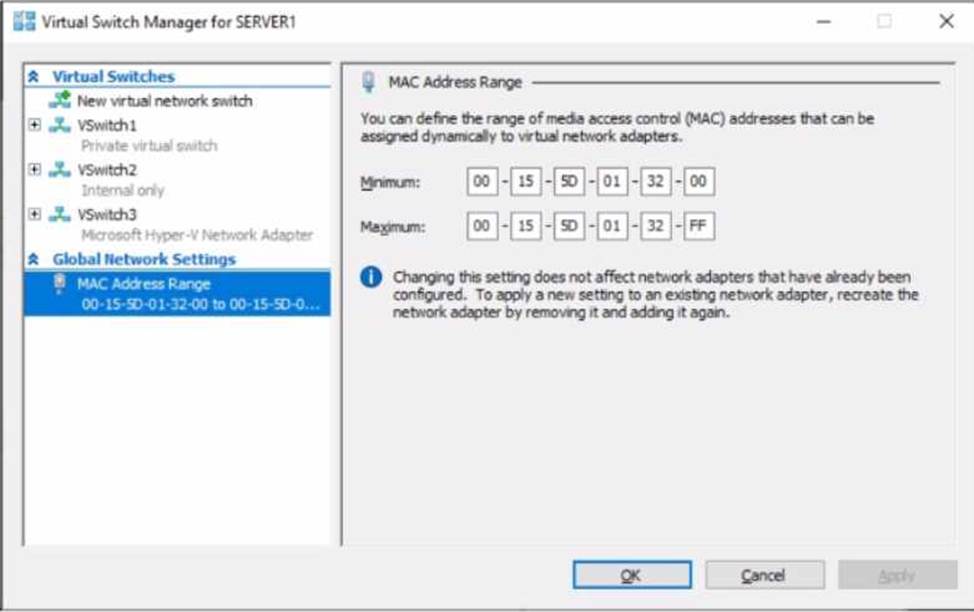
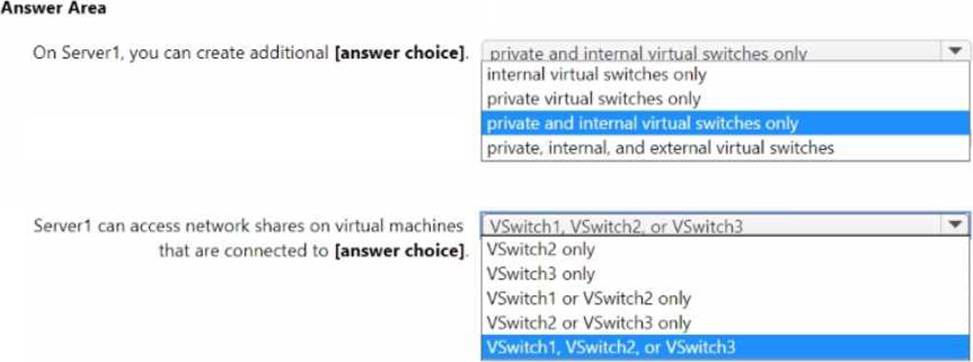
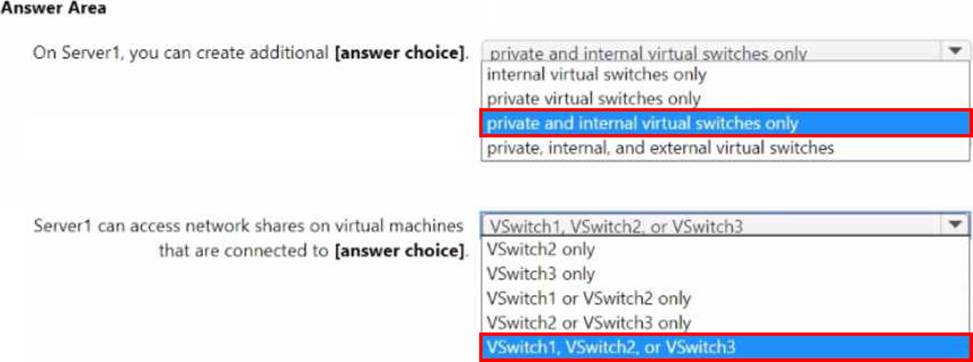
Use the drop-down menus to select the answer choice that completes each statement based on the information presented in the graphic. NOTE: Each correct selection is worth one point.
Explanation:
The Hyper-V networking section of the Administering Windows Server Hybrid Core Infrastructure material explains that Hyper-V provides three virtual switch types: External, Internal, and Private. It states: “An External switch is bound to a physical NIC and can optionally connect the management OS; an Internal switch connects VMs to each other and to the host only; a Private switch connects VMs to each other only (no host access).” The guide further clarifies limits on external switches: “A single physical adapter can be bound to only one External virtual switch at a time (unless using NIC Teaming). Additional External switches require additional physical adapters.”
In the exhibit, Server1 has a single NIC already bound to vSwitch3, and the tree shows ‘Microsoft Hyper-V Network Adapter’, indicating the management OS shares the adapter. Therefore, you cannot add another External switch with the lone NIC; you can still create Internal and Private switches.
Regarding host connectivity, the guide specifies: “The management OS can communicate with VMs attached to an Internal switch and to an External switch (when the management OS is connected). The host cannot communicate with VMs on a Private switch.” Consequently, Server1 can access network shares only from VMs on vSwitch2 (Internal) or vSwitch3 (External with management OS), but not from VMs on vSwitch1 (Private).
SIMULATION
Task 9
You need to ensure that all the computers in the domain use DNSSEC to resolve names in the adatum.com zone.
Step 1: Sign the adatum.com Zone First, you need to sign the adatum.com DNS zone. This can be done using the DNS Manager or PowerShell. Here’s a PowerShell example:
Add-DnsServerSigningKey -ZoneName "adatum.com" -CryptoAlgorithm RsaSha256
Set-DnsServerDnsSecZoneSetting -ZoneName "adatum.com" -DenialOfExistence NSEC3 – NSEC3Parameters 1,0,10,""
This will add a signing key and configure DNSSEC for the zone with NSEC3 parameters.
Step 2: Configure DNS Servers Ensure that your DNS servers are configured to support DNSSEC. This includes setting up trust anchors for the zones that you want to validate and configuring the DNS servers to provide DNSSEC validation for DNS queries.
Step 3: Configure DNS Clients For DNSSEC validation to occur on the client side, the client computers must be configured to trust the DNS server’s validation process. This typically involves configuring the client’s DNS settings to point to a DNS server that supports DNSSEC.
Step 4: Validate Configuration You can validate that DNSSEC is working correctly by using tools like nslookup or dig to query DNS records and check for the presence of DNSSEC signatures in the responses.
Note: The exact steps may vary depending on your environment and the version of Windows Server you are using. Ensure that you have the appropriate administrative rights to make these changes and that you test the configuration in a controlled environment before deploying it domain-wide12.
By following these steps, you should be able to ensure that all computers in your domain use DNSSEC to resolve names in the adatum.com zone.
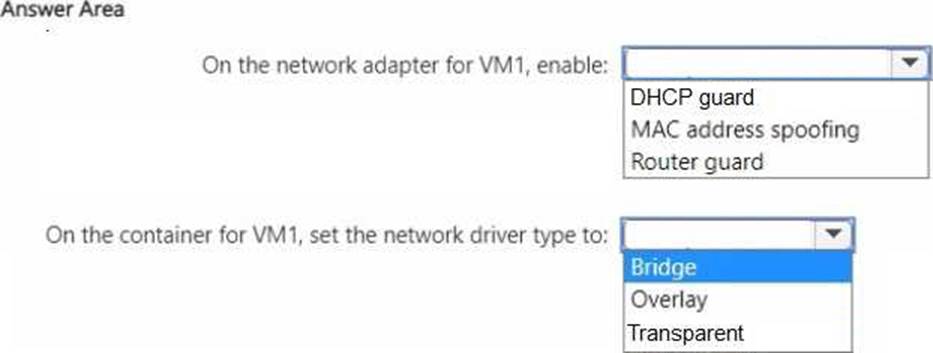
HOTSPOT
You have the servers shown in the following tab
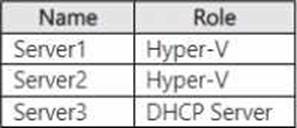
Served contains a virtual machine named VM1 that runs Windows Server. Server1 has an external switch named Switch"1. VM1 is connected to Switch1.
You provision containers on VM1.
You need to configure networking for VM1.
The solution must meet the following requirements:
• Ensure that Server3 automatically assigns IP addresses to the containers.
• Ensure that the containers can communicate with Server2.
What should you do? To answer, select the appropriate options in the answer area. NOTE: Each correct selection is worth one point.

HOTSPOT
You need to meet technical requirements for HyperV1.
Which command should you run? To answer, select the appropriate options in the answer area. NOTE: Each correct selection is worth one point.